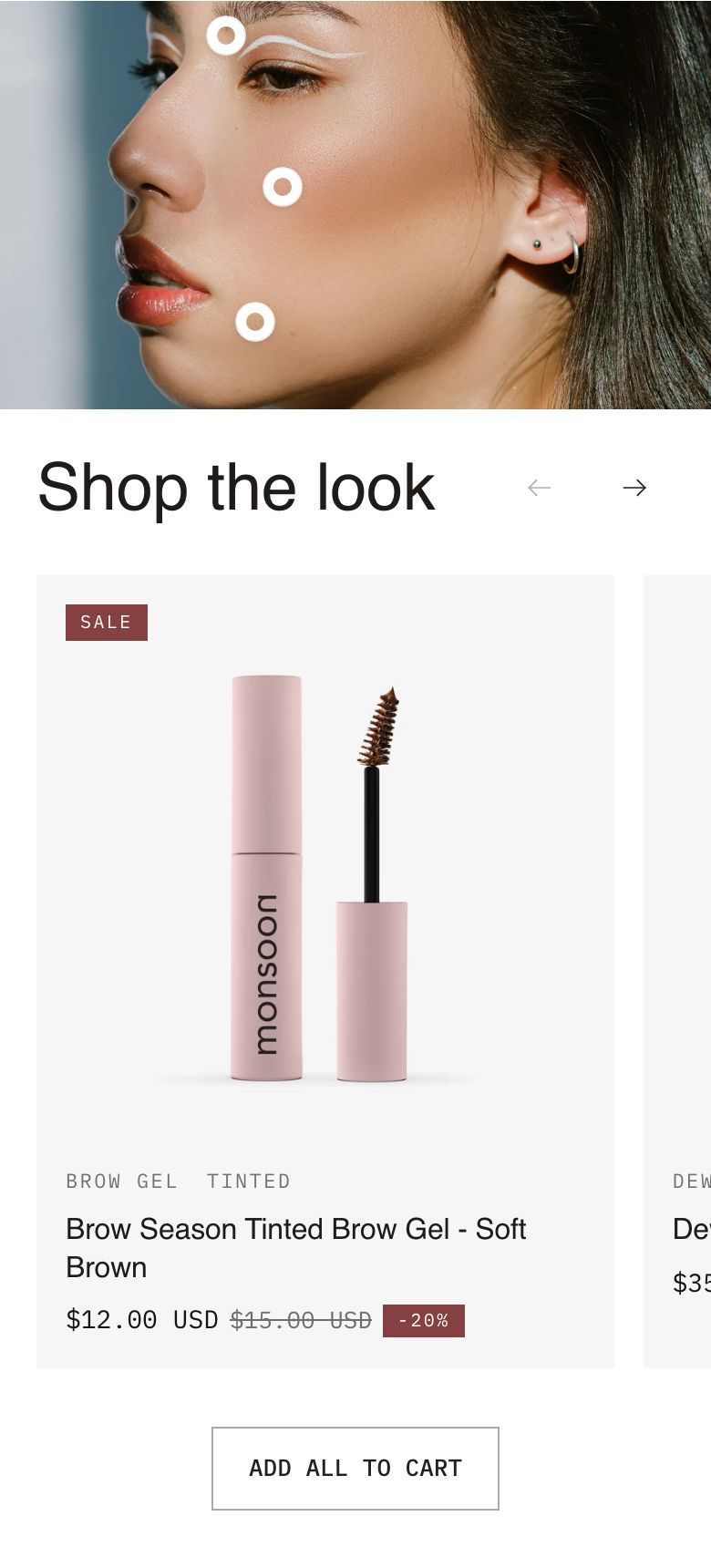
Shop the look
What is the Shop the look section?
The Shop the look section shows a large image next to a slider of product cards. Each product has a hotspot marker on the image, and clicking a marker scrolls the slider to that product. Use it to sell a complete outfit, a room setup or a routine, and let shoppers add every product to the cart with one button.
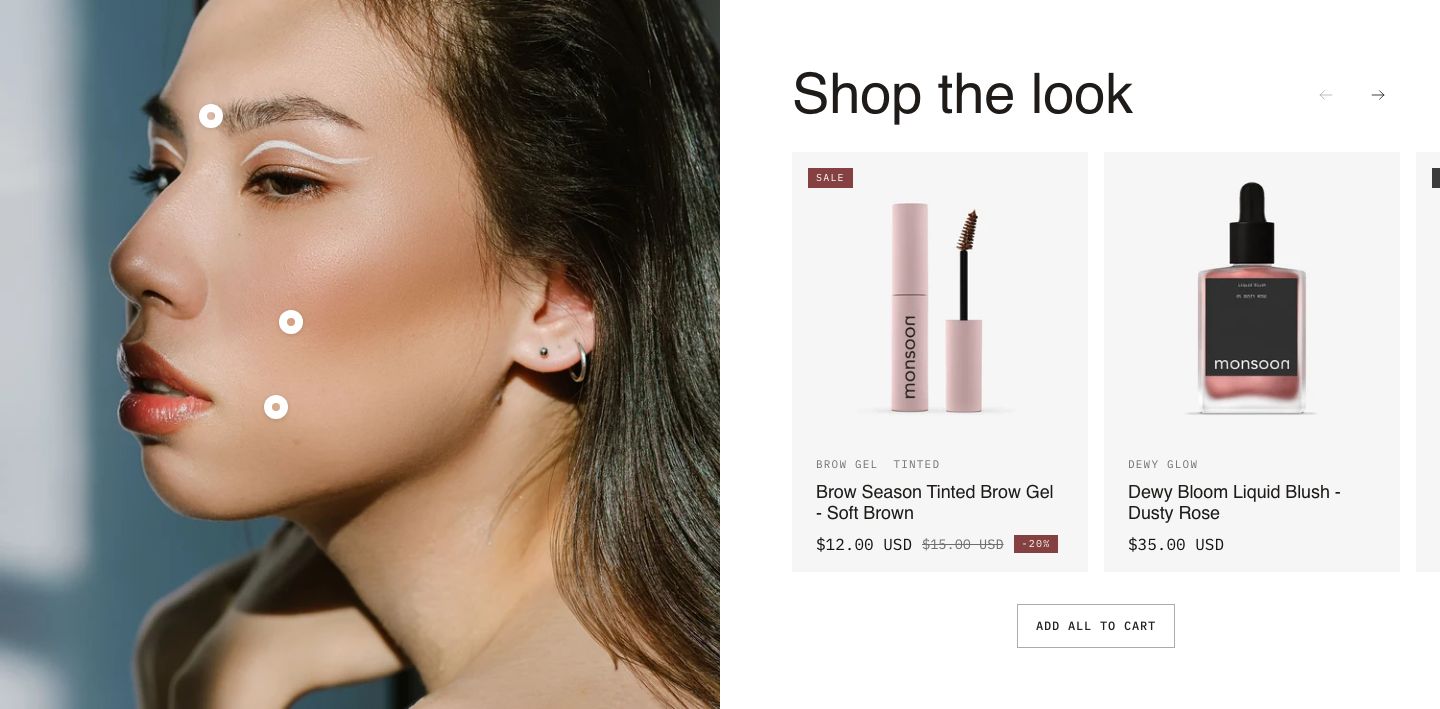
You will find it under Storytelling in the Add section menu. It starts with a heading next to the image and two products, each with a card showing the image, vendor, title, price and rating.
Section structure
When you expand the section in the theme editor sidebar, you will see:
- Header: A fixed heading area above the section. It is empty by default. Add a Heading block here if you want a title across the full width.
- Shop the look container: The image and the product slider next to it. The products (Look item blocks) and any text above the slider go inside it.
Besides the container, you can add theme blocks such as Text or Button directly to the section, above or below the image and slider.
See How sections and blocks work for more about fixed blocks and theme blocks.
Section settings
Colors
- Text color: Set the text color for the whole section.
- Background color: Set the background color of the section.
- Background gradient: Set a background gradient. A gradient overrides the background color.
Section spacing
- Distance top (desktop) and Distance bottom (desktop): Space above and below the section on desktop (0 to 100 px).
- Show custom mobile spacing: Enable this setting to use different spacing on mobile. When it is on, Distance top (mobile) and Distance bottom (mobile) appear.
Header block
Click the Header block to style the heading area above the section.
- Text alignment (desktop) and Text alignment (mobile): Align the heading (options: Left, Center, Right).
- Text container max width: Limit the width of the heading area (0 to 1600 px). Set it to 0 to use the default maximum width.
- Text color: Override the section text color for the heading area.
Shop the look container block
Click the Shop the look container block to set up the image, the layout and the slider.
- Layout: Choose which side the image is on (options: Image first, Text first). On mobile, the image always comes first.
- Image width (desktop): How much of the row the image takes up on desktop (30 to 70%).
- Column gap: Space between the image and the product column on desktop (0 to 100 px).
- Make section full width: Enable this setting to make the section span the full width of the screen.
Section height
- Height: How tall the image is (options: Adapt to media, Adapt to section, Fixed height). Adapt to media follows the image's own shape. Adapt to section stretches the image to the full height of the section on desktop, next to the products.
- Height (desktop) and Height (mobile): The fixed height (200 to 1000 px). Shown only when Fixed height is selected.
Desktop version
- Image: The lifestyle image the hotspots sit on.
Mobile version
- Show different media on mobile: Enable this setting to use a different image on mobile, for example a portrait crop. When it is on, Image appears for mobile. Check the hotspot positions on mobile after you change the image.
Slider
- Products per view (desktop): How many product cards are visible at once on desktop (1 to 3).
- Gap (desktop): Space between the cards on desktop (2 to 24 px).
- Products per view (mobile): How many cards are visible at once on mobile (1 to 2). Use a decimal such as 1.1 to let the next card peek in.
- Gap (mobile): Space between the cards on mobile (2 to 16 px).
- Arrow style: Where the slider arrows sit (options: Above the slider, Over the slider). Above the slider places them at the end of the heading row. Over the slider shows them on top of the cards, the same way as other sliders in the theme. The arrow look follows Theme settings → Sliders.
- Highlight card on hotspot click: Briefly lift the product card a hotspot points to, so shoppers can see which card belongs to the marker. The highlight shows when the card is already fully in view.
Add all to cart
- Button label: The text on a button below the slider that adds every product in the look to the cart at once. Leave it empty to hide the button.
- Button style: The look of the button (options: Primary, Secondary, Link). Shown only when the button has a label.
Add all to cart adds one of each product, using its first available variant, and skips any product that is sold out. For products with options such as size, shoppers who need a different variant should add that product from its card. If none of the products can be bought, the button is hidden. After adding, the cart drawer opens, or the cart page if your store does not use the cart drawer.
Content of the container
Click Add block under the Shop the look container to add products and text. Theme blocks such as Heading, Subheading, Text and Button stay above the slider, next to the image. Every Look item becomes one card in the slider, in the order of the blocks.
Look item block
Each Look item is one product in the look: a hotspot marker on the image and a card in the slider. There is no limit on how many you can add.
- Product: The product to show.
Desktop version
- Horizontal position and Vertical position: Where the marker sits on the image, measured from the left and from the top (0 to 95%).
Mobile version
- Horizontal position and Vertical position: The marker position on mobile (0 to 95%). Set them separately, because the image is often cropped differently on a phone.
Product card block
Every Look item contains a fixed Product card block that sets how the product looks in the slider. It starts with the image, vendor, title, price and rating, and you can add tags, swatches, a quick buy button and a Separator. Each look item has its own card, so you can style one product differently from the others. The card has the same settings as in other product sections, see the Product card block in Featured collection for the full list.
Mobile view example