Marquee images
What is the Marquee images section?
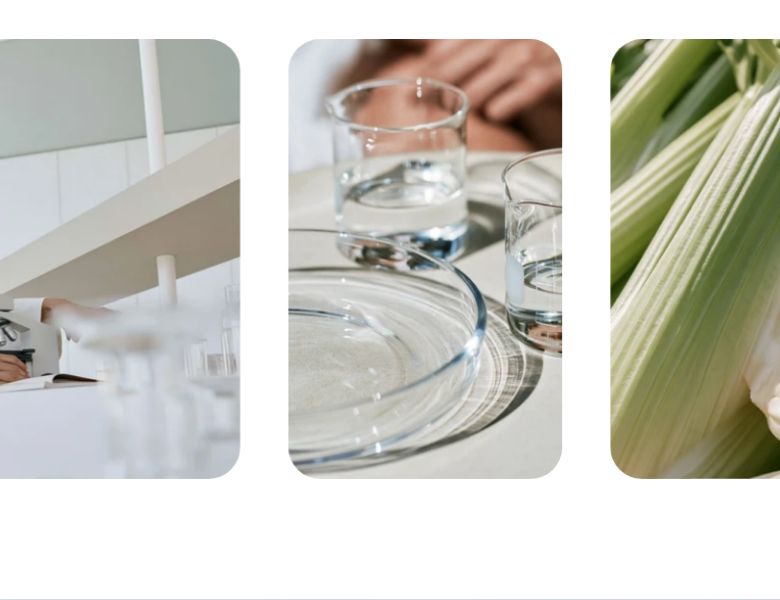
The Marquee images section shows a row of images that scrolls slowly and endlessly across the screen. Use it for lifestyle photos, a lookbook, customer photos or an Instagram style strip. The row always runs from one edge of the screen to the other.
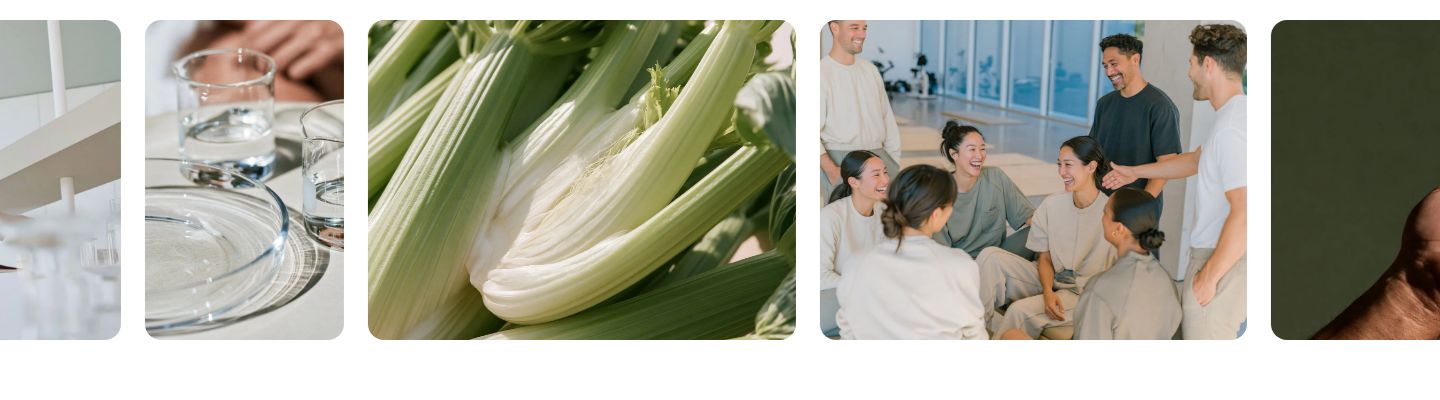
The section is found under Storytelling in the Add section menu. It starts with a heading and four images.
Section structure
When you expand the section in the theme editor sidebar, you will see two fixed blocks:
- Header: An optional heading area above the images. It contains a Heading block by default.
- Marquee images container: The moving row and its speed. You add, remove and reorder the Image blocks here.
See How sections and blocks work for more about fixed blocks.
Section settings
Colors
- Background color: Set the background color of the section.
- Background gradient: Set a background gradient. A gradient overrides the background color.
- Text color: Set the text color for the whole section.
Section spacing
- Distance top (desktop) and Distance bottom (desktop): Space above and below the section on desktop (0 to 100 px).
- Show custom mobile spacing: Enable this setting to use different spacing on mobile. When it is on, Distance top (mobile) and Distance bottom (mobile) appear.
Header block
Click the Header block to style the heading area above the images.
- Text alignment (desktop) and Text alignment (mobile): Align the heading (options: Left, Center, Right).
- Text container max width: Limit the width of the heading area. Set it to 0 to use the default maximum width.
- Text color: Override the section text color for the heading area.
Marquee images container block
Click the Marquee images container block to set up the moving row.
- Animation direction: Move the images to the left or to the right.
- Animation speed: How fast the images move (options: Slow, Normal, Fast).
Desktop version
- Image height: The height of every image on desktop (60 to 1000 px). The width follows each image's own proportions.
- Gap: The space between images (4 to 40 px).
Mobile version
- Image height: The height of every image on mobile (40 to 1000 px).
- Gap: The space between images on mobile (4 to 40 px).
The marquee pauses when a customer hovers over it or taps it. For visitors who have turned on reduced motion on their device, it does not move at all. Image corners follow the corner radius in your theme settings.
Image block
Each image in the row is an Image block.
- Image: Upload the image.
- Link: Optional. Makes the image clickable, for example to a product or collection.
- Open link as a new window: Open the link in a new browser tab.
Mobile view example