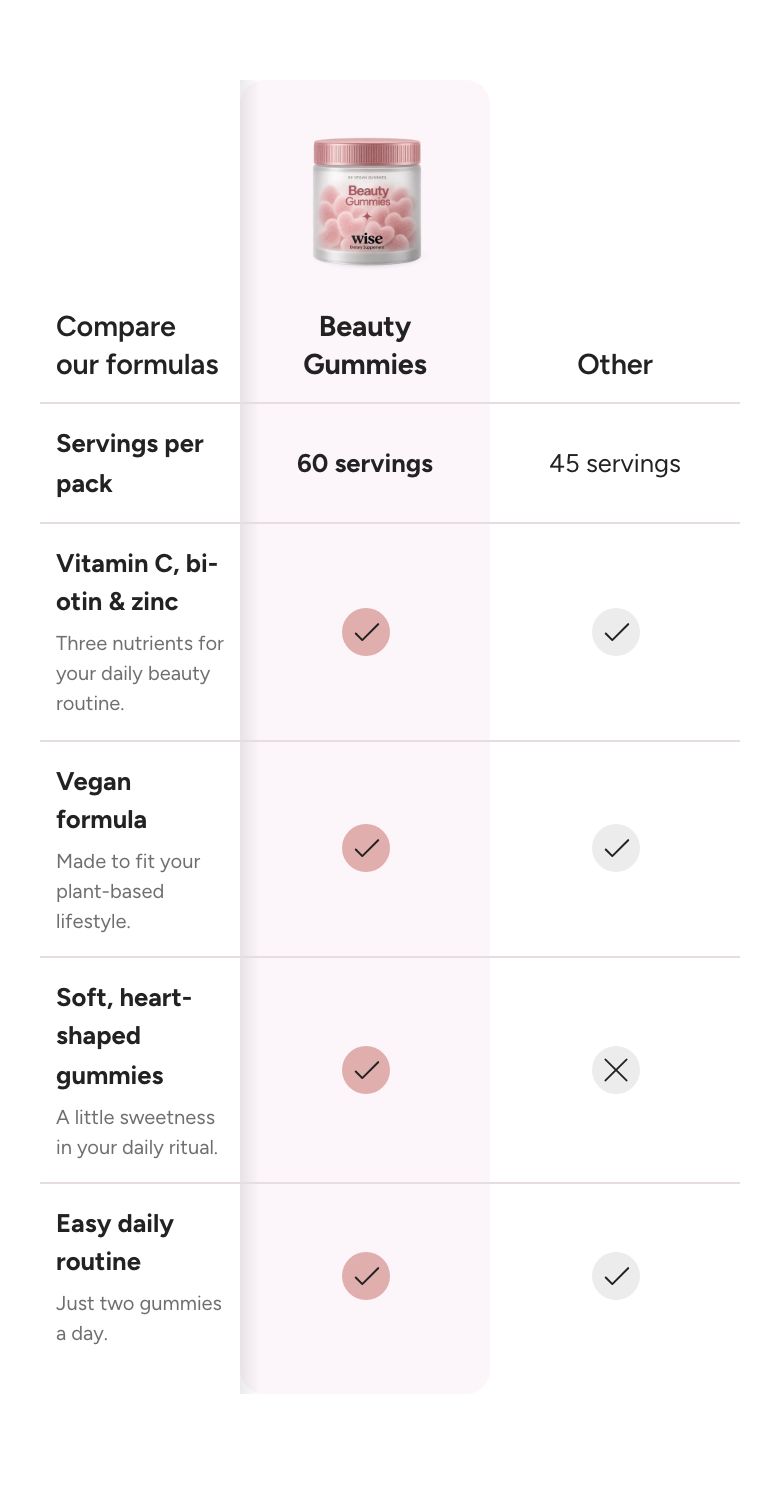
Comparison table
What is the Comparison table section?
The Comparison table section shows a table with up to five columns, one for each product or plan, and one row for each feature you compare. Cells can show text, a check or cross icon, or an image. Use it to compare product versions or to show why your product is better than a typical alternative.
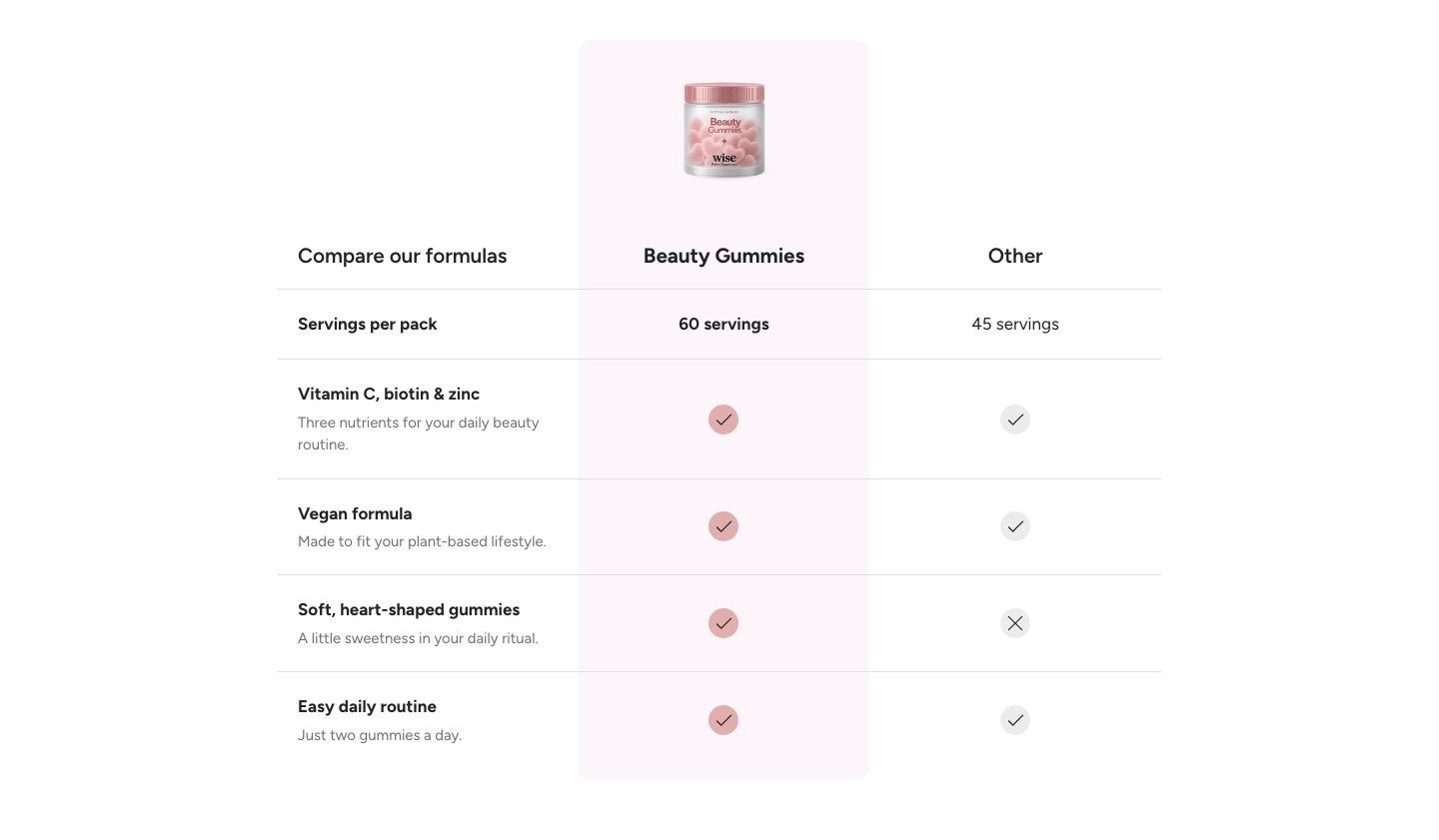
The section is available in two presets, both found under Storytelling in the Add section menu:
- Comparison table: Three columns (Pro, Plus, Essential) and six rows, with the first column highlighted as a light card.
- Us vs them: Two columns (Our product, Typical brand) and five rows with check and cross icons, with the first column highlighted as a dark card.
Both presets use the same settings, so you can turn one into the other by changing the number of columns and the colors.
Section structure
When you expand the section in the theme editor sidebar, you will see:
- Header: An optional heading area above the table. It is empty in both presets, because the table has its own Corner heading. You can add a Heading, Text or other theme block to it.
- Table row blocks: One block for each row of the table. Click Add block at the bottom of the section to add a row, and drag rows to reorder them.
The columns themselves (how many there are and their headings) are set in the section settings, so every row always has the same columns. The table is hidden until the section has at least one row.
See How sections and blocks work for more about fixed blocks.
Section settings
- Make section full width: Enable this setting to make the section span the full width of the screen.
- Set custom table width: Enable this setting to make the table narrower than the page on desktop. When it is on, Table width appears (40 to 100% of the content width).
- Column heading text style: Use the heading font or the body font for the column headings.
- Number of columns: How many product columns the table has (1 to 5). Settings for columns you do not use are hidden.
- Corner heading: Text in the top left cell, above the row titles, for example "Compare our formulas".
- Heading image position: How a column's Heading image is shown (options: Replace the text, Beside the text, Above the text).
- Bold row titles: Show the row titles in bold.
- Show dividers: Draw a line between rows.
Column 1 to Column 5
Each column has the same three settings:
- Product image: An optional image shown above the column heading, for example a packshot.
- Heading: The column title, for example the product or plan name.
- Heading image: A logo or picture for the heading. Depending on Heading image position, it replaces the heading text or sits beside or above it.
Column 1 is the highlighted column, so put your own product or recommended plan there.
Scale settings
- Show additional scale settings: Enable this setting to fine tune the size of each part of the table. Each of the groups below has a Desktop and a Mobile slider:
- Column heading scale: The size of the column headings (40 to 220%).
- Heading image scale: The size of the heading images (20 to 150%).
- Row title scale, Row description scale and Row text scale: The size of the row titles, the descriptions below them and the text in the cells (40 to 220%).
- Image scale: The size of images and icons in the cells (40 to 220%).
- Product image scale: The size of the product images above the headings (20 to 220%).
- Feature column width: The width of the first column with the row titles: 20 to 60% of the table on desktop, and 100 to 240 px on mobile.
On mobile, a table with several columns scrolls sideways. The row titles keep the Feature column width you set for mobile, so a smaller value leaves more room for the product columns.
Colors
- Text color: The text color of the section.
- Background color and Background gradient: The background of the section. A gradient overrides the background color.
- Table background color: Show the table on a card with this color.
- Row description color: The color of the small description below each row title.
- Divider color: The color of the lines between rows. Shown only when Show dividers is on.
Highlighted column (column 1)
The first column can stand out as a card that runs from the heading to the last row.
- Background color and Background gradient: The color of the highlight card. The card appears only when one of them is set. A gradient overrides the background color.
- Text color: The text color inside the highlighted column.
- Bold text: Show the text in the highlighted column in bold.
- Custom card radius: Enable this setting to set the corner radius of the card yourself. When it is on, Card radius appears (0 to 40 px). When it is off, the theme's corner radius is used.
- Card extends beyond the table: Let the card stick out above and below the table (0 to 40 px).
Icons
- Icon size (desktop) and Icon size (mobile): The size of the icons in the cells (16 to 64 px).
- Show icons in a circle: Place each icon in a colored circle. When it is on, Circle color and Circle color in the highlighted column appear.
Section spacing
- Distance top (desktop) and Distance bottom (desktop): Space above and below the section on desktop (0 to 100 px).
- Show custom mobile spacing: Enable this setting to use different spacing on mobile. When it is on, Distance top (mobile) and Distance bottom (mobile) appear.
Header block
Click the Header block to style the heading area above the table.
- Text alignment (desktop) and Text alignment (mobile): Align the heading (options: Left, Center, Right).
- Text container max width: Limit the width of the heading area. Set it to 0 to use the default maximum width.
- Text color: Override the section text color for the heading area.
Table row block
Each Table row block is one feature you compare.
- Title: The feature name, shown in the first column.
- Description: An optional short line below the title.
Column 1 to Column 5
For each column, choose what the cell shows. Only the columns set in Number of columns appear.
- Text: The text in the cell, for example "Yes" or "60 servings". Enter a single dash (-) to leave the cell empty.
- Icon: An icon from the theme's icon set, such as Check or Close. It is shown instead of the text. The text is still read out by screen readers, so keep it filled in.
- Image: Your own image. It is shown instead of the icon or the text.
Mobile view example