Grid view with reveal
What is the Grid view with reveal section?
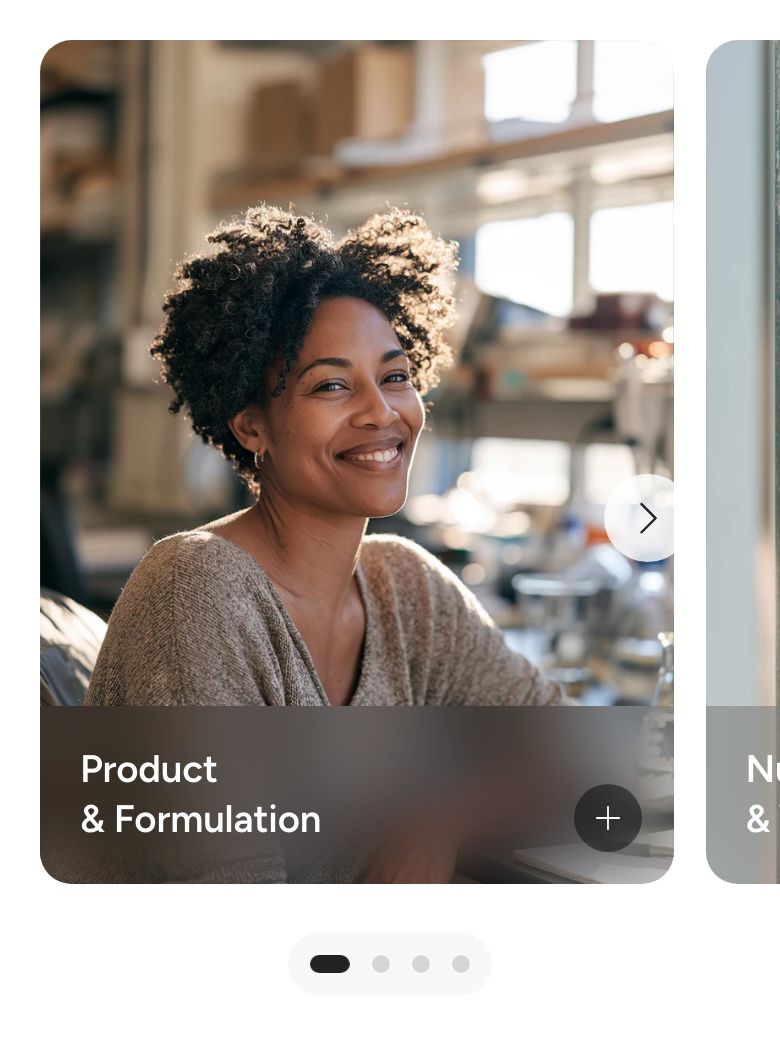
The Grid view with reveal section shows a row of image or video cards, each with a round button in the bottom corner. Clicking the button turns the card over in place to show its second side, with its own background and content. Use it for FAQs, product benefits, before and after stories or any short teaser that opens to a longer answer.
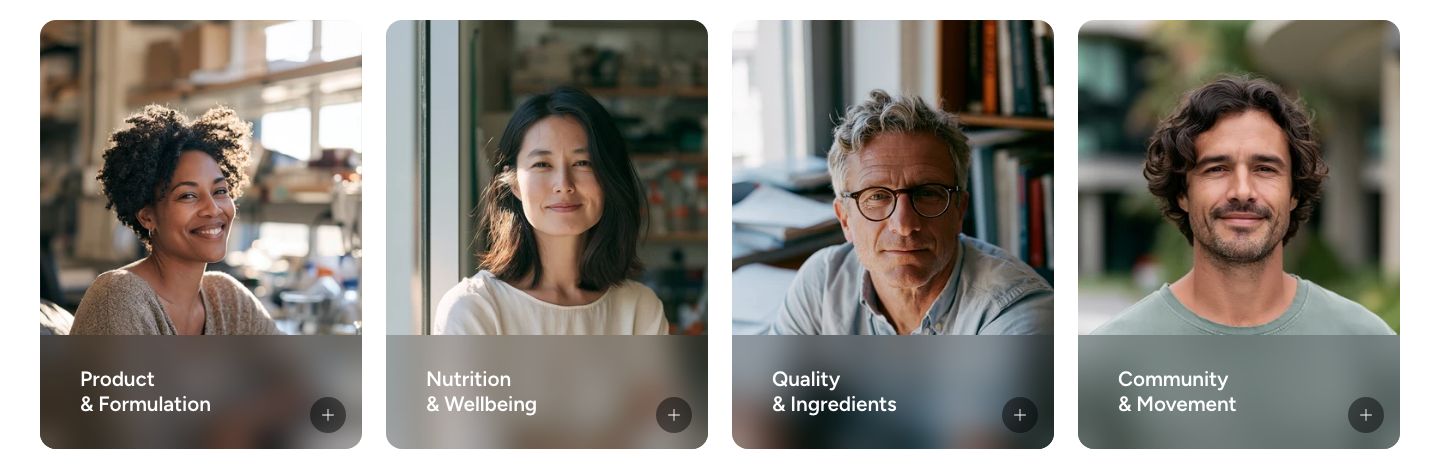
You will find it under Storytelling in the Add section menu. It starts with a heading and three cards. Each card shows a heading, and its revealed side has a heading, a text and a button.
This section is one of five grid sections with the same tile layout. Here, a click on the card's button reveals a second side in place. Grid view has plain tiles that can link to a page, Grid view with drawer opens a side drawer, Grid view with modal opens a centered pop-up, and Grid view with hover changes the tile when the mouse moves over it.
Section structure
When you expand the section in the theme editor sidebar, you will see two fixed blocks:
- Header: An optional heading area above the grid. It contains a Heading block by default.
- Grid: The grid itself. It controls the layout, and the cards (Tile blocks) go inside it.
Each Tile has its own fixed Reveal block, which holds the content of the second side.
See How sections and blocks work for more about fixed blocks and theme blocks.
Section settings
- Make section full width: Enable this setting to make the section span the full width of the screen. In full width, the cards touch each other: the gap between them is removed.
Colors
- Background color: Set the background color of the section.
- Background gradient: Set a background gradient. A gradient overrides the background color.
- Text color: Set the text color for the whole section.
Button
These settings style the round button on every card in the section.
- Background color: The background color of the button. Leave it empty to use the theme's button colors.
- Icon color: The color of the icon on the button.
- Open one card at a time: When a shopper opens a card, any other open card closes.
Section spacing
- Distance top (desktop) and Distance bottom (desktop): Space above and below the section on desktop (0 to 100 px).
- Show custom mobile spacing: Enable this setting to use different spacing on mobile. When it is on, Distance top (mobile) and Distance bottom (mobile) appear.
Header block
Click the Header block to style the heading area above the grid.
- Text alignment (desktop) and Text alignment (mobile): Align the heading (options: Left, Center, Right).
- Text container max width: Limit the width of the heading area (0 to 1600 px). Set it to 0 to use the default maximum width.
- Text color: Override the section text color for the heading area.
You can add any theme block to the Header, for example a Subheading or a Text block.
Grid block
Click the Grid block to set up the layout of the cards.
- Image ratio: The shape of every card (options: Adapt to image, Portrait, Square, Landscape, Custom).
- Custom ratio width and Custom ratio height: Set your own ratio, for example 3 and 2 for a 3:2 card (1 to 16). Shown only when Image ratio is Custom.
Desktop version
- Layout: Show the cards as a grid or as a slider (options: Grid, Slider).
- Items per row: How many cards fit in one row (2 to 6).
- Items alignment: Align the cards of a row that is not full (options: Left, Center). Shown only for the Grid layout.
- Gap: Space between the cards (0 to 24 px). Hidden when the section is full width.
Mobile version
- Layout: Show the cards as a grid or as a slider (options: Grid, Slider).
- Items per row: How many cards fit in one row (1 to 2). Use a decimal such as 1.1 to let the next card peek in from the side of a slider.
- Items alignment and Gap: The same as on desktop (gap 0 to 16 px).
Slider behavior
- Enable loop: Let the slider start again from the first card after the last one. Shown only when a layout is set to Slider.
Pagination
These settings appear when a layout is set to Slider.
- Custom dots: Enable this setting to set the colors of the slider dots for this section. When it is off, the dots use Theme settings → Sliders.
- Dot background color, Dot background blur, Active dot color and Inactive dot color: Style the dots (blur 0 to 20 px). Shown only when Custom dots is on.
Tile block
Each Tile is the front side of one card. Click Add block under the Grid to add more cards, and drag them to change the order.
- Text container max width: Limit the width of the text on the card (0 to 800 px). Set it to 0 to use the default maximum width.
Desktop version
- Media type: Show an image or a video (options: Image, Video).
- Image or Video: Upload the image, or select a video uploaded to Shopify.
- Text vertical position: Place the text at the top, center or bottom of the card. Space between puts the first block at the top and the last block at the bottom.
- Text alignment: Align the text left, center or right.
Mobile version
- Show different media on mobile: Enable this setting to use a different image or video on mobile. When it is on, Media type, Image and Video appear for mobile.
- Text vertical position and Text alignment: Position and align the text on mobile.
Video behavior
These settings appear when the media type is set to Video.
- Autoplay: Start the video automatically, muted.
- Custom play/pause button and Custom mute/unmute button: Show the theme's own buttons on top of the video. They move to the top edge of the card so they stay clear of the reveal button.
Optimization
- Optimize loading if this is the first section on the page: Load the image right away instead of when it scrolls into view. Turn it on for cards that are visible as soon as the page opens.
Colors
- Text color: Override the text color on the front of the card.
- Background color: A color layer over the image or video. Use a semi-transparent color to darken the media so the text is easier to read.
Text background
- Enable text background: Show a box behind the text, for example a blurred bar behind the card title.
- Text background color and Text background blur: The color of the box and how much the image behind it is blurred (0 to 40 px). The blur shows only when the color has some transparency.
Click Add block under a Tile to add the text shown on the front of the card. You can use any theme block, such as Heading or Text.
Reveal block
Every card has a fixed Reveal block. It draws the round button in the bottom corner of the card, and holds the second side that the button reveals. A second click on the button turns the card back.
Revealed side
- Background image: An image that fills the revealed side.
- Background color: The background of the revealed side. When a background image is set, the color tints it.
- Background blur: Blur the background (0 to 40 px). With a background image, the image itself is blurred. Without one, the front of the card shows through blurred, as long as the background color has some transparency.
- Text color: The text color on the revealed side.
- Content alignment: Align the content left, center or right.
- Text vertical position: Place the content at the top, center or bottom of the card.
Click Add block under Reveal to build the second side. You can use any theme block, such as Heading, Text and Button.
Mobile view example