Parallax section
What is the Parallax section?
The Parallax section fills the screen with a heading, text and button, optionally on top of a background image or video. As customers scroll, the heading stays in place and a series of images floats up over it, each slightly tilted. Use it for a striking campaign or brand story moment.
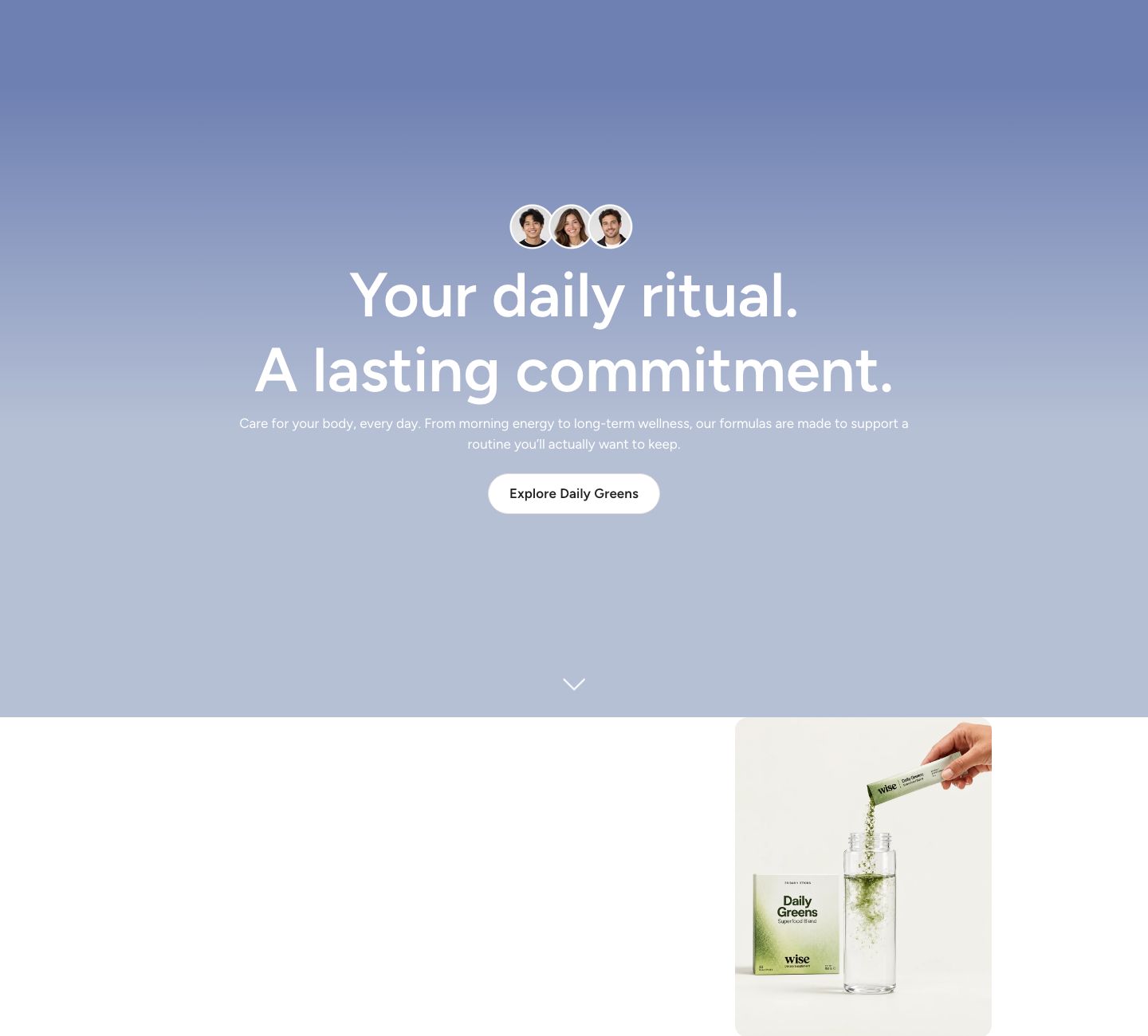
The section is found under Storytelling in the Add section menu. It starts with a heading, text and button, and two floating images.
Section structure
When you expand the section in the theme editor sidebar, you will see two fixed blocks:
- Header: The heading area in the middle of the screen. It contains a Heading, a Text and a Button block by default.
- Parallax gallery: The images that float up over the heading. You add, remove and reorder the Image blocks here.
A small bouncing arrow at the bottom of the screen tells customers to scroll.
See How sections and blocks work for more about fixed blocks.
Section settings
Desktop version
- Media type: Show a background image or video behind the heading, or None for a plain background.
- Image or Video: Upload the image, or select a video uploaded to Shopify. Shown only when the matching media type is selected.
Mobile version
These settings appear when a background media type is selected.
- Show different media on mobile: Enable this setting to use a different image or video on mobile. When it is off, the desktop media is used on all devices.
- Media type, Image and Video: The mobile media. Shown only when the setting above is on.
Video behavior
These settings appear when the background is a video.
- Autoplay: Start the video automatically, muted.
- Show default video controls: Show the browser's standard video controls.
Optimization
- Optimize loading if this is the first section on the page: Load the background right away instead of when it scrolls into view, which makes the page appear faster. This happens automatically when the section is the first one on the page, so you only need it when the section sits near the top below another small section. Shown only when a background media type is selected.
Colors
- Background color: Set the background color of the section.
- Background gradient: Set a background gradient. A gradient overrides the background color.
- Text color: Set the text color for the whole section.
Section spacing
- Distance top (desktop) and Distance bottom (desktop): Space above and below the section on desktop (0 to 100 px).
- Show custom mobile spacing: Enable this setting to use different spacing on mobile. When it is on, Distance top (mobile) and Distance bottom (mobile) appear.
Header block
Click the Header block to style the heading area.
- Text alignment (desktop) and Text alignment (mobile): Align the content (options: Left, Center, Right).
- Text container max width: Limit the width of the heading area. Set it to 0 to use the default maximum width.
- Text color: Override the section text color for the heading area.
You can add any theme block to the Header, for example a Subheading above the heading.
Parallax gallery block
Click the Parallax gallery block to set up how the images move.
- Rotation: How much the images tilt as they move (0 to 30 degrees). Set it to 0 to turn the rotation off.
- Gap (desktop) and Gap (mobile): The space between two images, as a share of the screen height (10 to 100%). At 50%, half a screen of scrolling passes between two images.
The more images and the larger the gap, the longer the section is to scroll through. Three to five images usually feel right.
Image block
Each floating image is an Image block inside the Parallax gallery.
- Image: Upload the image. While it is empty, a placeholder is shown.
- Link: Optional. Makes the image clickable.
- Open link as a new window: Open the link in a new browser tab.
- Position: Where the image sits across the screen (0 to 100%). 0% is flush left, 100% is flush right. Alternate the positions of your images, for example 10%, 80% and 40%, for a natural look.
- Image scale (desktop) and Image scale (mobile): Make the image smaller or larger (50 to 150%).
Mobile view example