Quiz
What is the Quiz section?
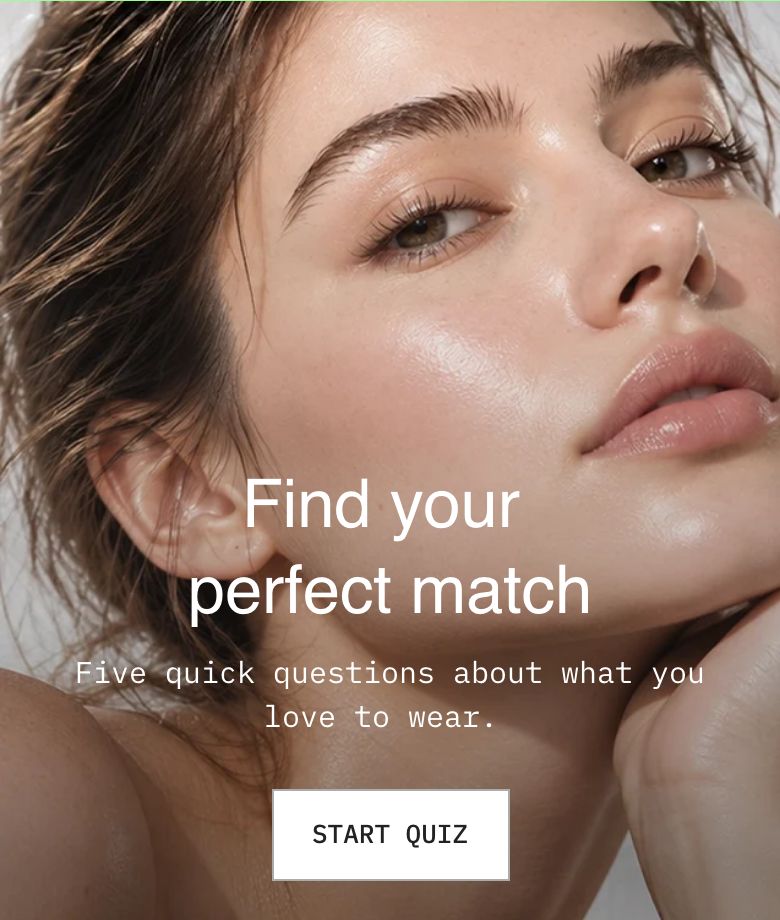
The Quiz section is a step by step product finder. The customer answers a few questions, one slide at a time, and at the end sees the product or collection that fits them best. Use it to help shoppers choose between similar products, for example the right skincare routine, coffee roast or running shoe.
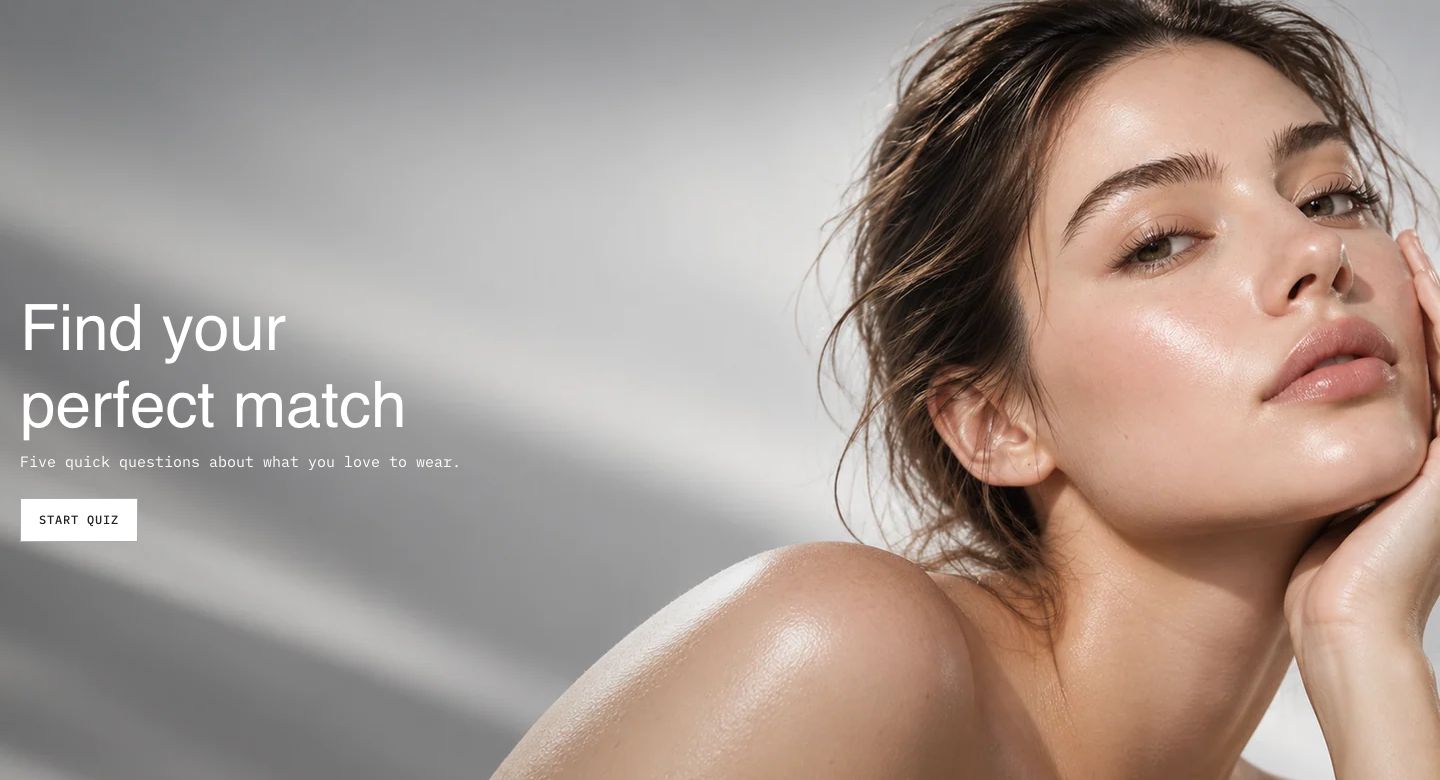
You will find it under Storytelling in the Add section menu. It starts with a heading, an intro banner, one question with three answers and a results slide with one result.
Setting up a quiz page
Wise comes with a ready-made quiz page template that holds a complete example quiz: an intro banner, three questions and three results. To use it:
- In your Shopify admin, go to Online Store → Pages and create a page, for example "Find your product".
- Under Theme template, choose quiz and save the page.
- Open the page in the theme editor and edit the Quiz section: change the questions and answers, then pick a product or a collection for each result.
The standard page content section is turned off in this template, so the page shows only the quiz. You can also add the Quiz section to any other page.
How the quiz works
The quiz is built from slides. Each slide is a block, and the customer sees them one after another in the order of the blocks in the sidebar:
- Intro (optional): a welcome slide with a button that starts the quiz.
- Questions: one slide per question, each with its answers.
- Newsletter (optional): asks for the customer's email before the result.
- Results: shows the winning result.
Results are matched with tags, simple words that you choose yourself:
- On every Answer, enter one or more tags in Tags, separated by commas, for example
dry, sensitive. - On every Result, enter the one tag it stands for in Tag, for example
dry, and pick the product or collection to recommend. - Each answer the customer picks adds a point to each of its tags. When the quiz ends, the tag with the most points wins, and the result with that tag is shown. If two tags have the same number of points, the one that comes first in alphabetical order wins.
For example, in the template every answer carries one of the tags hydrate, clarify or soothe, and there is one result for each of these tags. A customer who picks two "hydrate" answers and one "soothe" answer sees the Hydration result.
If no result has the winning tag, the results slide shows the No result heading and No result text instead. The customer can always start again with the retake button. Their answers are saved in their browser, so a customer who finished the quiz and comes back later sees their result right away.
Separate several tags with commas. Tags are not case sensitive and spaces around them are ignored, but use exactly the same spelling on answers and results. Every answer tag should have a matching result, or customers who mostly pick those answers will see the no result message.
Section structure
When you expand the section in the theme editor sidebar, you will see:
- Header: A fixed heading area above the quiz. It contains a Heading block by default. It is hidden while an intro slide shows when Show section behind header is on.
- The quiz slides: Intro, banner or Intro, image with text, Question, Newsletter and Results blocks. Click Add block under the section to add more slides, and drag them to change the order.
See How sections and blocks work for more about fixed blocks and theme blocks.
Section settings
- Make section full width: Enable this setting to make the section span the full width of the screen.
- Show section behind header: Show the section behind a transparent header. This works only when the section is the first one on the page, right after the header, on a page type ticked in the header's Transparent header settings. While the intro slide shows, the section has no top spacing and its heading is hidden, so the banner sits right under the header. From the first question on, the content starts below the header.
Colors
- Text color: Set the text color for the whole section.
- Background color: Set the background color of the section.
- Background gradient: Set a background gradient. A gradient overrides the background color.
Progress bar
- Show progress bar: Show a bar above each question with the customer's progress through the questions.
Navigation
- Advance automatically: Move to the next question as soon as the customer picks an answer. The Next and Previous buttons are then hidden. A question with Multiple answer selection still shows a Next button, so the customer can confirm the choice.
- Next button style and Previous button style: The look of the navigation buttons on the question slides (options: Primary, Secondary, Link).
Section spacing
- Distance top (desktop) and Distance bottom (desktop): Space above and below the section on desktop (0 to 100 px).
- Show custom mobile spacing: Enable this setting to use different spacing on mobile. When it is on, Distance top (mobile) and Distance bottom (mobile) appear.
Header block
Click the Header block to style the heading area above the quiz.
- Text alignment (desktop) and Text alignment (mobile): Align the heading (options: Left, Center, Right).
- Text container max width: Limit the width of the heading area (0 to 1600 px). Set it to 0 to use the default maximum width.
- Text color: Override the section text color for the heading area.
Intro slides
An intro slide welcomes the customer before the first question. There are two styles, and you need only one of them. Any button you add to an intro slide starts the quiz: it moves to the next slide instead of opening its link.
Intro, banner block
A full banner with an image or a video and text on top. It contains a fixed Banner content block with a heading, a text and a button. Banner content has the same settings as the content of the Image banner section:
- Text container max width and Align content with page width: The width of the text area. The second setting is shown only when the section is full width.
- Height: Adapt to media or Fixed height, with Height (desktop) and Height (mobile) (200 to 1000 px).
- Desktop version and Mobile version: The image or video, and the position and alignment of the text. Turn on Show different media on mobile to use other media on mobile.
- Show content below media on mobile: Place the text under the image on mobile, with its own Background color and Text color.
- Video URL and Video behavior: A YouTube or Vimeo link, autoplay and the video buttons.
- Optimize loading if this is the first section on the page: Load the image right away.
- Text color and Content background color: Colors of the text and of a box behind it.
You can add theme blocks such as Heading, Text and Button, and a Countdown timer.
Intro, image with text block
An image or a video next to a column of text. It contains a fixed Image with text container block with a heading, a text and a button. Its settings work the same way as in the Image with text section.
Question block
Each Question block is one slide with one question. Add one block per question. The answers are Answer blocks inside it.
Text
- Heading: The question, for example "What does your skin need most?".
- Text: An optional line of explanation below the question.
- Heading scale (desktop), Heading scale (mobile), Text scale (desktop) and Text scale (mobile): Make the heading and text smaller or larger (50 to 300%).
Answer
- Answer selection: Single lets the customer pick one answer. Multiple lets them pick several ("select all that apply"), and every picked answer adds its tags to the score.
- Answers per row (desktop) and Answers per row (mobile): Show the answers in columns (1 to 4 on desktop, 1 to 3 on mobile).
- Title scale (desktop), Title scale (mobile), Description scale (desktop) and Description scale (mobile): Make the answer title and description smaller or larger (50 to 300%).
Icon
- Image or Icon: An image or an icon from the theme's icon set shown with the question. Icon is shown only when no image is uploaded.
- Answer icon position: Show each answer's icon above its text or to the left of it (options: Top, Left).
- Icon height (desktop) and Icon height (mobile): The size of the question's icon (16 to 120 px on desktop, 16 to 80 px on mobile).
Colors
- Background color and Text color: Colors of this question slide.
Answer block
Click Add block under a Question to add answers.
Icon
- Icon: An icon from the theme's icon set shown on the answer.
- Image: Or upload your own image.
- Full width image: Let the image fill the whole width of the answer, with the height following the image. Shown only when an image is uploaded.
- Icon advanced settings: Enable this setting to set the icon height (10 to 200 px on desktop, 10 to 160 px on mobile) and top margin (0 to 16 px) yourself. The height is not used with Full width image.
Text
- Heading: The answer, for example "More hydration".
- Description: An optional short line below the answer.
- Tags: The tags this answer adds to the score, separated by commas, for example
dry, sensitive. Match them to the Tag of a result. See How the quiz works.
Newsletter block
An optional slide that asks for the customer's email between the last question and the result. Place it after the questions and before the Results block. The email is added to your Shopify customers with the tag newsletter, and the quiz moves on to the result. The customer can also skip this step.
- Heading and Text: The title and message of the slide.
- Subscribe button label: The text on the submit button.
- Skip button label: The text of the link that skips the step.
Results block
The Results block is the last slide. It holds one Result block per possible outcome and shows only the winning one.
- Heading: The title above the result, for example "Your result".
- No result heading and No result text: Shown instead of a result when no result matches the winning tag.
- Retake button label: The text on the button that starts the quiz again.
- Button style: The look of the retake button (options: Primary, Secondary, Link).
- Skip to the matching result page: Send the customer straight to the product or collection page of the winning result when they finish the quiz, instead of showing this slide. In the theme editor the slide is always shown, so you can still edit it.
Text
- Heading scale (desktop), Heading scale (mobile), Text scale (desktop) and Text scale (mobile): Make the heading and text smaller or larger (50 to 300%).
Icon
- Image or Icon: An image or an icon shown above the heading. Icon is shown only when no image is uploaded.
- Icon height (desktop) and Icon height (mobile): The size of the icon (16 to 120 px on desktop, 16 to 80 px on mobile).
Colors
- Background color and Text color: Colors of the results slide.
Result block
Each Result is one possible outcome. Click Add block under Results to add one for every tag you use on your answers.
- Tag: The answer tag this result stands for. The result whose tag scored highest is shown.
Recommended product
- Product: The product to recommend.
- Collection: Or pick a collection to recommend several products. Its products are shown in a slider. If you pick both, the product is used. Until you pick either, a placeholder card is shown.
- Maximum products: How many products of the collection to show (2 to 12). Shown only for a collection.
Icon
- Image or Icon: An image or an icon shown with the result. Icon is shown only when no image is uploaded.
Text
- Heading: The name of the result, for example "Hydration".
- Description: Explain why this result fits the customer.
- Badges: Short labels shown as pills, one per line, for example "Vegan" or "For dry skin".
Desktop version and Mobile version
These settings are shown only when the result uses a collection.
- Columns (desktop) and Columns (mobile): How many product cards are visible in the slider (1 to 5 on desktop, 1 to 3 on mobile). Use a decimal on mobile, such as 1.5, to let the next card peek in.
- Spacing (desktop) and Spacing (mobile): Space between the cards (0 to 40 px).
Colors
- Background color and Text color: Colors of the result's description area.
- Badge color: The color of the badges.
Product card block
Every Result contains a fixed Product card block that sets how the recommended product looks. It starts with the image, title and price, and you can add the vendor, tags, rating, swatches, a quick buy button and a Separator. The card has the same settings as in other product sections, see the Product card block in Featured collection for the full list.
Mobile view example