Multicolumn
What is the Multicolumn section?
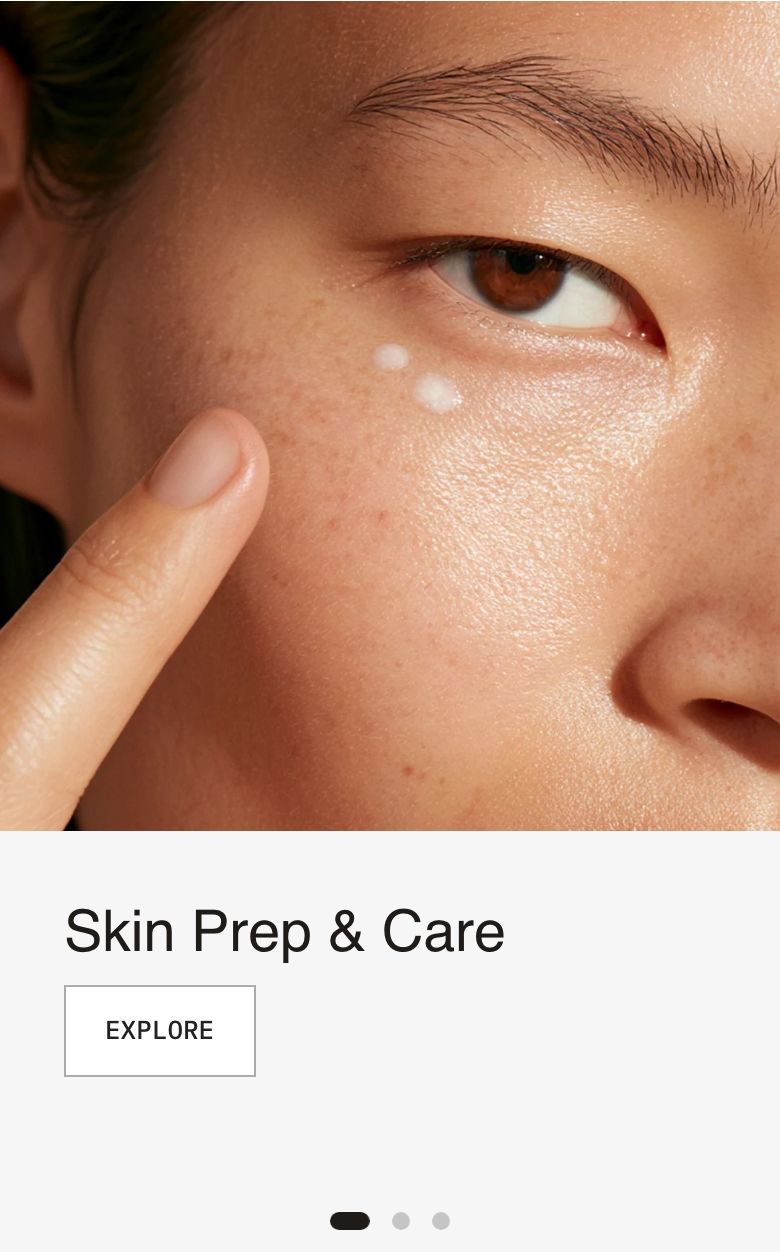
The Multicolumn section shows a row of columns, each with an image or video and content below it. Use it to present categories, product features, team members or the steps of a process. The columns can sit in a grid or in a slider that customers swipe through.
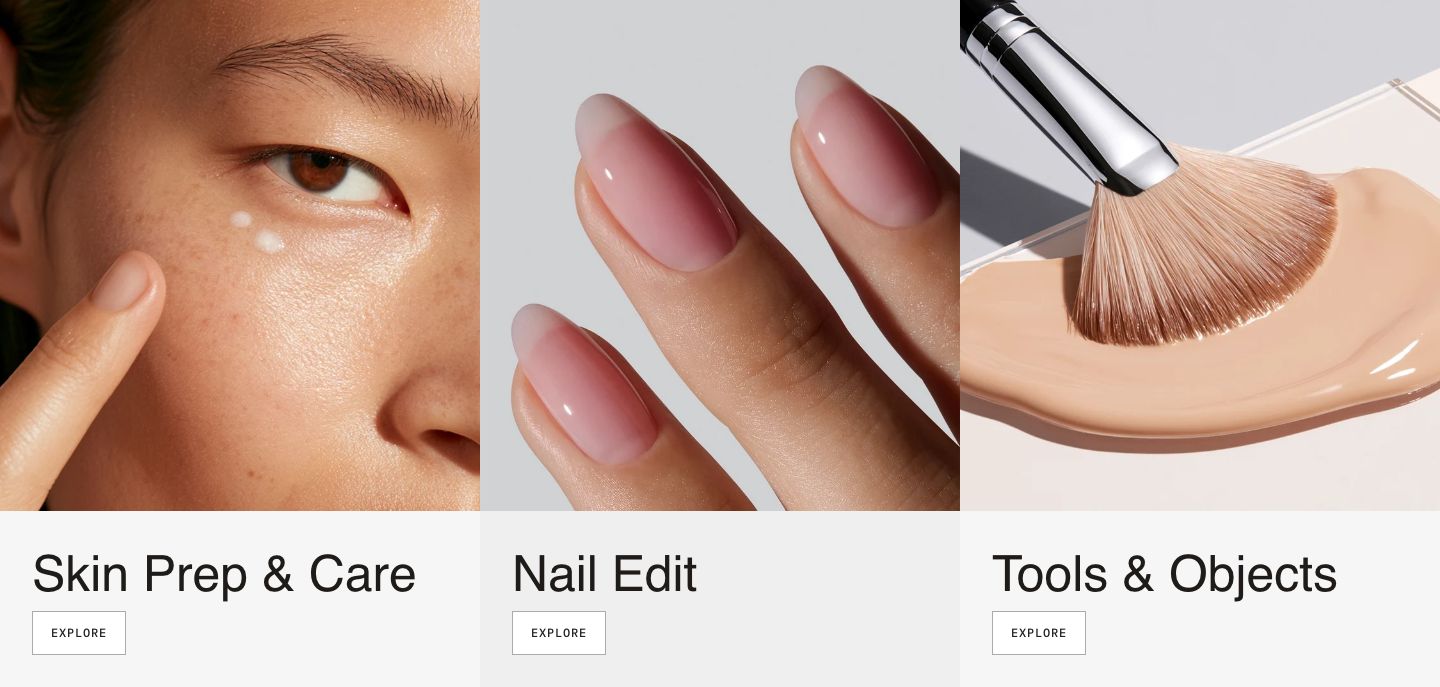
The section is found under Storytelling in the Add section menu. It starts with a heading and four columns, each with a heading, text and button.
Section structure
When you expand the section in the theme editor sidebar, you will see two fixed blocks:
- Header: An optional heading area above the columns. It contains a Heading block by default.
- Multicolumn container: The layout of the columns. You add, remove and reorder the Multicolumn item blocks here.
See How sections and blocks work for more about fixed blocks.
Section settings
- Make section full width: Enable this setting to make the section span the full width of the screen. In full width, the columns touch each other with no gap.
Colors
- Background color: Set the background color of the section.
- Background gradient: Set a background gradient. A gradient overrides the background color.
- Text color: Set the text color for the whole section.
Section spacing
- Distance top (desktop) and Distance bottom (desktop): Space above and below the section on desktop (0 to 100 px).
- Show custom mobile spacing: Enable this setting to use different spacing on mobile. When it is on, Distance top (mobile) and Distance bottom (mobile) appear.
Header block
Click the Header block to style the heading area above the columns.
- Text alignment (desktop) and Text alignment (mobile): Align the heading (options: Left, Center, Right).
- Text container max width: Limit the width of the heading area. Set it to 0 to use the default maximum width.
- Text color: Override the section text color for the heading area.
Multicolumn container block
Click the Multicolumn container block to set up the layout.
- Image ratio: The shape of every image (options: Adapt to image, Portrait, Square, Landscape, Custom). Adapt to image follows each image's own proportions.
- Custom ratio width and Custom ratio height: Your own ratio, for example 3 and 2 for a 3:2 image (1 to 16). Shown only when Custom is selected.
Desktop version
- Layout: Show the columns in a grid or in a slider. The slider only starts when there are more columns than Items per row.
- Items per row: How many columns fit in one row (2 to 5).
- Items alignment: Align the columns left or center when a row is not full. Shown only for the Grid layout.
- Gap: The space between columns (0 to 24 px). Hidden when the section is set to full width.
Mobile version
- Layout: Show the columns in a grid or in a slider.
- Items per row: How many columns are visible on mobile (1 to 2, in steps of 0.1). A value such as 1.1 shows part of the next column, which hints that the row can be swiped.
- Items alignment: Align the columns left or center. Shown only for the Grid layout.
- Gap: The space between columns on mobile (0 to 16 px). Hidden when the section is set to full width.
Slider behavior
- Enable loop: Let the slider start again from the first column after the last one. Shown only when one of the layouts is set to Slider.
Pagination
These settings appear when one of the layouts is set to Slider. By default, the dots use the style set in Theme settings > Sliders.
- Custom dots: Enable this setting to style the dots for this section only. When it is on, the settings below appear.
- Dot background color and Dot background blur: A background behind the dots, and how much it blurs what is behind it (0 to 20 px).
- Active dot color and Inactive dot color: The color of the current dot and of the other dots.
Multicolumn item block
Each column is a Multicolumn item block.
Desktop version
- Media type: Show an image or a video.
- Image or Video: Upload the image, or select a video uploaded to Shopify. While it is empty, a placeholder is shown.
- Text alignment: Align the content below the media left, center or right.
Mobile version
- Show different media on mobile: Enable this setting to use a different image or video on mobile. When it is off, the desktop media is used on all devices.
- Media type, Image and Video: The mobile media. Shown only when the setting above is on.
- Text alignment: Align the content on mobile.
Video behavior
These settings appear when the media type is set to Video.
- Autoplay: Start the video automatically, muted.
- Show default video controls: Show the browser's standard video controls.
- Custom play/pause button and Custom mute/unmute button: Show the theme's own buttons on top of the video. Available only when the default controls are off.
The custom play/pause and mute/unmute buttons only work with a video uploaded to Shopify.
Optimization
- Optimize loading if this is the first section on the page: Load the media right away instead of when it scrolls into view. Turn it on for the columns that are visible as soon as the page opens, when the section is at the top of the page.
Colors
- Background color: Show the column on a card with this color. The media then fills the top of the card.
- Text color: Override the text color of the column.
Content of a column
Click Add block under a Multicolumn item to add content below the media. You can use any theme block, such as Subheading, Heading, Text, Button or Icon with text.
Mobile view example