Before and after
What is the Before and after section?
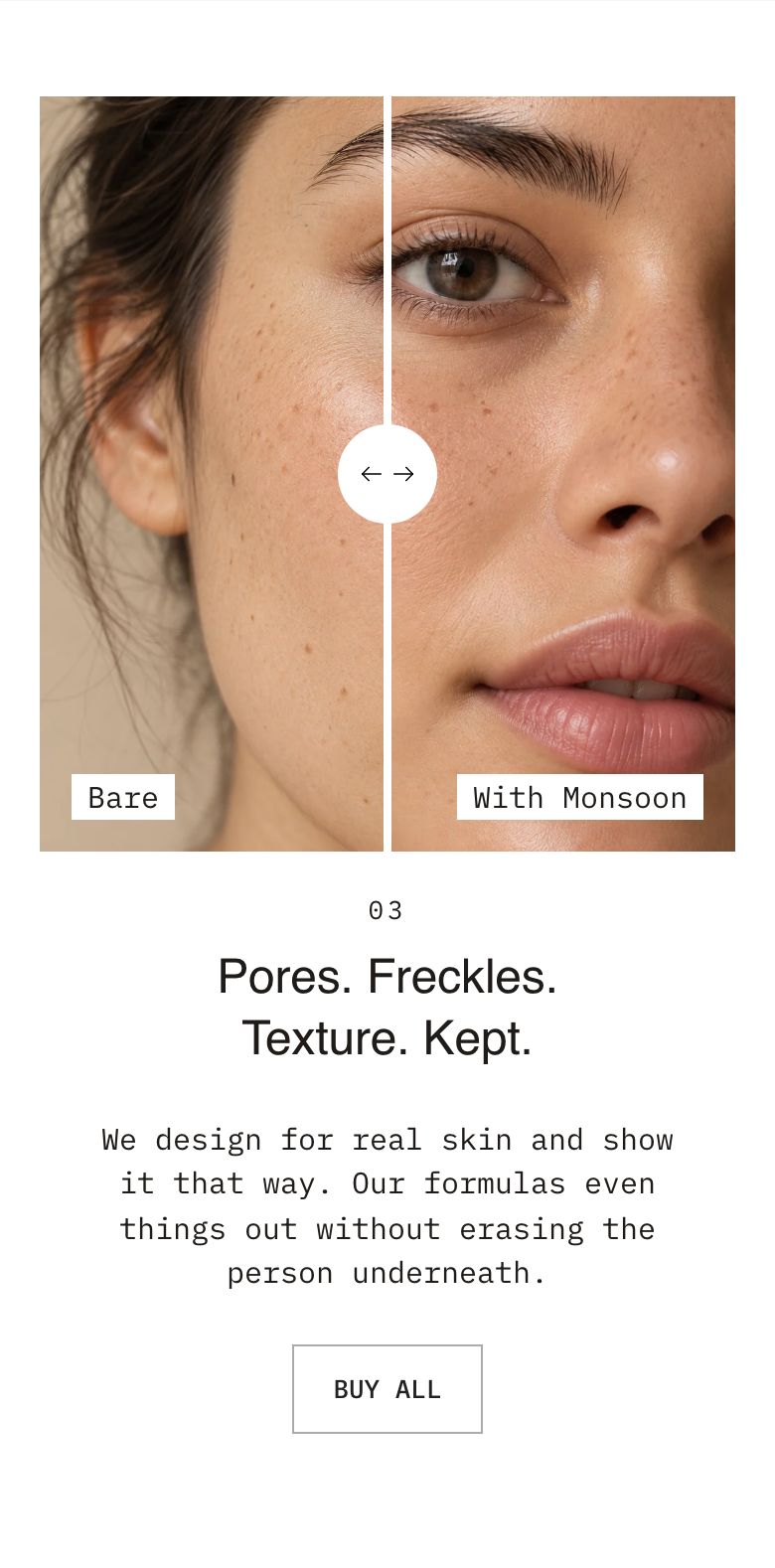
The Before and after section places two images on top of each other with a slider handle between them. Customers drag the handle to reveal more of one image or the other. Use it to show the result of a product, such as skin care, cleaning products or a renovation, next to a column of text.
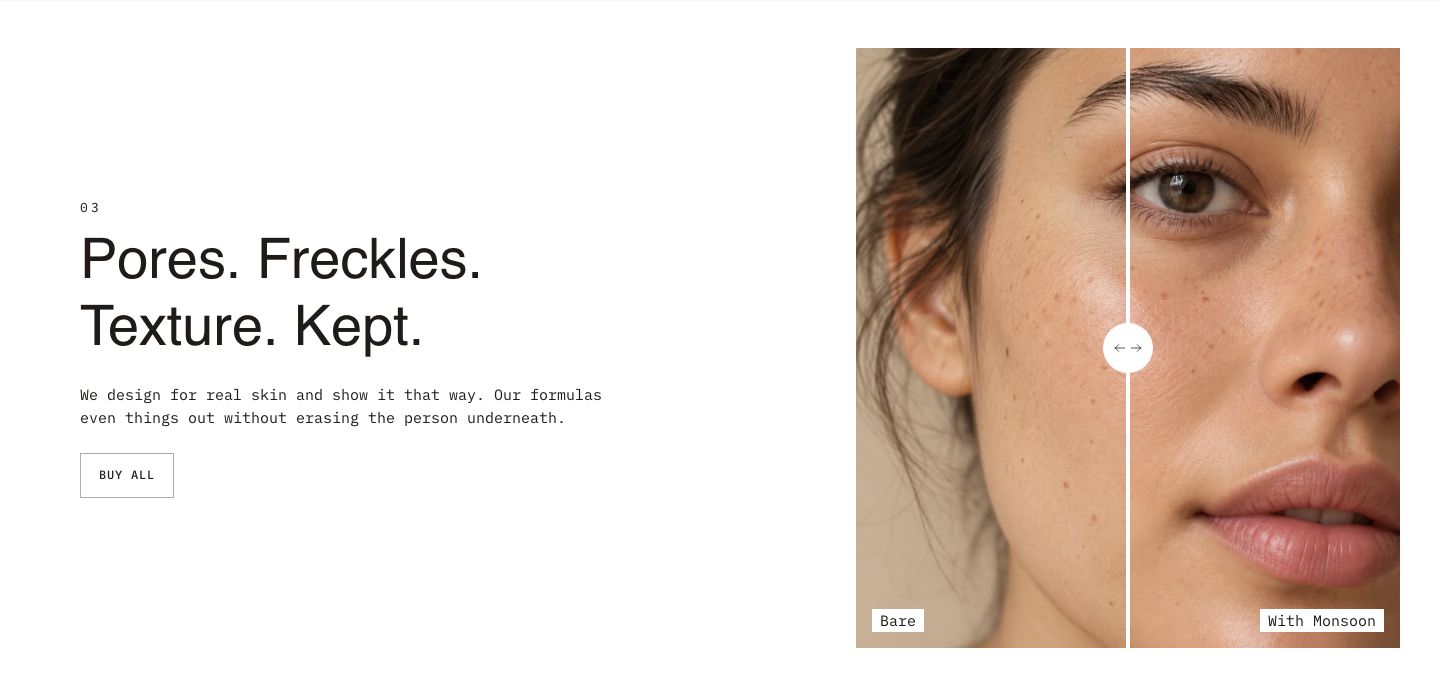
The section is found under Storytelling in the Add section menu. It starts with a heading above the slider, and a subheading, heading, text and button next to it.
Section structure
When you expand the section in the theme editor sidebar, you will see two fixed blocks:
- Header: An optional heading area above the slider. It contains a Heading block by default. Remove the heading if you do not need a section title.
- Before/after container: The two images, the slider and the content column next to it. All of the section's content blocks go here.
See How sections and blocks work for more about fixed blocks and theme blocks.
Section settings
- Make section full width: Enable this setting to make the section span the full width of the screen.
Colors
- Background color: Set the background color of the section.
- Background gradient: Set a background gradient. A gradient overrides the background color.
- Text color: Set the text color for the whole section.
Section spacing
- Distance top (desktop) and Distance bottom (desktop): Space above and below the section on desktop (0 to 100 px).
- Show custom mobile spacing: Enable this setting to use different spacing on mobile. When it is on, Distance top (mobile) and Distance bottom (mobile) appear.
Header block
Click the Header block to style the heading area above the slider.
- Text alignment (desktop) and Text alignment (mobile): Align the heading (options: Left, Center, Right).
- Text container max width: Limit the width of the heading area. Set it to 0 to use the default maximum width.
- Text color: Override the section text color for the heading area.
You can add any theme block to the Header, for example a Subheading above the heading or a Text block below it.
Before/after container block
Click the Before/after container block to set up the images, the slider and the content column.
- Layout: Choose which side the slider is on (options: Image first, Text first). On mobile, the slider always appears first.
- Image width (desktop): Set how much of the row the slider takes up on desktop (30 to 70%).
- Text container max width: Limit the width of the content column. Set it to 0 to use the default maximum width.
Section height
- Height: Choose Adapt to media to follow the proportions of the before image, or Fixed height to set the height yourself.
- Height (desktop) and Height (mobile): Set the fixed height (200 to 1000 px). Shown only when Fixed height is selected.
Images
- Before image: The image on top, shown on the left side of the handle.
- After image: The image underneath, revealed on the right side of the handle.
Use two images of the same size and framing, so the slider lines them up exactly. While an image is empty, a placeholder is shown.
Badges
- Show before and after badges: Show a small label on each image. When it is on, the settings below appear.
- Before badge text and After badge text: The label text, "Before" and "After" by default. Clear a field to hide that badge.
- Badge position: Place the badges at the top or bottom of the images.
- Badge text color and Badge background color: Style the badges.
Slider
- Handle and line color: The color of the dividing line and the round handle.
- Arrow color: The color of the arrows inside the handle.
Desktop version
- Text vertical position: Place the content at the top, center or bottom of the column.
- Text alignment: Align the content left, center or right.
Mobile version
- Show different media on mobile: Enable this setting to use a different before and after image on mobile. When it is on, Before image and After image appear. If you leave one of them empty, the desktop image is used for it.
- Text vertical position and Text alignment: Position and align the content on mobile.
Colors
- Text color: Override the text color of the content column.
- Background color: Set a background color behind the slider and content column.
Customers can also move the slider with the keyboard: tab to the slider and use the arrow keys.
Content blocks
Click Add block under the Before/after container to add content next to the slider. You can use any theme block, such as Subheading, Heading, Text, Button or Icon with text, and the three blocks below.
Table block
The Table block shows a simple two-column table, for example the steps of a treatment or the results after a number of weeks. Each row is a Table row block inside the table, with a Left column label and a Right column value.
You can set the table's alignment, whether the two columns sit side by side or stacked on mobile, alternating row colors and row dividers. See the Image with text article for every setting.
Collapsible row block
The Collapsible row block shows a title that opens to reveal more content when clicked. Add several rows to answer common questions next to the slider. The content inside a row is made of blocks, a Text block by default.
- Open by default: Show the row open when the page loads.
- Title, Title font and Text scale: The row title and how it looks.
- Image or Icon: An optional icon before the title.
- Text color, Background color and Line color: The colors of the row.
- Hide if content is empty: Hide the whole row when there is nothing inside it.
See the Image with text article for every setting.
Countdown timer block
The Countdown timer block counts down to a date and time, for example the end of a launch offer.
- End date and time: The date and time the countdown ends, in the format
YYYY-MM-DD HH:MM. - Expired message: The text shown once the countdown has ended.
- Style: Show the timer in a large headline style or in the body text style.
- Show labels below the timer and Show d/h/m/s labels: Where the days, hours, minutes and seconds labels sit, and whether they show.
- Timer scale (desktop) and Timer scale (mobile): Make the timer smaller or larger (50 to 500% on desktop, 50 to 300% on mobile).
- Set custom item width: Set the width of each counter item yourself. Available only when labels are shown below the timer.
Mobile view example