Search results
What is the Search results section?
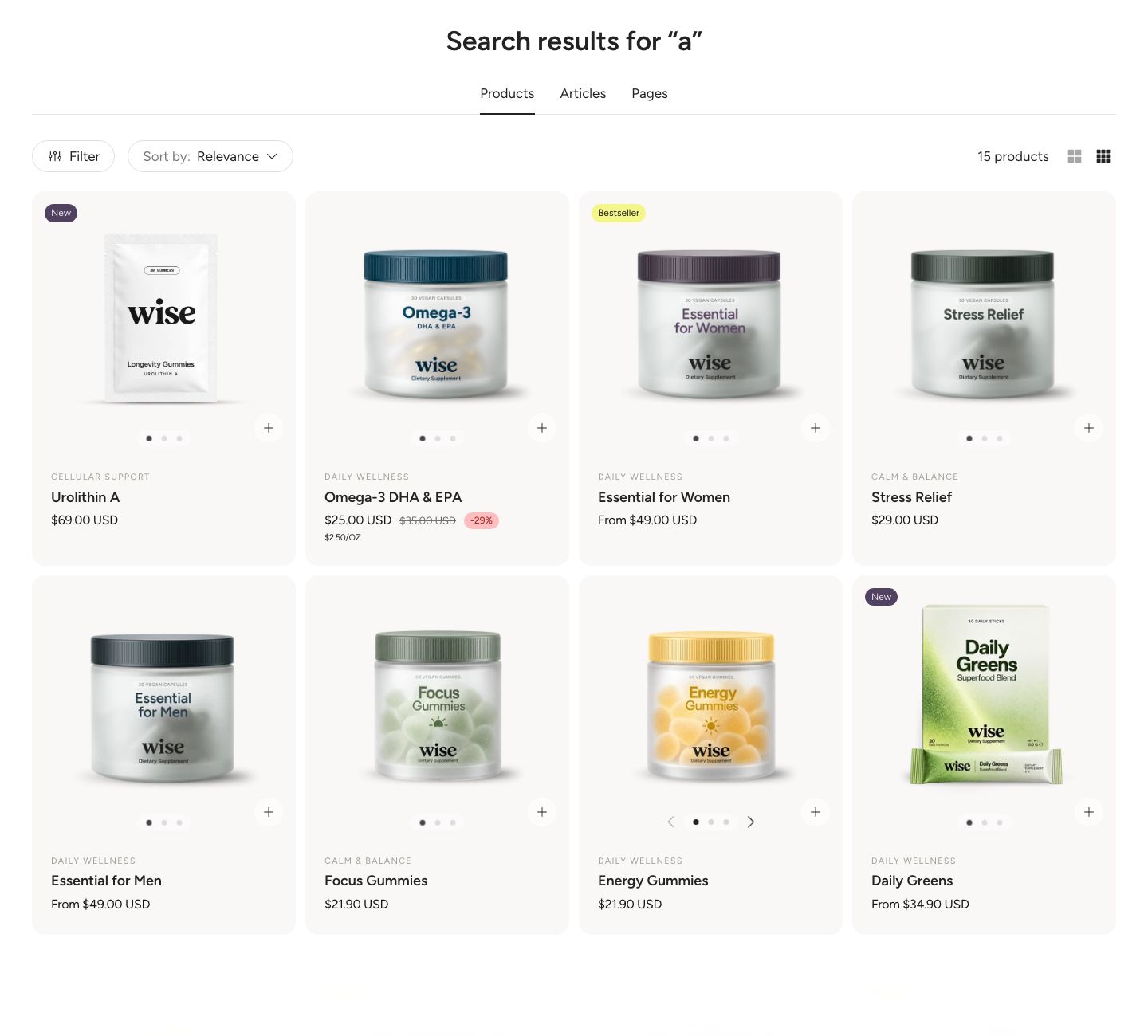
The Search results section is the page customers see after they search your store. Results are split into tabs for Products, Articles and Pages. The Products tab has the same toolbar as your collection pages, with filters, sorting and the grid density switch.
Where to find it
The section sits on the Search template. In the theme editor, open the page selector at the top of the screen and choose Search (in some stores it is listed under Others). To see real results in the preview, run a search in the preview first.
Customers usually start a search in the Search overlay, which shows instant results as they type. Its View all link opens this page with the full results.
Section structure
When you expand the section in the theme editor sidebar, you will see two fixed blocks:
- Search heading: The page title. It reads "Search results for" followed by the search terms, or "Search" before a search is made.
- Search grid: The grid of results and the pagination.
How the tabs work
- There is one tab for each result type you keep on in Result types, in the order Products, Articles, Pages.
- When only one type is on, no tabs are shown.
- The Products tab shows all matching products with pagination. The Articles and Pages tabs load in the background and show their first page of results only, up to Results per page, without pagination.
- Products are shown with the same product card as your collection pages, and articles with the blog card.
Section settings
- Make section full width: Let the results span the full width of the screen.
Colors
- Text color: Set the text color for the whole section.
- Background color: Set the background color of the section.
- Background gradient: Set a background gradient. A gradient overrides the background color.
Result types
- Show products, Show articles and Show pages: Choose which types of results customers can find. A type that is off gets no tab and is not searched.
Toolbar
These settings apply to the Products tab and appear only when Show products is on. They work the same way as on the Collection product grid.
- Toolbar style: How the toolbar looks (options: Minimalistic, Button style).
- Enable sorting: Show the Sort menu.
- Enable filtering: Show the Filter button. The filters open in a drawer. Which filters appear is set in the Shopify Search & Discovery app, see Shopify's guide to customizing filters.
- First filter group expanded by default: Open the first filter group when the drawer opens. Shown only when filtering is on.
- Grid density switch: Let customers switch between fewer and more products per row. On mobile, the choice is 1 or 2 per row.
- Fewer per row (desktop) and More per row (desktop): The two column counts customers can switch between on desktop (2 to 5). Shown only when the switch is on.
Section spacing
- Distance top (desktop): Space above the section on desktop (0 to 100 px).
- Distance bottom (desktop): Space below the section on desktop (0 to 100 px).
- Show custom mobile spacing: Enable this setting to use different spacing on mobile. When it is on, Distance top (mobile) and Distance bottom (mobile) appear.
Search heading block
- Heading scale (desktop) and Heading scale (mobile): Make the title smaller or larger (50 to 500% on desktop, 50 to 300% on mobile).
- Text alignment (desktop) and Text alignment (mobile): Align the title (options: Left, Center, Right).
Search grid block
- Results per page: How many results are loaded at a time (12 to 120). On the Articles and Pages tabs, this is the maximum number of results shown.
- Pagination: How customers see more products (options: Load more button, Page numbers).
- Load more button style: The style of the load more button (options: Primary, Secondary, Link). Shown only with the load more button.
Desktop version
- Items per row: How many results are shown next to each other (options: 2, 3, 4). On the Products tab, not used when the grid density switch is on.
- Column gap: Space between results side by side (2 to 24 px).
- Row gap: Space between rows (0 to 60 px).
Mobile version
- Items per row: Show 1 or 2 results per row. On the Products tab with the grid density switch on, this is the view customers see first.
- Column gap: Space between results side by side (2 to 16 px).
- Row gap: Space between rows (0 to 60 px).
Product and blog cards
Inside the Search grid you will find a Product card and a Blog card. They work the same way as the product card on the Collection product grid and the blog card on the Blog page: click them to set the text alignment and reorder or remove their parts, such as the image, title and price.
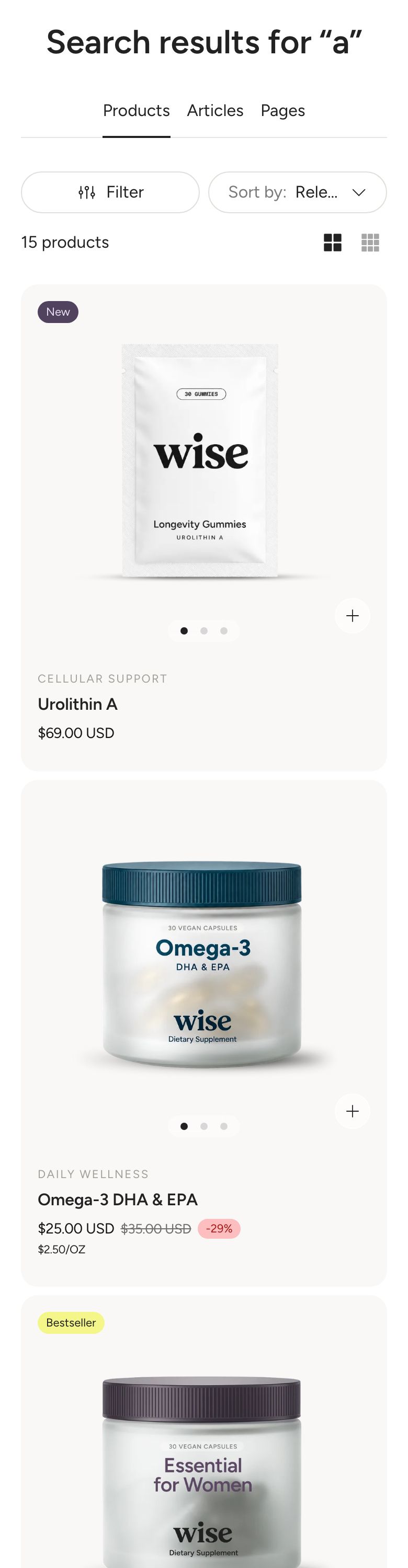
Mobile view example