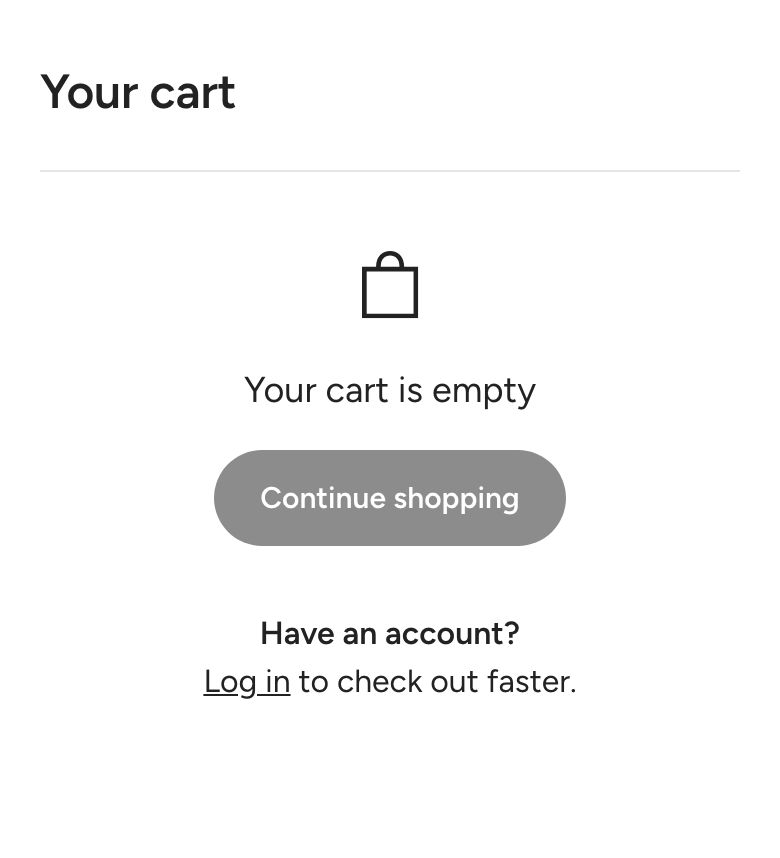
Cart page
What is the Cart page section?
The Cart page section is the full cart page at /cart. It lists the products in the cart and shows the subtotal and checkout buttons below them. You can add a free shipping bar, a discount progress bar, cross-sells, an order note, a discount code field and more.
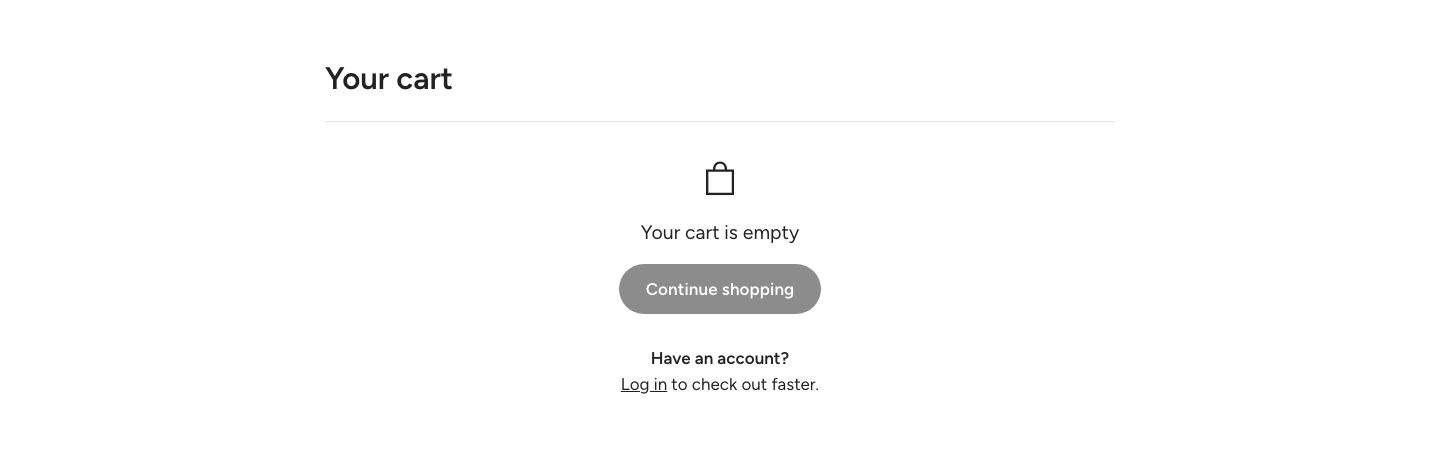
Where to find it
The section sits on the Cart template. In the theme editor, open the page selector at the top of the screen and choose Cart. Below the Cart page section, the template also has a Featured collection section that you can edit or remove.
When Cart type is set to Drawer in Theme settings > Cart, adding a product opens the Cart drawer instead, and customers reach the cart page through the View cart button in the drawer. The cart drawer is set up separately, in the Drawers & Popups group of the theme editor sidebar. The drawer uses the same blocks as the cart page, so the block descriptions below apply to both.
Section structure
When you expand the section in the theme editor sidebar, you will see three fixed blocks:
- Cart header: The area between the cart title and the cart lines. Add a free shipping bar, a discount progress bar, an info bar or text here.
- Cart items: The list of products in the cart. You can add an additional service checkbox, cross-sells or text below the list.
- Cart footer: The subtotal, the add-ons (order note, discount code, estimate shipping), the checkout buttons and payment badges.
The cart title with the number of items is always shown at the top. When the cart is empty, customers see an empty cart message instead of the lines. In the theme editor, an empty cart shows a sample line so you can style it.
Section settings
Section spacing
- Distance top (desktop): Space above the section on desktop (0 to 100 px).
- Distance bottom (desktop): Space below the section on desktop (0 to 100 px).
- Show custom mobile spacing: Enable this setting to use different spacing on mobile. When it is on, Distance top (mobile) and Distance bottom (mobile) appear.
Cart header block
- Show separator below: Show a line between the header and the cart lines.
- Bottom padding: The space above that line (0 to 40 px). Applies when the header has at least one block.
- Text scale (desktop) and Text scale (mobile): Make the text in the header smaller or larger (50 to 200%).
Click Add block under the Cart header to add:
Free shipping bar block
Shows how much more the customer needs to spend to get free shipping. The amount and the messages are set in Theme settings > Cart add-ons. The block has no settings of its own.
Discount progress bar block
Shows a progress bar with milestones, for example discounts that unlock at certain cart totals. The milestones are set in Theme settings > Cart add-ons.
- Full width message: Let the message box run to the edges of the cart (on phones, to the edges of the screen). The progress bar keeps its side spacing.
- Message text and Message background: The colors of the message.
- Success message text and Success message background: The colors of the message once the last milestone is reached.
- Progress bar (track) and Progress bar (fill): The colors of the empty and filled parts of the bar.
- Milestone label, Icon and Active icon: The colors of the milestone labels and icons.
- Show border: Draw a thin outline around the unfilled part of the bar and the milestones not reached yet. Its color is set in Border.
Info bar block
Shows short messages, for example delivery times or a returns promise. With more than one message, they take turns one at a time and pause while a customer points at the bar. Each message is a Message block inside the info bar.
- Change message every: How long each message is shown (3 to 10 seconds).
- Full width: Let the bar run to the edges of the cart (on phones, to the edges of the screen).
- Top padding and Bottom padding: Space inside the bar (0 to 40 px).
- Background color and Text color: The colors of the bar.
Message block.
- Image or Icon: An icon in front of the text. An uploaded image is shown instead of the icon.
- Icon size (desktop) and Icon size (mobile): The size of the icon (12 to 48 px).
- Text: The message.
- Text color: Leave empty to use the info bar's text color.
- Link: Make the message a link.
Text block
A Text block, for example for a note about delivery times.
Cart items block
Image
- Image size (desktop) and Image size (mobile): The size of the product images (50 to 150 px).
Product details
- Text scale (desktop) and Text scale (mobile): Make the product details smaller or larger (50 to 200%).
- Show vendor: Show the product vendor above the title.
- Show price per item: Show the price of a single item under the title when the quantity is more than 1.
Separators
- Show separator between line items: Show a line between the products.
- Full width separators: Let the lines run to the edges of the screen on phones. Shown only when separators are on.
Click Add block under Cart items to add content below the list:
Additional service block
Shows a checkbox for an extra service, for example gift wrapping. The service name, its price and the product it adds are set in Theme settings > Cart add-ons. Without a product, the choice is saved as an additional detail on the order.
- Full width: Let the block run to the edges of the screen on phones.
- Text scale (desktop) and Text scale (mobile): Make the text smaller or larger (50 to 300%).
- Background color, Text color and Price color: The colors of the block. Leave the price color empty to use the text color.
Cross-sell block
Shows a small slider of products to add to the cart.
- Heading: The text above the products.
- Product source: Show products From collection or From product list.
- Collection or Product list: The products to show, depending on the source.
- Maximum number of products to show: 1 to 9.
- Autoplay: Move the slider automatically. Change slide every sets the speed (1 to 10 seconds).
- Background color: A background behind the block.
- Full width: With a background, let it run to the edges of the screen on phones.
- Top padding and Bottom padding: Space inside the block (0 to 40 px).
Each product is shown with a compact product card. Expand the card to reorder or remove its image, vendor, title, price and button.
Text block
A Text block below the cart lines.
Cart footer block
- Add-ons style: How the order note, discount code and estimate shipping add-ons look (options: Standard, Compact).
- Text scale (desktop) and Text scale (mobile): Make the add-ons text smaller or larger (50 to 200%).
Subtotal
- Show savings: Show how much the customer saves with discounts, next to the original total struck through. The line appears only when a discount applies.
- Savings label: The text of the savings line. Use
||savings||where the amount should appear. Shown only when savings are on. - Show taxes and shipping note: Show the note that taxes and shipping are calculated at checkout.
Buttons
- Show View cart button and Hide Check out button: These apply to the cart drawer only.
- Show dynamic checkout buttons: Show accelerated checkout buttons such as Shop Pay, when your payment settings allow them.
- Checkout text color, Checkout button color and their (hover) versions: Give the checkout button its own colors.
Separators
- Show line above the footer: Show a line between the cart lines and the footer.
- Show lines around add-ons: Show lines around the add-ons row and between the add-ons on desktop. Shown only with the Standard add-ons style.
Spacing
- Top padding and Bottom padding: Space inside the footer (0 to 40 px).
Add-ons
The Add-ons block inside the Cart footer holds the add-ons customers can open below the cart lines. Add, reorder or remove them with Add block:
- Order note: A field for a note to the store.
- Discount code: A field to apply a discount code.
- Estimate shipping: Lets customers check shipping rates for their address.
These blocks have no settings. Their look follows the Add-ons style of the Cart footer.
Payment badges
The Payment badges block inside the Cart footer shows payment icons below the checkout button.
- Text: Optional text shown with the badges.
- Text alignment: Align the content (options: Left, Center, Right).
- Badges: Show the payment icons enabled in your store, or upload your own image (options: Payment icons enabled in the store, Custom image).
- Monochrome icons: Show the payment icons in one color. Shown only for payment icons.
- Image and Max width: Your own badges image for desktop and mobile, and its maximum width (10 to 100%). Shown only for a custom image.
- Text color and Background color: The colors of the block.
Block spacing. Space above and below the block (0 to 60 px), with optional separate values for mobile.
Content blocks
Click Add block under the section itself to add a Text block, a Custom Liquid block or an app block. They appear in the cart footer, above the payment badges, for example for a delivery promise or an app widget.
Mobile view example