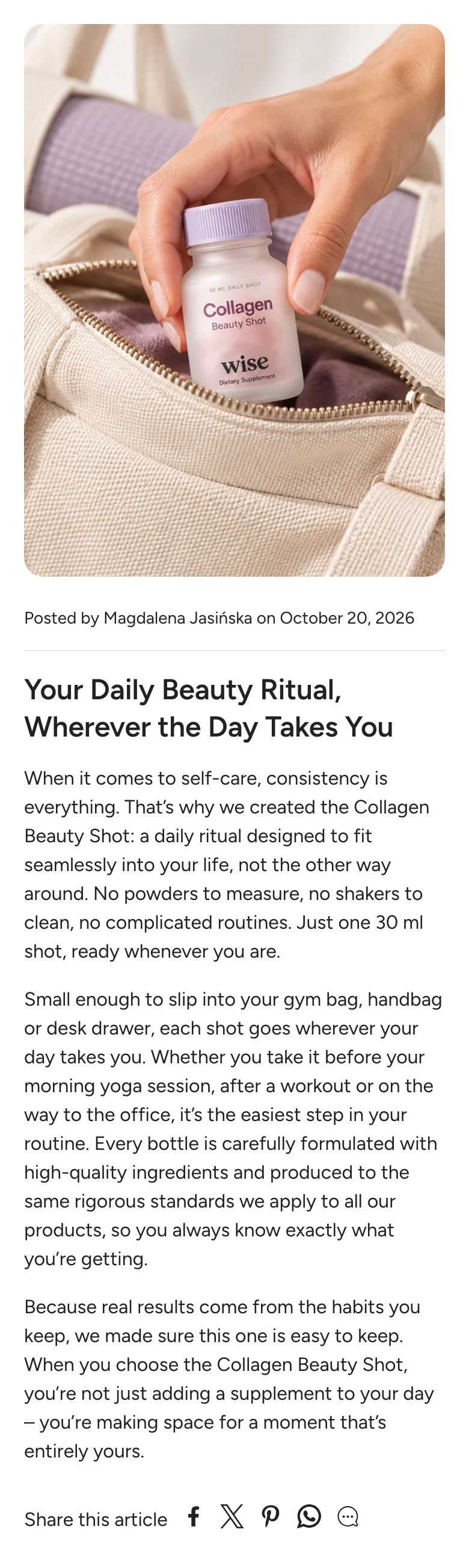
Article page
What is the Article page section?
The Article page section shows a single blog post. It puts together the post's featured image, title, author and date, the content you wrote in your Shopify admin, share buttons and comments. You can reorder these parts and add your own blocks between them.
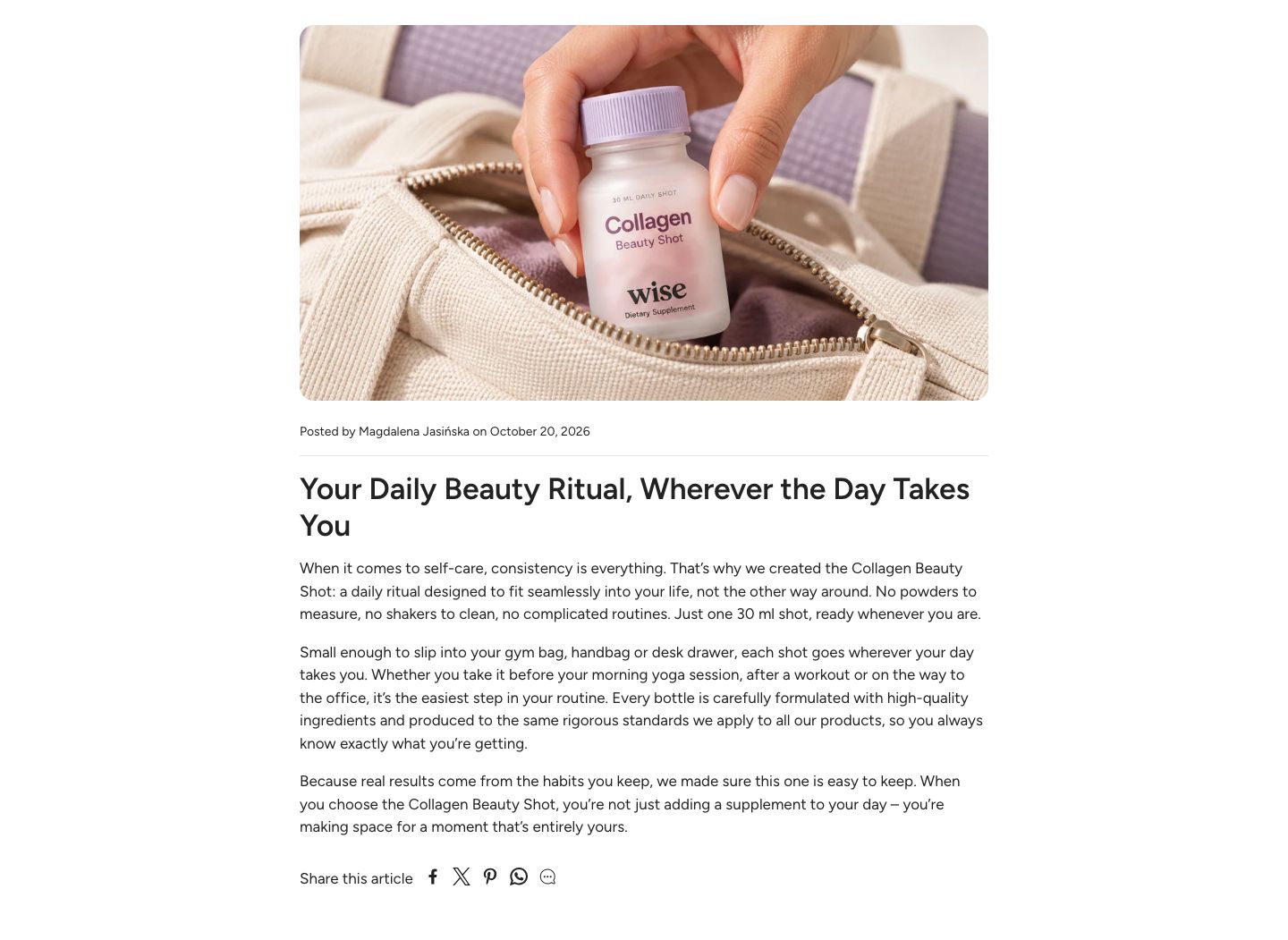
Where to find it
The section sits on the Default blog post template. In the theme editor, open the page selector at the top of the screen and choose Blog posts > Default blog post. Pick a post in the preview to see your real content.
Section structure
The section is built from blocks that you can reorder, remove and add again. By default it starts with:
- Featured image: The image set on the blog post in your Shopify admin.
- Title: The post title with the author and date.
- Content: The text of the post.
- Share buttons: Links to share the post on social media.
- Comments: The comments and the comment form.
You can add any theme block between them, for example a Button to a related collection or a Separator, and app blocks. Every block is centered and limited to the post width, except the featured image, which has its own width setting.
Section settings
Colors
- Text color: Set the text color for the whole section.
- Background color: Set the background color of the section.
- Background gradient: Set a background gradient. A gradient overrides the background color.
Section spacing
- Distance top (desktop): Space above the section on desktop (0 to 100 px).
- Distance bottom (desktop): Space below the section on desktop (0 to 100 px).
- Show custom mobile spacing: Enable this setting to use different spacing on mobile. When it is on, Distance top (mobile) and Distance bottom (mobile) appear.
Content blocks
Featured image block
Shows the featured image of the blog post. If the post has no featured image, the block shows nothing. When the image is the first block in the section, it loads right away so the page appears faster.
- Image width: How wide the image is (options: Adapt to content, Full width, Standard). Adapt to content matches the width of the post text, Standard uses the page width from Theme settings > Layout and Full width spans the whole screen.
- Image height: Choose Adapt to image to show the whole image at its own proportions, or Fixed height to crop it to a set height.
- Height (desktop) and Height (mobile): The fixed height (200 to 1000 px). Shown only when Fixed height is selected. The image is cropped around the focal point you set on the image in Shopify.
Title block
Shows the post title, with the author and date above it.
- Show date: Show the publishing date.
- Show author: Show the author's name.
- Heading scale (desktop) and Heading scale (mobile): Make the title smaller or larger (50 to 300%).
- Text color: Override the section text color for the title.
Content block
Shows the text, images and other content of the post, as you wrote them in your Shopify admin. This block has no settings.
Share buttons block
Shows icons that let readers share the post.
- Title font: Use the body, heading or subheading font for the heading (options: Body, Heading, Subheading).
- Heading: The text before the icons, for example "Share". Leave it empty to show only the icons.
- Text scale (desktop) and Text scale (mobile): Make the heading smaller or larger (50 to 300%).
- Facebook, X, Pinterest, WhatsApp and Email: Choose which share options to show.
Block spacing. Space above and below the block (0 to 60 px), with optional separate values for mobile.
Comments block
Shows the comments on the post and a form to leave a new one.
- Comments per page: How many comments are shown before the list is split into pages (5 to 50).
- Content width: Narrow keeps the comments at the width of the post text, Full uses the page width.
The Comments block only appears when comments are enabled for the blog in your Shopify admin, under Content > Blog posts > Manage blogs. If the blog's comments need approval, readers see a message that their comment is waiting for approval after they post it.
Mobile view example