Collections list page
What is the Collections list page section?
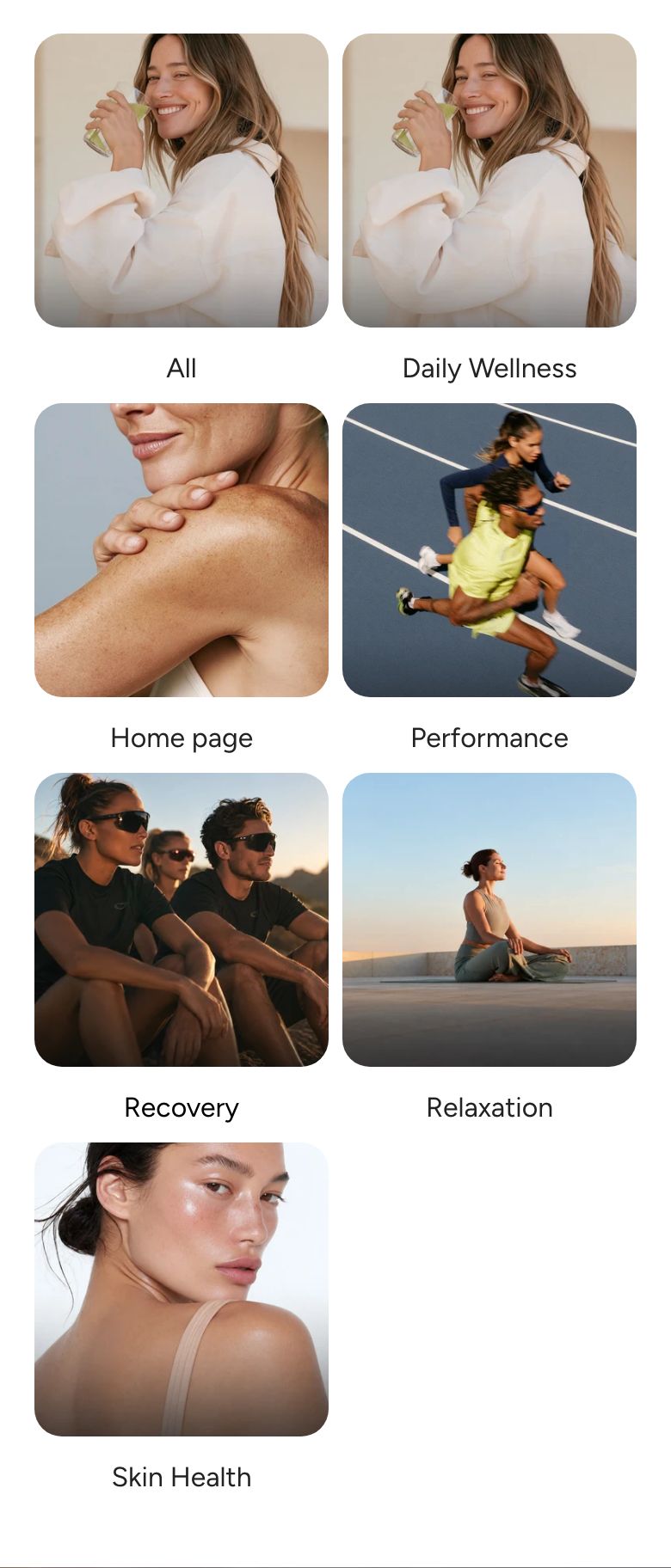
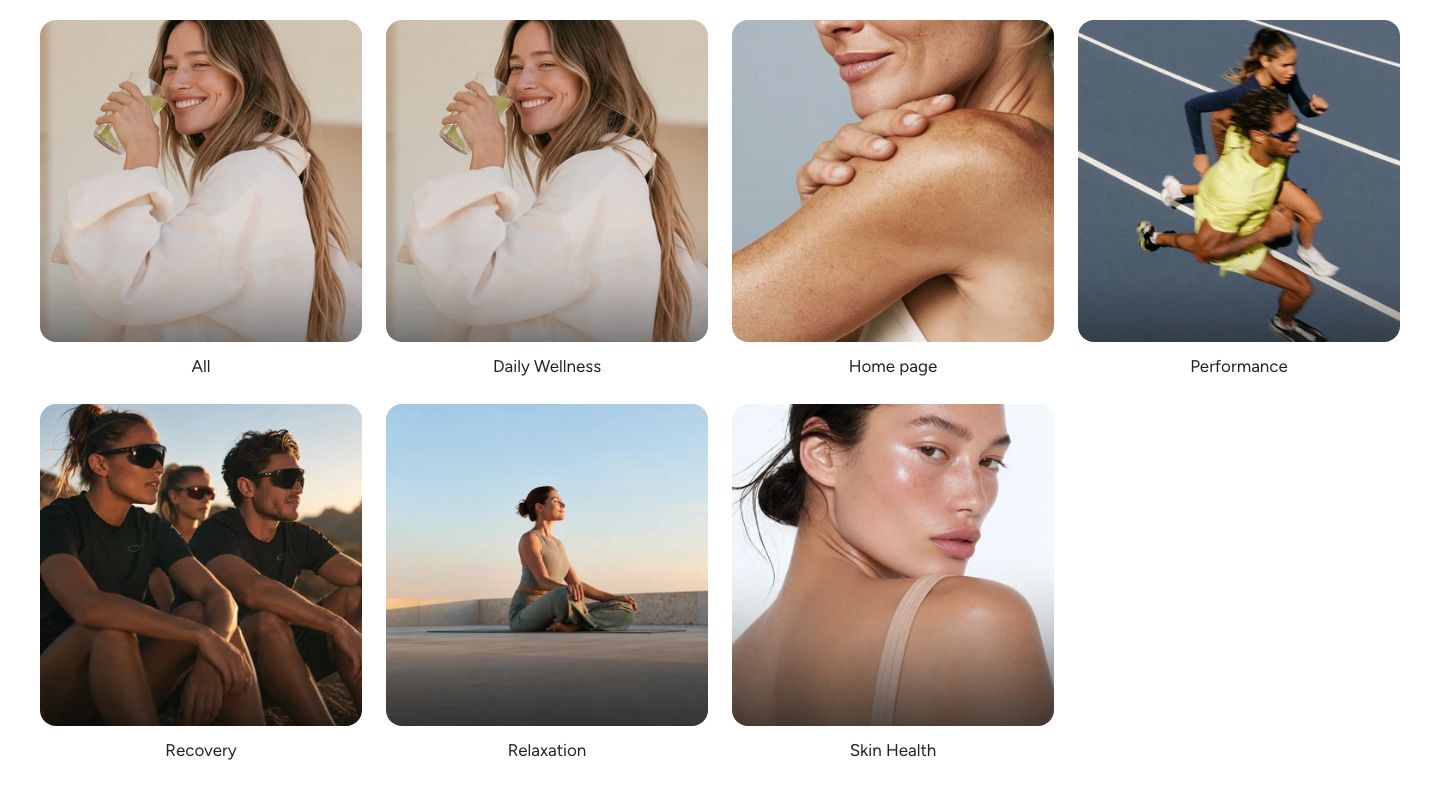
The Collections list page section shows every collection in your store as a grid of cards. It is the page customers reach at /collections, for example from a "Shop all categories" link in your menu.
Where to find it
The section sits on the Collections list template. In the theme editor, open the page selector at the top of the screen and choose Collections list (in some stores it is listed under Others).
The page lists every collection that is available in your online store sales channel. To show only a few hand-picked collections on another page, use the Collection list section instead.
Section structure
When you expand the section in the theme editor sidebar, you will see two fixed blocks:
- Header: The heading area above the grid. It contains a Heading block by default, and you can add other theme blocks.
- Collection grid: The grid of collection cards.
Each card shows the collection's image and title and links to the collection. A collection without an image is shown as a text card with its title and the start of its description. When there are many collections, page numbers appear below the grid.
Section settings
- Sort collections by: The order of the collections (options: Alphabetically, A-Z; Alphabetically, Z-A; Date, new to old; Date, old to new; Product count, high to low; Product count, low to high).
- Hide images, list collections as buttons: Show each collection as a simple button with its title instead of an image card.
- Button style: The style of the buttons (options: Primary, Secondary, Link). Shown only when the setting above is on.
Animation
- Animate images on hover: Add a subtle animation when a customer hovers over a card. It works only when animations are turned on in Theme settings > Animations. Shown only when images are not hidden.
Colors
- Background color: Set the background color of the section.
- Background gradient: Set a background gradient. A gradient overrides the background color.
- Text color: Set the text color for the whole section.
Section spacing
- Distance top (desktop): Space above the section on desktop (0 to 100 px).
- Distance bottom (desktop): Space below the section on desktop (0 to 100 px).
- Show custom mobile spacing: Enable this setting to use different spacing on mobile. When it is on, Distance top (mobile) and Distance bottom (mobile) appear.
Header block
- Text alignment (desktop) and Text alignment (mobile): Align the heading (options: Left, Center, Right).
- Text container max width: Limit the width of the heading area (0 to 1600 px). Set it to 0 to use the default maximum width.
- Text color: Override the section text color for the heading area.
Collection grid block
- Image ratio: The shape of the collection images (options: Adapt to image, Portrait, Square, Landscape, Custom). With Custom, set Custom ratio width and Custom ratio height (1 to 16 each).
Desktop version
- Items per row: How many collections are shown next to each other (3 to 12).
- Items alignment: Align the cards left or center when the last row is not full.
- Gap: The space between cards (2 to 24 px).
Mobile version
- Items per row: How many collections are shown next to each other (1 to 3).
- Items alignment: Align the cards left or center when the last row is not full.
- Gap: The space between cards (2 to 16 px).
Each page shows 28 collections when you show 4 or 7 per row on desktop, and 30 otherwise, so most layouts end on a full row.
Mobile view example