Collection product grid
What is the Collection product grid section?
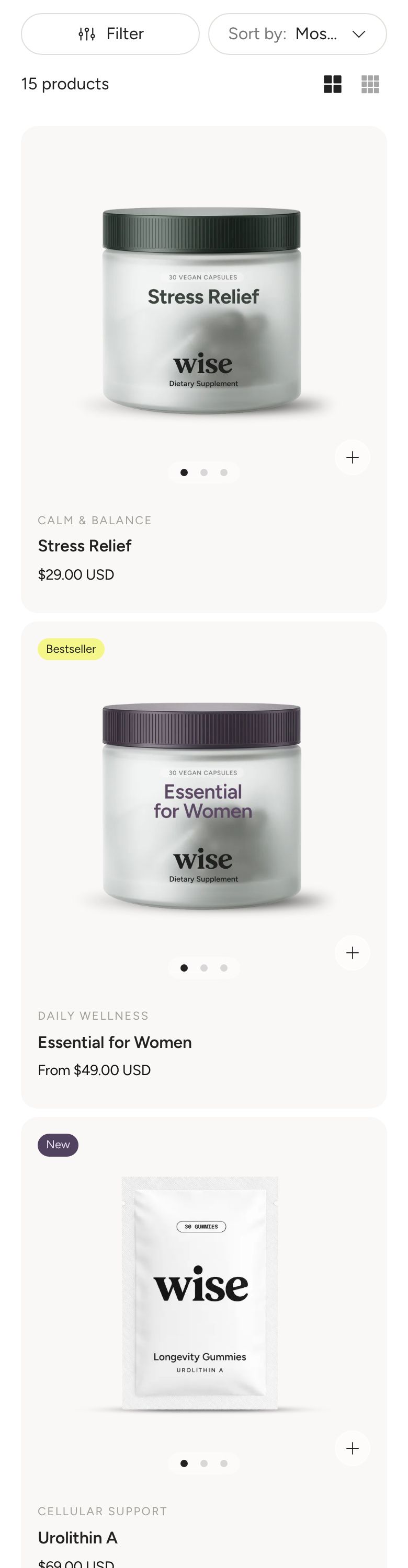
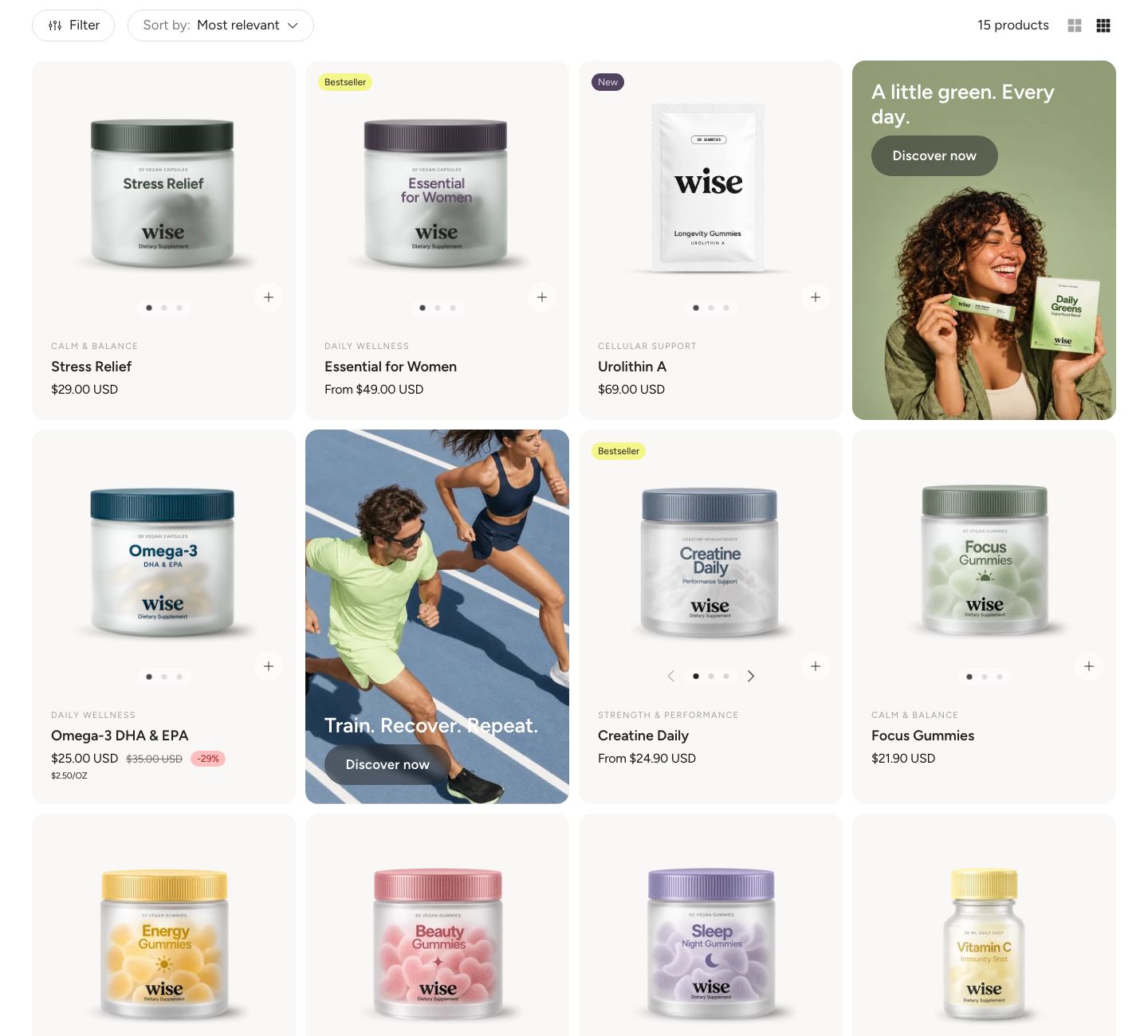
The Collection product grid section shows the products of a collection. Above the grid, a toolbar gives customers filters, sorting, the number of products and a switch to show more or fewer products per row. You can also place promo tiles between the products, for example to highlight a campaign.
Where to find it
The section sits on the Default collection template. In the theme editor, open the page selector at the top of the screen and choose Collections > Default collection. Pick a collection in the preview to see its real products.
The template also contains other sections above the grid, such as an image banner with the collection title, Breadcrumbs and some text. You can edit, hide or remove those like any other section.
Section structure
When you expand the section in the theme editor sidebar, you will see one fixed block:
- Product grid: The products, their layout and the pagination. It contains a Product card that sets how every product looks, and the Promo tile blocks you add.
The toolbar and the filters are set up in the section settings.
Section settings
- Make section full width: Let the grid span the full width of the screen.
- Product links within collection: Make product links include the collection, for example
/collections/skincare/products/daily-serum. This keeps the collection in the Breadcrumbs trail on the product page.
Colors
- Text color: Set the text color for the whole section.
- Background color: Set the background color of the section.
- Background gradient: Set a background gradient. A gradient overrides the background color.
Toolbar
- Toolbar style: How the toolbar looks (options: Minimalistic, Button style). Minimalistic shows plain text controls with a thin line between Filter and Sort. Button style shows outlined buttons that follow your secondary button style.
- Enable sorting: Show the Sort menu. Customers can sort by the options Shopify provides, such as featured, best selling, alphabetical, price and date.
- Enable filtering: Show the Filter button and the filters. Which filters appear is set in Shopify, see below.
- Filter layout: Show the filters in a Drawer that opens from the side, or in a Sidebar next to the grid. The sidebar is used on large screens (1200 px and wider). On smaller screens and on mobile, the filters always open in a drawer. Shown only when filtering is on.
- First filter group expanded by default: Open the first filter group when the filters are shown. Groups with an active filter are always open. Shown only when filtering is on.
- Grid density switch: Show two buttons that let customers switch between fewer and more products per row. On mobile, the choice is 1 or 2 per row.
- Fewer per row (desktop) and More per row (desktop): The two column counts customers can switch between on desktop (2 to 5). The grid starts with the More view. Shown only when the switch is on.
Section spacing
- Distance top (desktop): Space above the section on desktop (0 to 100 px).
- Distance bottom (desktop): Space below the section on desktop (0 to 100 px).
- Show custom mobile spacing: Enable this setting to use different spacing on mobile. When it is on, Distance top (mobile) and Distance bottom (mobile) appear.
Filters
The filters themselves (for example availability, price, product type, color or size) are not set up in the theme. You choose them in the free Shopify Search & Discovery app. See Shopify's guide to customizing filters.
How the filters work in Wise:
- Each filter is a group that customers can open and close.
- Filters apply right away. The product grid behind the drawer updates with every change, and the View button at the bottom of the drawer shows how many products match.
- Active filters are shown as chips at the top, each with a remove button, plus a Remove all link. The drawer also has a Clear filters button.
- Options that would give no results are shown but cannot be selected.
- Price is shown as a slider with minimum and maximum fields.
- The Filter button in the toolbar shows how many filters are active.
To show color filters as color swatches instead of a text list, turn on Enable color swatch in filters in Theme settings > Color swatches. A filter is shown as swatches when it is set to swatches in Shopify, or when its name is listed in Options listed as Color Swatches in the same settings.
Product grid block
- Products per page: How many products are loaded at a time (12 to 120).
- Pagination: How customers see more products (options: Load more button, Page numbers). Load more button adds the next products below the grid. Page numbers shows numbered pages.
- Load more button style: The style of the load more button (options: Primary, Secondary, Link). Shown only with the load more button.
Desktop version
- Items per row: How many products are shown next to each other (options: 2, 3, 4). Not used when the grid density switch is on, because the switch sets the columns.
- Column gap: Space between products side by side (2 to 24 px).
- Row gap: Space between rows (0 to 60 px).
Mobile version
- Items per row: Show 1 or 2 products per row. With the grid density switch on, this is the view customers see first.
- Column gap: Space between products side by side (2 to 16 px).
- Row gap: Space between rows (0 to 60 px).
Product card
Click the Product card inside the Product grid to style every product in the grid at once. The card is built from small blocks that you can reorder, remove or add: Media, Vendor, Tags, Title, Price, Rating, Swatches, Quick buy button and Separator.
- Text alignment: Align the card text left or center.
- Height: Stretch makes every card in a row as tall as the tallest one, so they end level. Auto lets each card end at its own content.
Quick buy
These settings control the Quick buy button block and the quick buy icon on the product image.
- Action: What happens when a customer uses quick buy (options: Add to cart, or open quick view for products with options; Always open quick view; Open the quick buy picker on the card). See Quick view.
- Options shown in the picker: Option names, one per line, for example Size. A product gets the picker for the first of these options it has, as long as each of its other options is shown as a color swatch or has only one value. Other products open quick view instead. Shown only for the picker.
- Size guide link text: The text of the size guide link in the picker header. Leave it empty to hide the size guide. Shown only for the picker.
- Size guide page: A page whose content is shown in the size guide, below the size table.
- Size guide metafield: The product metafield that holds the size table, for example
custom.size_chart. Put each row on a new line and separate cells with|. Start a cell with#to make it a header cell. Shown only for the picker.
Spacing
- Padding top (desktop) and Padding bottom (desktop): Space inside the card, image included (0 to 40 px). Turn on Show custom mobile spacing to set different values for mobile.
Colors
- Text color, Background color and Background blur: The colors of the card. The blur (0 to 35 px) shows when the background color is partly transparent.
Promo tile block
Click Add block under the Product grid to add a Promo tile: an image with a heading and a button, shown between the products. Add several tiles to place more than one. The tile takes one product spot on desktop and the full row on mobile.
- Position: The tile appears before this product (1 to 24). Tiles are shown on the first page only, so they are not repeated when customers load more products.
- Link: Make the whole tile a link.
Desktop version
- Image: The tile image. Without an image, a placeholder illustration is shown.
- Show blocks: Show the heading and button on top of the image on desktop.
- Text vertical position and Text alignment: Place the content (options: Top, Center, Bottom and Left, Center, Right). Shown only when blocks are shown.
Mobile version
- Show different media on mobile: Use a different image on mobile. When it is on and no mobile image is set, a placeholder is shown on mobile.
- Image: The mobile image. Shown only when the setting above is on.
- Show blocks, Text vertical position and Text alignment: The same as on desktop, for mobile.
Colors
- Text color: The color of the text on the tile.
- Overlay color: A color laid over the image to make the text easier to read. Use a partly transparent color.
The tile starts with a Heading and a Button block, and you can also add a Text block.
Mobile view example