Editorial banner
What is the Editorial banner section?
The Editorial banner section places a stack of content directly on top of a background image or video that covers the whole section. You can combine rich text with columns, image grids, a collage, product cards or a features list, like a magazine spread. The height of the section follows the content you add.
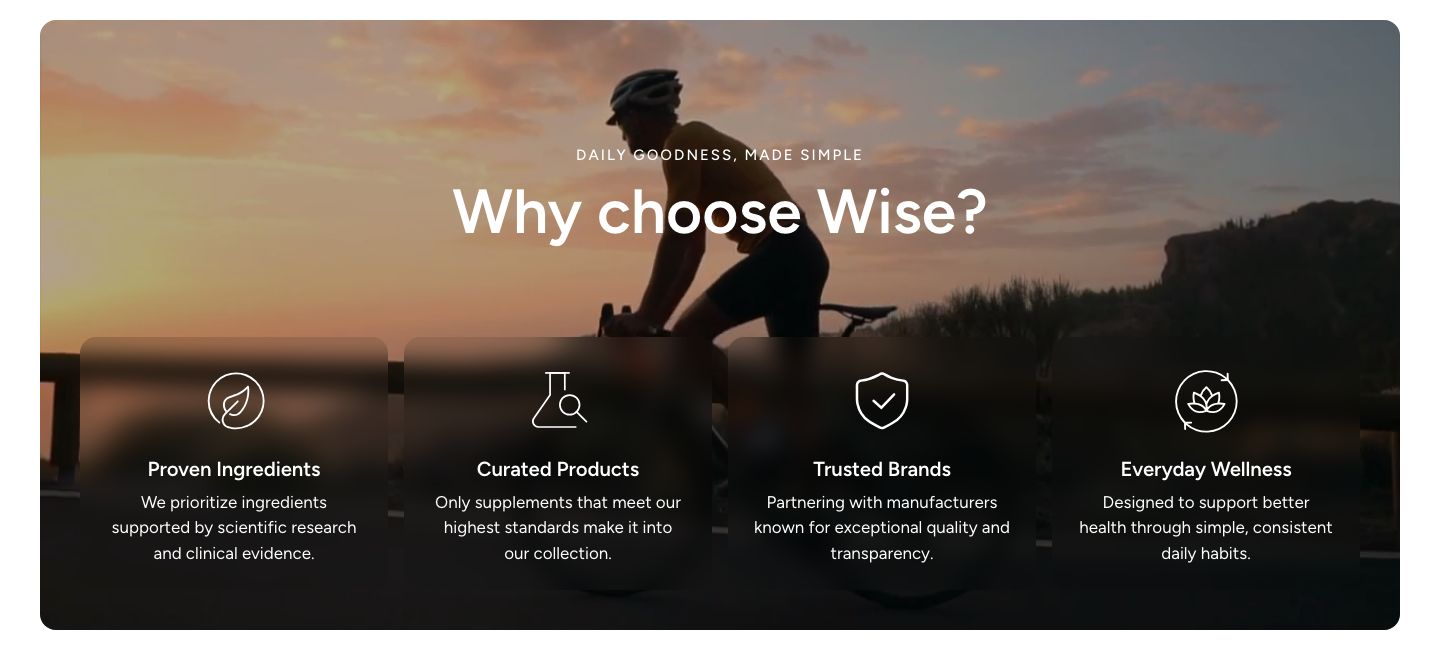
You will find the section under Banners in the Add section menu. It starts with a Rich text block containing a subheading, heading, text and button.
The Editorial banner uses the same content blocks as the Editorial section. Use the Editorial banner when you want one image behind all of the content, and the Editorial section when you want a banner at the top with the content below it.
Section structure
The section has no fixed blocks. Everything in the stack is a block you add at the section level, see Content blocks below. The background image or video and the colors are set in the section settings.
See How sections and blocks work for more about fixed blocks and theme blocks.
Section settings
- Make section full width (desktop) and Make section full width (mobile): Make the section span the full width of the screen, separately on desktop and on mobile.
Desktop version
- Media type: Show an image or a video in the background.
- Image or Video: Upload the image, or select a video uploaded to Shopify.
Mobile version
- Show different media on mobile: Enable this setting to use a different image or video on mobile. When it is off, the desktop media is used on all devices.
- Media type, Image and Video: The mobile media. Shown only when the setting above is on.
Video URL
- Video URL: A YouTube or Vimeo link. It is used when Media type is set to Video and no Shopify video is selected.
Video behavior
These settings appear when the media type is set to Video.
- Autoplay: Start the video automatically, muted.
- Show default video controls: Show the browser's standard video controls.
- Custom play/pause button and Custom mute/unmute button: Show the theme's own buttons on top of the video. Available only when the default controls are off.
The custom play/pause and mute/unmute buttons only work with a video uploaded to Shopify, not with a YouTube or Vimeo link.
Optimization
- Optimize loading if this is the first section on the page: Load the media right away instead of when it scrolls into view, which makes the page appear faster. Use it when the section is at the top of the page.
Colors
- Background color: Set the background color of the section, including the space around it.
- Background gradient: Set a background gradient. A gradient overrides the background color.
- Text color: Set the text color for the whole section.
- Overlay color: A color layer over the image or video, under the content. A semi-transparent color helps make text easier to read.
Section spacing
- Distance top (desktop): Space above the section on desktop (0 to 100 px).
- Distance bottom (desktop): Space below the section on desktop (0 to 100 px).
- Show custom mobile spacing: Enable this setting to use different spacing on mobile. When it is on, Distance top (mobile) and Distance bottom (mobile) appear.
Content blocks
Click Add block at the section level to add content to the stack. Blocks are shown one below the other, in the order you see them in the sidebar, and you can drag them to change that order. Besides the Separator theme block, you can add the blocks below.
Several of these blocks are the same building pieces that make up other Wise sections. Their settings are described in short here; the linked articles explain them in full.
Rich text block
A group of text content: it starts with a Heading, a Text and a Button block, and you can add any other theme block inside it.
- Text alignment (desktop) and Text alignment (mobile): Align the content (options: Left, Center, Right).
- Text color: Override the section text color for this block.
- Text container max width: Limit the width of the text (0 to 1600 px). Set it to 0 to use the default maximum width.
Multicolumn container block
A row of columns, each with an image or video and its own text blocks. It works like the Multicolumn section.
- Image ratio: The shape of the column images (options: Adapt to image, Portrait, Square, Landscape, Custom). With Custom, set your own Custom ratio width and Custom ratio height (1 to 16).
- Desktop version and Mobile version: Choose a Layout (options: Grid, Slider), the number of Items per row (2 to 5 on desktop, 1 to 2 on mobile), the Items alignment in grid layout and the Gap between items.
- Enable loop: Let the slider start again from the first item after the last one. Shown only when a layout is set to Slider.
- Pagination: Custom colors for the slider dots. The dots follow your Sliders theme settings unless Custom dots is on.
Each Multicolumn item inside the container has its own image or video (with an optional different one on mobile), text alignment, video behavior and colors, and holds theme blocks such as a heading, text and button.
Grid view container block
A grid of image or video tiles with text on top. It works like the Grid view section.
- Image ratio, Desktop version, Mobile version, Enable loop and Pagination: The same as for the Multicolumn container. Up to 6 items per row on desktop.
Each Grid item has a Link that makes the whole tile clickable, its own image or video for desktop and mobile, the position and alignment of the text (including Space between, which spreads the blocks from top to bottom), colors and an optional blurred Text background behind the text.
Grid view with drawer block
A grid of tiles where each tile opens a side drawer with more content. It works like the Grid view with drawer section. The container has the same layout settings as the Grid view container.
Each Tile has its own media, text position and colors. Inside each tile is a fixed Drawer block: set the Drawer heading, the Content alignment and the style and position of the button that opens the drawer. Fill the drawer with Media, Page content (the content of a page you pick) and theme blocks.
Grid view with modal block
The same as the Grid view with drawer block, but each tile opens a pop-up window (modal) in the middle of the screen. It works like the Grid view with modal section. Two extra settings control the window:
- Modal width: The width of the pop-up window (480 to 960 px).
- Modal animation: How the window appears (options: Fade and rise, Slide up).
Collage container block
One large image next to smaller ones, built from Grid items. It works like the Collage section.
- Large image position: Show the large image on the left or the right.
- Columns (desktop): With 2 columns the large image takes half of the width, with 3 it takes two thirds.
- Height (desktop): Fixed height or Adapt to large image, which lets the large image keep its proportions and set the collage height.
- Fixed height (desktop): The height relative to the screen width (30 to 70%). Shown only with Fixed height.
- Gap (desktop) and Gap (mobile): The space between the images.
Products container block
A grid or slider of product cards. It works like the Featured collection section.
- Collection: The collection to show products from.
- Products: Pick products by hand to show instead of the collection's own order.
- Products to show: The maximum number of products (3 to 24).
- Desktop version and Mobile version: Choose a Layout (options: Grid, Slider), the number of Items per row and the Gap.
- Enable loop: Let the slider start again from the first product. Shown only when a layout is set to Slider.
- Show "View all" button and "View all" button style: A button that links to the collection. It only appears when the collection has more products than are shown.
- Pagination: Custom colors for the slider dots.
The container holds one fixed Product card block that sets the look of every card: text alignment, the Quick buy action, spacing and colors. Inside the card you can arrange the Media, Vendor, Title, Price and Rating blocks, and add Tags, Swatches and a Quick buy button.
Features list block
A row of features, each with an icon or image, a heading and a short text. It works like the Features banner section.
- Icon position: Show the icon above or beside the text. With Above the text, you can also set the Text alignment for desktop and mobile.
- Desktop version and Mobile version: Choose a Layout (options: Grid, Slider), the Items per row on desktop (2 to 6), the Icon width, the Heading scale and the Gap.
- Icon color, Icon background color and Background blur: Style the icons. Leave the background color empty for no background.
- Pagination: Custom colors for the slider dots.
Each Feature has an Image or an Icon from the theme's icon set, a Heading, a Text and an optional Link.
Mobile view example