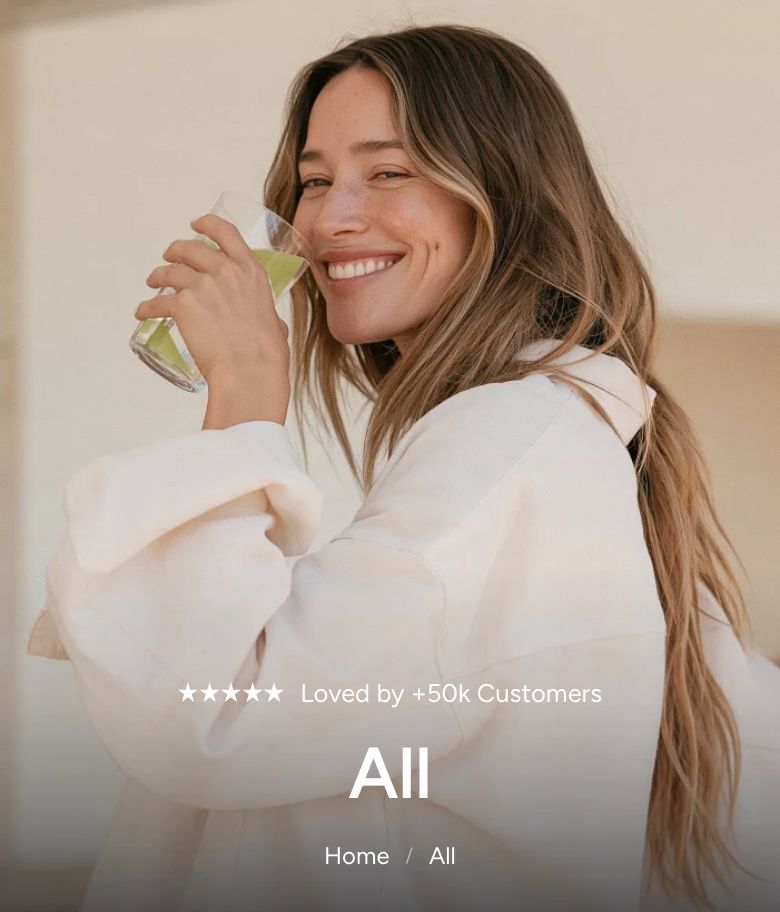
Image banner
What is the Image banner section?
The Image banner section shows a large image or video with your content on top of it. Use it as the hero banner at the top of your home page, to announce a campaign, or to play a brand video. You can also add floating product cards on top of the banner so customers can shop the look right away.
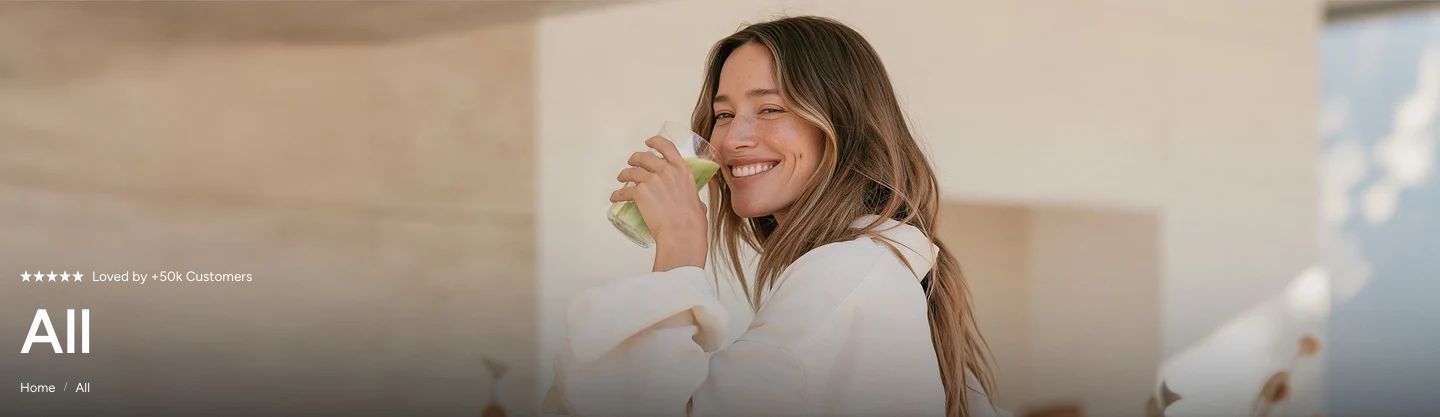
The section is available in three presets, all found under Banners in the Add section menu:
- Image banner: An image with a subheading, heading, text and button on top.
- Video hero: A video with a subheading, heading, text and button on top.
- Video player: A video with no text on top, with the theme's play/pause and mute/unmute buttons turned on.
All three presets use the same blocks, so you can turn one into another by changing the media type and adding or removing blocks.
Section structure
When you expand the section in the theme editor sidebar, you will see three fixed blocks:
- Header: An optional heading area above the banner. It contains a Heading block by default. Remove the heading if you do not need a section title.
- Banner content: The image or video and the content placed on top of it. All of the section's content blocks go here.
- Floating card: Optional product cards shown on top of the banner. It is empty until you add a card.
See How sections and blocks work for more about fixed blocks and theme blocks.
Section settings
- Make section full width: Enable this setting to make the section span the full width of the screen.
- Show section behind header: Show the section behind a transparent header. This works only when the section is the first one on the page, right after the header, on a page type ticked in the header's Transparent header settings. For the best result, turn on full width, leave the section heading and spacing empty and give the header a semi-transparent background. See Header.
Colors
- Background color: Set the background color of the section.
- Background gradient: Set a background gradient. A gradient overrides the background color.
- Text color: Set the text color for the whole section.
Section spacing
- Distance top (desktop): Space above the section on desktop (0 to 100 px).
- Distance bottom (desktop): Space below the section on desktop (0 to 100 px).
- Show custom mobile spacing: Enable this setting to use different spacing on mobile. When it is on, Distance top (mobile) and Distance bottom (mobile) appear.
Header block
Click the Header block to style the heading area above the banner.
- Text alignment (desktop) and Text alignment (mobile): Align the heading (options: Left, Center, Right).
- Text container max width: Limit the width of the heading area (0 to 1600 px). Set it to 0 to use the default maximum width.
- Text color: Override the section text color for the heading area.
You can add any theme block to the Header, for example a Subheading above the heading or a Text block below it.
Banner content block
Click the Banner content block to set up the media and the content on top of it.
- Text container max width: Limit the width of the content (0 to 1600 px). Set it to 0 to use the default maximum width.
- Align content with page width: Keep the content within the normal page width while the image spans the full screen. Shown only when Make section full width is on.
Section height
- Height: Choose Adapt to media to follow the height of your image or video, or Fixed height to set the height yourself.
- Height (desktop) and Height (mobile): Set the fixed height (200 to 1000 px). Shown only when Fixed height is selected.
Desktop version
- Media type: Show an image or a video.
- Image or Video: Upload the image, or select a video uploaded to Shopify.
- Text vertical position: Place the content at the top, center or bottom of the banner.
- Text alignment: Align the content left, center or right.
Mobile version
- Show different media on mobile: Enable this setting to use a different image or video on mobile. When it is off, the desktop media is used on all devices.
- Media type, Image and Video: The mobile media. Shown only when the setting above is on.
- Text vertical position and Text alignment: Position and align the content on mobile.
Mobile content position
- Show content below media on mobile: Move the content out of the banner and show it below the image or video on phones. This keeps a busy image clear and the text easy to read.
- Background color and Text color: The colors of the content area below the media. Shown only when the setting above is on.
Video URL
- Video URL: A YouTube or Vimeo link. It is used when Media type is set to Video and no Shopify video is selected.
Video behavior
These settings appear when the media type is set to Video.
- Autoplay: Start the video automatically, muted.
- Show default video controls: Show the browser's standard video controls.
- Custom play/pause button and Custom mute/unmute button: Show the theme's own buttons on top of the video. Available only when the default controls are off.
The custom play/pause and mute/unmute buttons only work with a video uploaded to Shopify, not with a YouTube or Vimeo link.
Optimization
- Optimize loading if this is the first section on the page: Load the media right away instead of when it scrolls into view, which makes the page appear faster. Use it when the banner is at the top of the page.
Colors
- Text color: Override the text color of the content.
- Content background color: A color layer on top of the whole image or video, behind the content. A semi-transparent dark or light color helps make text easier to read.
Content blocks
Click Add block under Banner content to add content on top of the media. You can use any theme block, such as Subheading, Heading, Text and Button, and the Countdown timer block.
Countdown timer block
The Countdown timer block counts down to a date and time, for sales, launches and limited offers.
- End date and time: The date and time the countdown ends, in the format
YYYY-MM-DD HH:MM. - Expired message: The text shown once the countdown has ended.
- Style: Show the timer in a large headline style or in the body text style.
- Show labels below the timer: Place the days, hours, minutes and seconds labels below the numbers.
- Show d/h/m/s labels: Show or hide the labels.
- Timer scale (desktop) and Timer scale (mobile): Make the timer smaller or larger (50 to 500% on desktop, 50 to 300% on mobile).
- Set custom item width: Set the width of each counter item yourself, separately for desktop and mobile. Available only when labels are shown below the timer.
Floating card block
The Floating card block shows small product cards on top of the banner. Add a card to show a product from the image, for example the dress your model is wearing. A card appears once its product is set. More than one card stacks in a column.
- Gap: The space between cards (0 to 32 px).
- Vertical position (desktop) and Horizontal position (desktop): Place the cards in a corner of the banner (options: Top, Bottom and Left, Right).
- Vertical position (mobile): Place the cards at the top or bottom of the banner on phones.
- Keep card in view while scrolling: When the banner is taller than the screen, a card at the bottom stays at the bottom of the screen while the banner scrolls, and leaves with the banner. Shown only when a card is placed at the bottom.
Compact product card block
Click Add block under Floating card to add a Compact product card. It shows a small product card with a thumbnail, the product details and a quick buy button.
- Product: The product the card shows. The card appears on the storefront once a product is set.
- Vertical alignment: Line up the thumbnail and the details at the top or in the center of the card (options: Top, Center).
- Gap: The space between the parts of the card (0 to 32 px).
- Text color and Background color: The colors of the card.
- Background blur: Blur what is behind the card (0 to 20 px). It needs a background color with some transparency to show. Shown only when a background color is set.
- Show shadow: Show a soft shadow under the card.
The card is made of smaller blocks that you can reorder, remove or add again:
- Thumbnail: The product image. Set its Size (desktop) and Size (mobile) (60 to 160 px), its Image ratio (options: Square, Portrait, Adapt to image) and whether it links to the product.
- Vendor: The product vendor, optionally linked to the vendor's collection, with a text scale for desktop and mobile.
- Badge: The first badge that applies to the product: Sold out, then the tag badges from Product badges. You can override the badge background and text color and blur the image behind the badge.
- Title: The product title, with a choice of heading tag (h2, h3, h4) for SEO and a text scale for desktop and mobile.
- Price: The product price, with a text scale for desktop and mobile. The compare-at price and discount are set in Product badges.
- Rating: The product's star rating from Shopify's product rating metafield, which a reviews app fills in. Choose whether to show the review count and whether to hide the rating when there are no reviews.
- Button: A quick buy button, shown as an icon or as text (options: Icon, Text) in the primary or secondary button style. A product with one variant is added to the cart straight away. For a product with several variants, quick view opens so the customer can choose.
Mobile view example