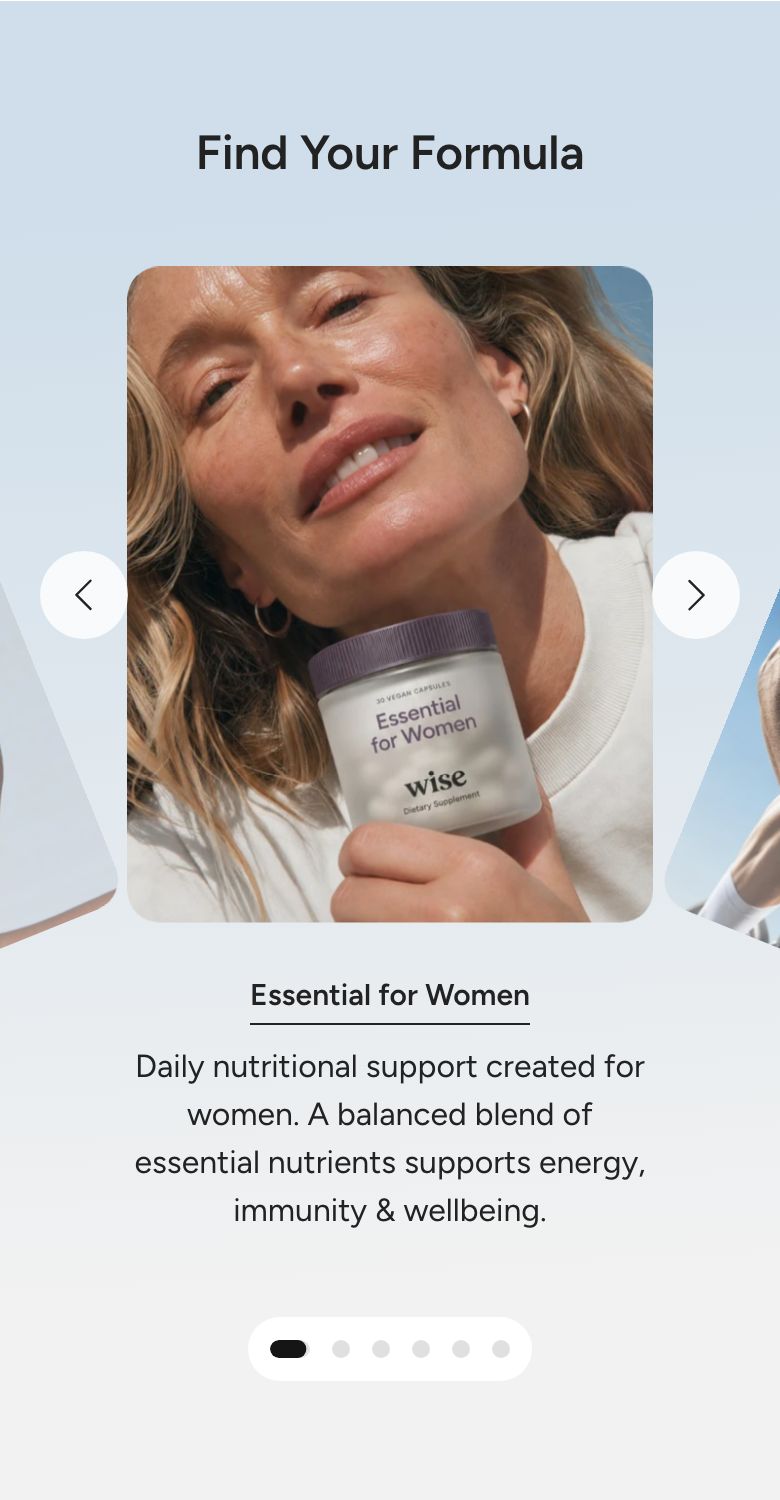
Orbit carousel
What is the Orbit carousel section?
The Orbit carousel section places portrait images on a curved arc. The centered image is the active slide, the others drop away to the sides, and the whole ring turns when a visitor moves to the next slide. The subheading, heading, button and text of the active slide are shown below the arc. Use it to present collections, product lines or stories in an eye-catching way.
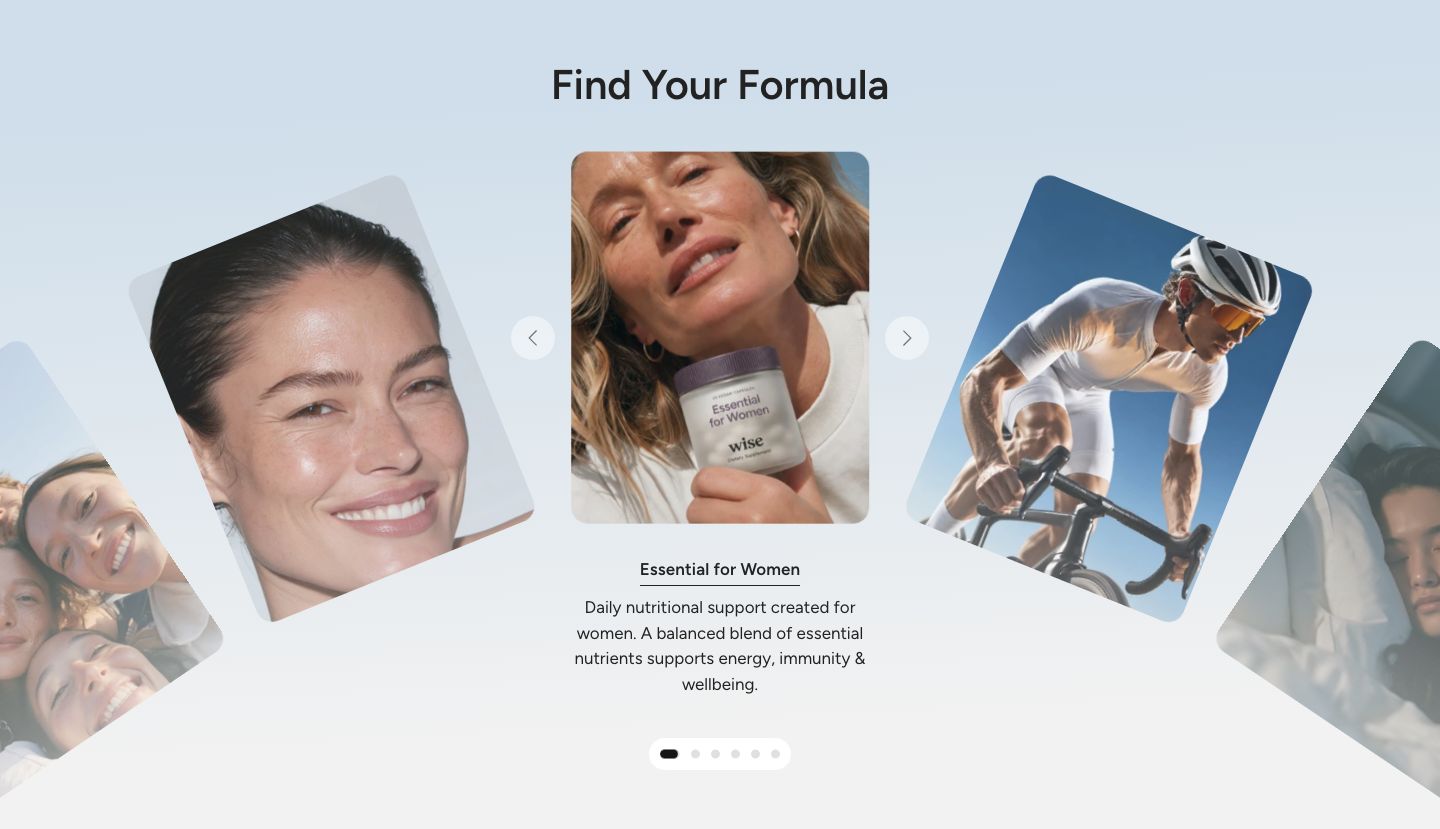
You will find the section under Banners in the Add section menu. It starts with a heading and five slides.
Section structure
When you expand the section in the theme editor sidebar, you will see:
- Header: An optional heading area above the carousel. It contains a Heading block by default. Remove the heading if you do not need a section title.
- Orbit slide blocks: One block per slide. Click Add block at the section level to add another slide, and drag slides to change their order.
See How sections and blocks work for more about fixed blocks and theme blocks.
The arc looks best with at least five slides, so there are images on both sides of the centered one.
Section settings
Arc
The slides sit on an invisible curve. Arc width spreads them sideways and Arc depth decides how far the outer ones drop.
- Slide width: The width of each slide as a share of the section (16 to 40%).
- Arc width: How far the slides spread to the sides (50 to 100%).
- Arc depth: How far the outer slides drop below the centered one (0 to 800 px). Set it to 0 for a straight row.
Slider behavior
- Transition speed: How long it takes to turn to the next slide (0.2 to 1.5 seconds).
- Autoplay: Move to the next slide automatically.
- Change slide every: How long each slide is shown (1 to 10 seconds). Shown only when Autoplay is on.
Pagination
The dots follow your Sliders theme settings unless you turn on custom dots.
- Custom dots: Enable this setting to style the dots for this section only.
- Dot background color, Dot background blur (0 to 20 px), Active dot color and Inactive dot color: Style the dots. Shown only when Custom dots is on.
Colors
- Background color: Set the background color of the section.
- Background gradient: Set a background gradient. A gradient overrides the background color.
- Text color: Set the text color for the whole section.
- Custom arrows: Enable this setting to color the arrows for this section only. When it is off, the arrows follow your Sliders theme settings.
- Arrow background color and Arrow icon color: The arrow colors. Shown only when Custom arrows is on. A color left empty falls back to the theme setting.
Section spacing
- Distance top (desktop): Space above the section on desktop (0 to 100 px).
- Distance bottom (desktop): Space below the section on desktop (0 to 100 px).
- Show custom mobile spacing: Enable this setting to use different spacing on mobile. When it is on, Distance top (mobile) and Distance bottom (mobile) appear.
Header block
Click the Header block to style the heading area above the carousel.
- Text alignment (desktop) and Text alignment (mobile): Align the heading (options: Left, Center, Right).
- Text container max width: Limit the width of the heading area (0 to 1600 px). Set it to 0 to use the default maximum width.
- Text color: Override the section text color for the heading area.
You can add any theme block to the Header, for example a Subheading above the heading or a Text block below it.
Orbit slide block
Click an Orbit slide block to edit it. The text, button and heading of a slide are shown below the arc while that slide is in the center.
- Image: The slide image. Portrait images work best, for example 9:16.
- Subheading: A short line above the heading.
- Heading: The slide heading.
- Heading scale (desktop) and Heading scale (mobile): Make the heading smaller or larger (50 to 300%).
- Button: The text of the button. Leave it empty to hide the button.
- Button style: How the button looks (options: Primary, Secondary, Link).
- Link: The page the button opens.
- Text: A short description below the button.
Mobile view example