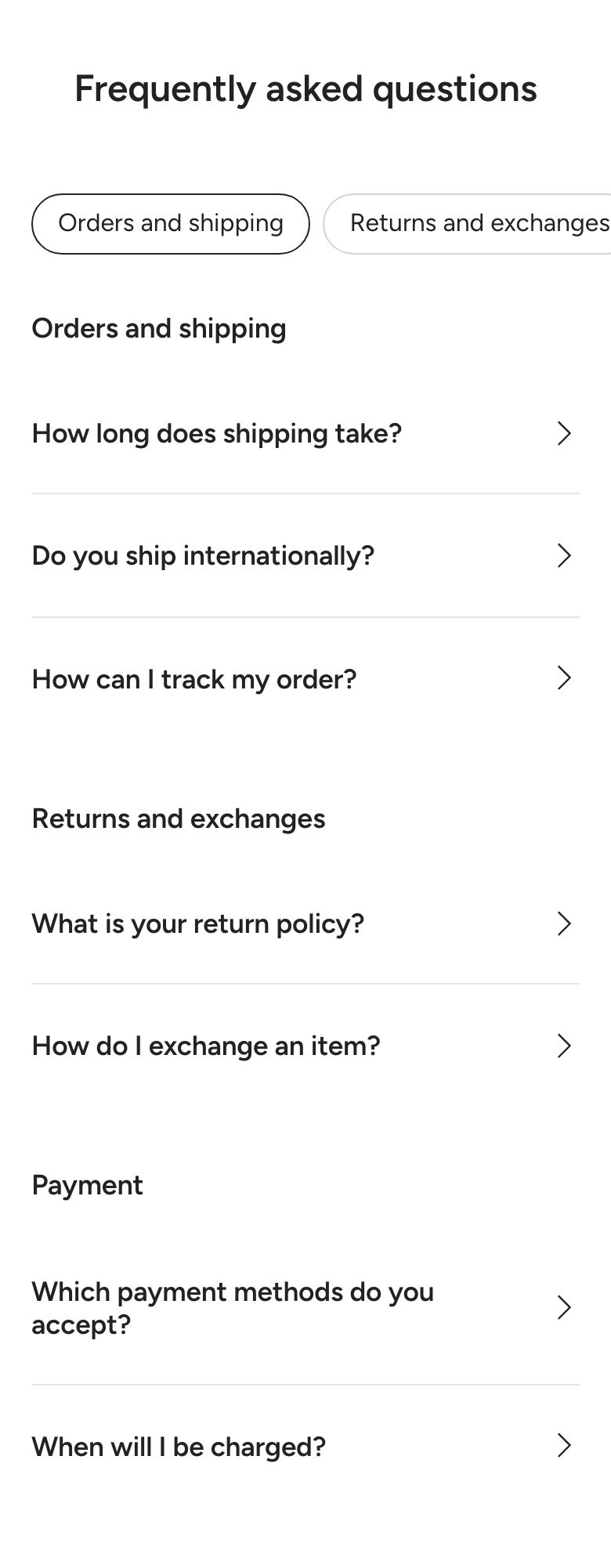
Content with navigation
What is the Content with navigation section?
The Content with navigation section splits long content into groups and shows a navigation menu next to it. Clicking a link scrolls to that group, and the menu highlights the group the customer is reading. Use it for a large FAQ, a help center, size and care guides or store policies.
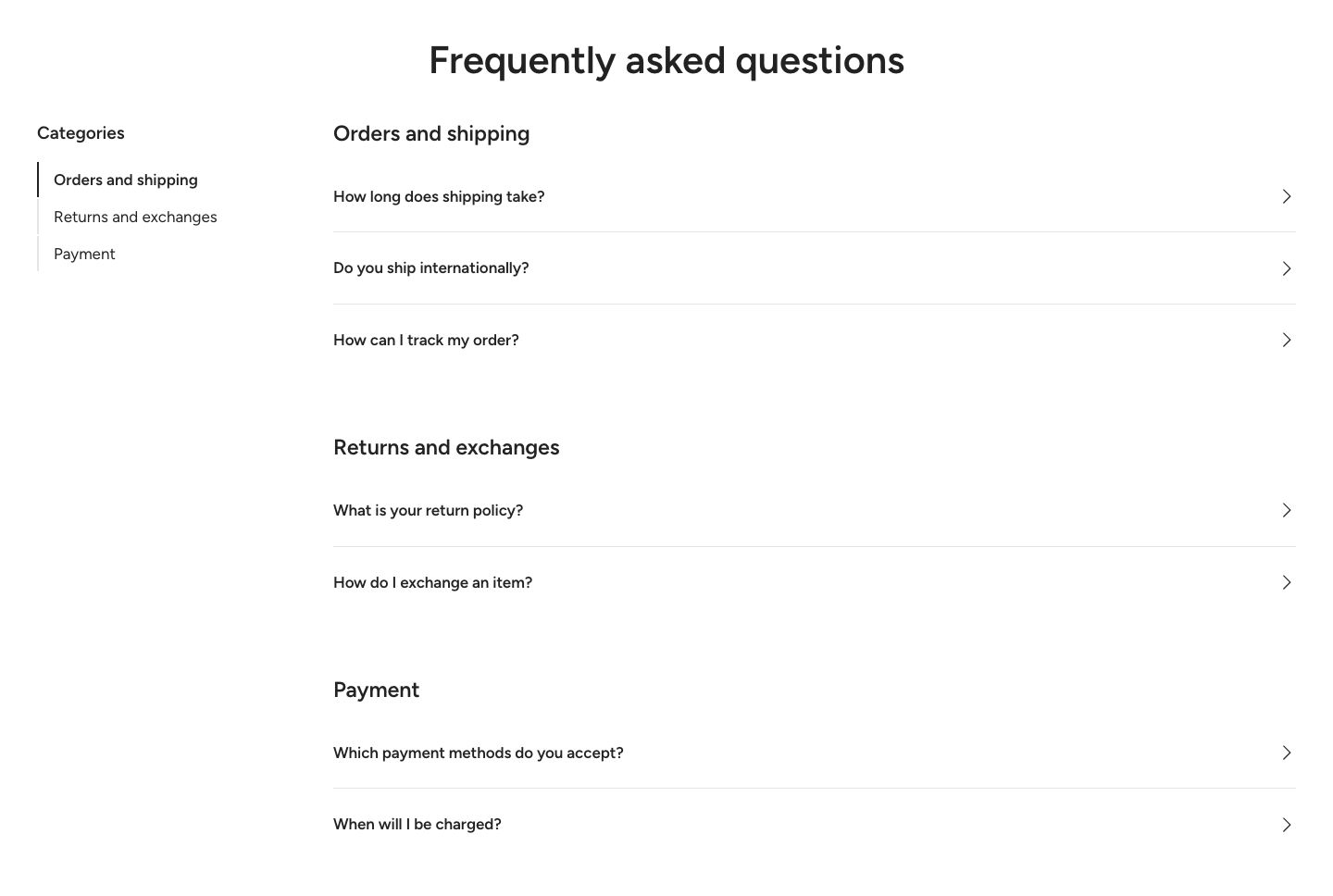
The section is found under Text in the Add section menu, as Content with side menu. It starts with a heading and three navigation groups, each holding a few collapsible rows.
Section structure
When you expand the section in the theme editor sidebar, you will see:
- Header: A fixed heading area above the content. It contains a Heading block by default.
- Navigation group blocks: One block per group. Each group's heading becomes a link in the navigation menu, so the menu builds itself from your groups.
See How sections and blocks work for more about fixed blocks and theme blocks.
Section settings
Navigation
- Navigation title: A small title shown above the navigation links, for example "Categories". Leave it empty to hide it.
- Navigation position: Show the navigation on the left or the right of the content on desktop (options: Left, Right). On mobile, the navigation becomes a bar above the content that customers can scroll sideways.
- Navigation column width: The width of the navigation column on desktop (160 to 400 px).
- Heading font: The font of the navigation title and the group headings (options: Heading, Subheading, Body).
- Text font: The font of the navigation links and the content of the groups (options: Body, Subheading, Heading).
Colors
- Background color: Set the background color of the section.
- Background gradient: Set a background gradient. A gradient overrides the background color.
- Text color: Set the text color for the whole section. It also colors the navigation lines and the dividers between rows.
Section spacing
- Distance top (desktop): Space above the section on desktop (0 to 100 px).
- Distance bottom (desktop): Space below the section on desktop (0 to 100 px).
- Show custom mobile spacing: Enable this setting to use different spacing on mobile. When it is on, Distance top (mobile) and Distance bottom (mobile) appear.
Header block
Click the Header block to style the heading area above the content.
- Text alignment (desktop) and Text alignment (mobile): Align the heading (options: Left, Center, Right).
- Text container max width: Limit the width of the heading area (0 to 1600 px). Set it to 0 to use the default maximum width.
- Text color: Override the section text color for the heading area.
You can add any theme block to the Header, for example a Subheading or a Text block.
Navigation group block
Each Navigation group is one part of your content with its own link in the navigation.
- Heading: The name of the group, for example "Shipping". It is also the link text in the navigation.
- Show heading above the group: Show the heading above the group's content. When it is off, the heading is still used as the navigation link.
- Title font: The font of the heading above the group (options: Body, Heading, Subheading). Shown only when the heading is shown.
- Text scale (desktop) and Text scale (mobile): Make the heading smaller or larger (50 to 300%). Shown only when the heading is shown.
- Anchor: The name used in links to this group, for example
returns. You can then link straight to the group from anywhere in your store with a link ending in#returns. Leave it empty to build the anchor from the heading.
Inside a group, you can add Collapsible row blocks, Media blocks and any theme block, such as Text, Button or Icon with text.
Collapsible row block
A Collapsible row shows a title that opens to reveal its content. The content is made of blocks: a Text block by default.
- Open by default: Show the row open when the page loads.
- Title font, Title, Text scale (desktop) and Text scale (mobile): The row title and its look (50 to 300%).
- Image or Icon: An optional icon before the title, either your own image or one from the theme's icon set. Turn on Icon advanced settings to adjust the icon height (10 to 100 px) and top margin (0 to 16 px).
- Text color, Background color and Line color: Colors of the row.
- Hide if content is empty: Hide the whole row when there is nothing inside it.
- Block spacing: Space above and below the row (0 to 60 px), with optional separate values for mobile.
Inside a row, besides theme blocks, you can add Page content (shows the content of a Shopify page), Media, Table, Feature icons list, Feature tags and File blocks. See Collapsible menu for more about these blocks.
Media block
The Media block shows an image or a video inside a group or a row.
- Media type: Show an image or a video.
- Image or Video: Upload the image, or select a video uploaded to Shopify.
- Custom play/pause button and Custom mute/unmute button: Show the theme's own buttons on top of the video. Shown only for videos.
- Height: Follow the height of the media (Adapt to media) or set it yourself (Fixed height). With Fixed height, set Height (desktop) and Height (mobile) (200 to 1000 px).
If your store uses a sticky header, the section takes it into account: groups stop just below the header when a customer clicks a link, and the navigation stays visible below it.
Mobile view example