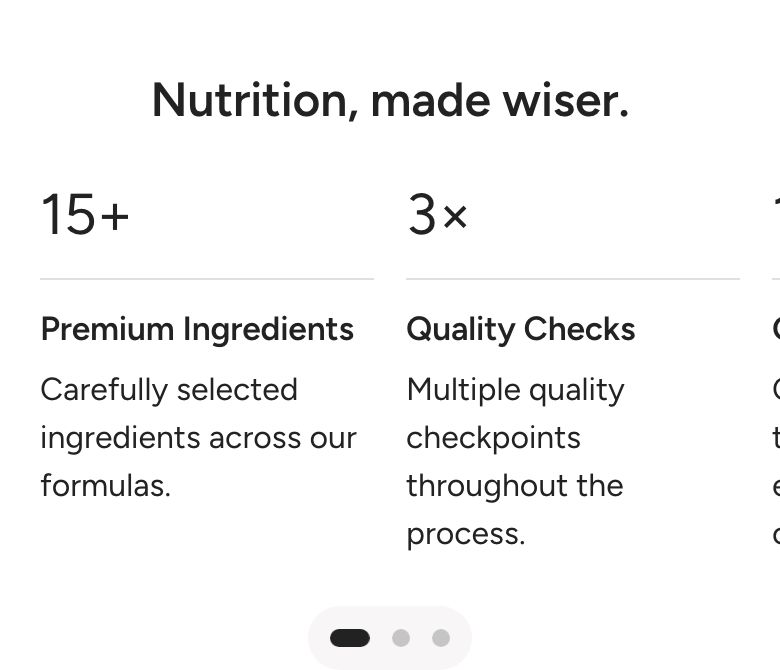
Metrics banner
What is the Metrics banner section?
The Metrics banner section shows a row of big numbers, each with a short heading and description. Use it to build trust with facts about your store, for example "10,000+ happy customers", "98% would buy again" or "5 years in business". The numbers can count up when they scroll into view.
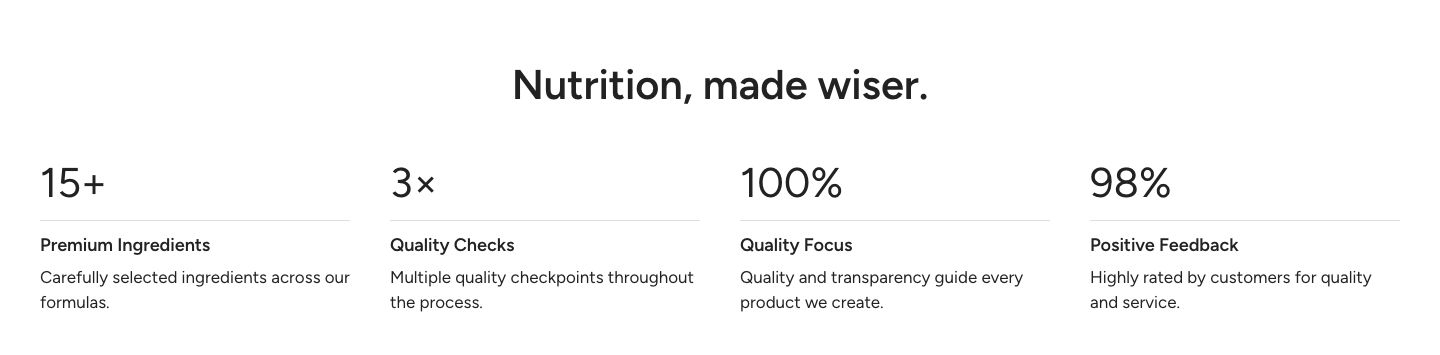
The section is found under Text in the Add section menu. It starts with a heading and four metrics.
Section structure
When you expand the section in the theme editor sidebar, you will see two fixed blocks:
- Header: An optional heading area above the metrics. It contains a Heading block by default.
- Metrics container: Holds the Metric blocks and controls how they are laid out.
See How sections and blocks work for more about fixed blocks and theme blocks.
Section settings
Colors
- Background color: Set the background color of the section.
- Background gradient: Set a background gradient. A gradient overrides the background color.
- Text color: Set the text color for the whole section.
Section spacing
- Distance top (desktop): Space above the section on desktop (0 to 100 px).
- Distance bottom (desktop): Space below the section on desktop (0 to 100 px).
- Show custom mobile spacing: Enable this setting to use different spacing on mobile. When it is on, Distance top (mobile) and Distance bottom (mobile) appear.
Header block
Click the Header block to style the heading area above the metrics.
- Text alignment (desktop) and Text alignment (mobile): Align the heading (options: Left, Center, Right).
- Text container max width: Limit the width of the heading area (0 to 1600 px). Set it to 0 to use the default maximum width.
- Text color: Override the section text color for the heading area.
You can add any theme block to the Header, for example a Subheading or a Text block.
Metrics container block
Click the Metrics container block to set up the layout of the metrics.
Desktop version
- Alignment: Align the content of each metric (options: Center, Left).
- Columns: How many metrics sit in one row on desktop (options: 2, 3, 4).
Mobile version
- Layout: Show the metrics in a grid or in a slider that customers swipe through (options: Grid, Slider). The grid shows one metric per row on phones and two on tablets.
- Items per row: How many metrics are visible at once in the slider (1 to 4). Use a decimal value, for example 1.2, to show part of the next metric as a hint that customers can swipe. Shown only when Layout is set to Slider.
- Gap: Space between the metrics in the slider (12 to 36 px). Shown only when Layout is set to Slider.
- Alignment: Align the content of each metric on mobile (options: Center, Left).
Pagination
These settings appear when the mobile layout is set to Slider. By default, the slider dots use the style from Theme settings: Sliders.
- Custom dots: Enable this setting to style the dots for this section only.
- Dot background color, Dot background blur (0 to 20 px), Active dot color and Inactive dot color: The look of the custom dots. Shown only when Custom dots is on.
Colors
- Metric background color: Show a colored box behind each metric.
Number animation
- Animate numbers: Count up to each number when the metric scrolls into view. Visitors who have asked their device for reduced motion see the final number straight away.
- Animation duration: How long the count takes (1 to 5 seconds). Shown only when the animation is on.
- Ease out: Slow the count down towards the end. Shown only when the animation is on.
Metric block
Each Metric block is one number with its heading and description. Add, duplicate, reorder or remove metrics in the Metrics container.
- Number: The big number, for example
+99%or10k. You can add text before or after the number. - Number scale (desktop) and Number scale (mobile): Make the number smaller or larger (50 to 300% on desktop, 50 to 220% on mobile).
Separator
- Show line: Show a line between the number and the heading.
- Line color: The color of the line. Leave it empty to use the section's text color. Shown only when the line is on.
Heading
- Heading: The name of the metric, for example "Happy customers".
- Heading scale (desktop) and Heading scale (mobile): Make the heading smaller or larger (50 to 300% on desktop, 50 to 220% on mobile).
Text
- Text: A short description below the heading.
Mobile view example