Scroll fill text
What is the Scroll fill text section?
The Scroll fill text section shows a large statement, such as your mission or brand promise, that fills with color word by word as the customer scrolls. You can also place small images between the words, which makes the text feel like an editorial layout. Use it to slow customers down for one key message.
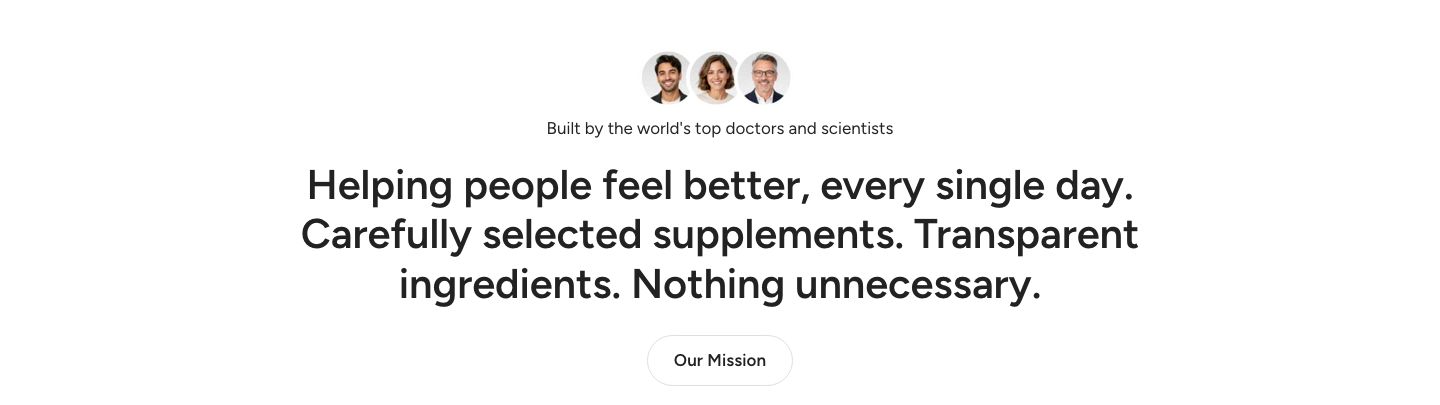
The section is available in two presets, both found under Text in the Add section menu:
- Scroll fill text: Editorial text with the fill animation on, and a button below it.
- Rich text with images: Editorial text with three images placed between the words and the animation off, and a button below it.
Both presets use the same blocks, so you can turn one into the other by changing the Editorial text block settings.
Section structure
The section has no fixed blocks. It starts with an Editorial text block and a Button block, and you can add, move and remove blocks freely. See How sections and blocks work for more about blocks.
Section settings
- Make section full width: Enable this setting to make the section span the full width of the screen.
- Text container max width: Limit the width of the text (0 to 1600 px). Set it to 0 to use the default maximum width.
- Text alignment (desktop) and Text alignment (mobile): Align the content left, center or right.
Colors
- Background color: Set the background color of the section.
- Background gradient: Set a background gradient. A gradient overrides the background color.
- Text color: Set the text color for the whole section. It is also the default fill color of the animation.
Section spacing
- Distance top (desktop): Space above the section on desktop (0 to 100 px).
- Distance bottom (desktop): Space below the section on desktop (0 to 100 px).
- Show custom mobile spacing: Enable this setting to use different spacing on mobile. When it is on, Distance top (mobile) and Distance bottom (mobile) appear.
Editorial text block
The Editorial text block holds the statement and its animation.
- Text: Your statement. Keep it to a few short sentences for the best effect.
- Font style: Use the heading font or the body text font (options: Heading, Text).
- Text scale (desktop) and Text scale (mobile): Make the text smaller or larger (50 to 500% on desktop, 50 to 300% on mobile).
Fill animation
- Enable fill animation: Fill the text with color as the customer scrolls. When it is off, the text is shown in the fill color without any animation.
- Effect: Choose how the section behaves while it fills (options: Sticky text while filling, Fill in place). Sticky text while filling holds the whole section in the middle of the screen until the text is filled, then the page scrolls on. Fill in place keeps the page scrolling normally while the text fills.
- Fill only once: Keep the text filled when the customer scrolls back up, instead of reversing the animation.
The effect and fill settings are shown only when the fill animation is on.
Colors
These settings are shown only when the fill animation is on.
- Fill color: The color the words turn into. Leave it empty to use the section's text color.
- Before-fill color: The color of the words before they fill. Leave it empty to show a faded version of the fill color.
- Fill gradient: Fill the text with a gradient instead of a single color. The gradient sweeps across the whole text and overrides the fill color.
Images in text
- Show images in text: Place small images between the words of your text.
- Image size: Make the images smaller or larger compared to the text (80 to 120%).
- Image 1 to Image 6: The images. Each image has its own Image link and Open link as a new window setting, so you can link it, for example, to a product or collection.
To place an image, type PICTURE1 to PICTURE6 in the Text exactly where the image should appear, for example: "Helping people PICTURE1 feel better". If you use a placeholder word but leave that image empty, a placeholder image is shown.
Content blocks
Click Add block to add more content. You can use any theme block, such as Subheading, Heading, Text, Button or Separator, and more Editorial text blocks.
Visitors who have asked their device for reduced motion do not get the sticky scroll effect, so the page always stays easy to scroll.
Mobile view example