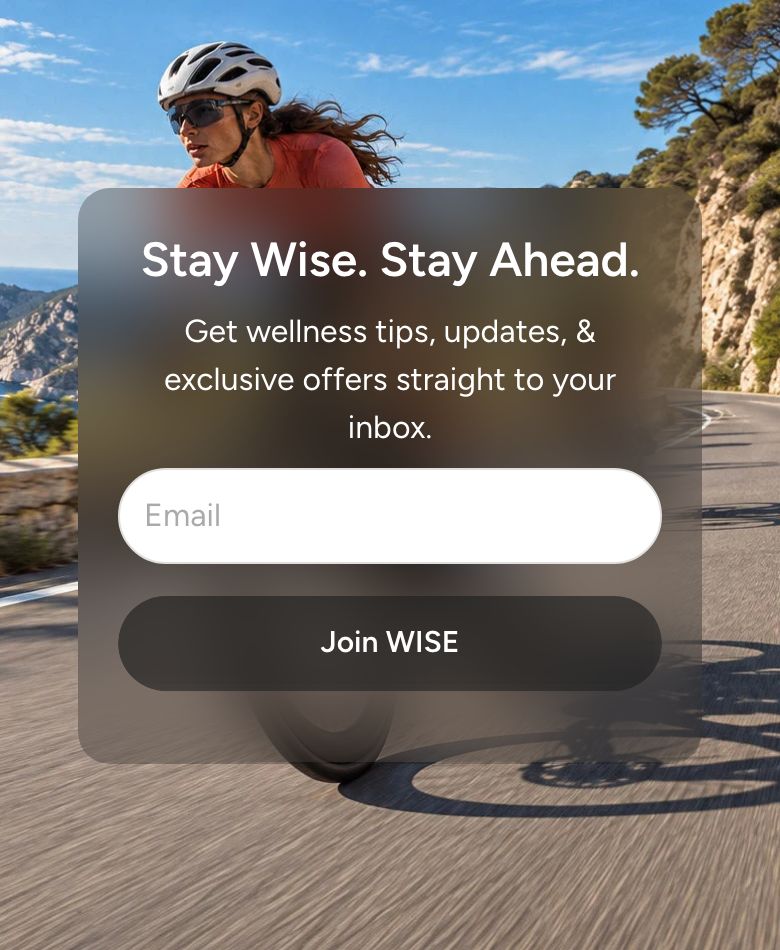
Newsletter with image
What is the Newsletter with image section?
The Newsletter with image section shows a sign-up form on a panel over a large background image. Use it to grow your mailing list, for example with a welcome discount offer near the bottom of your home page.
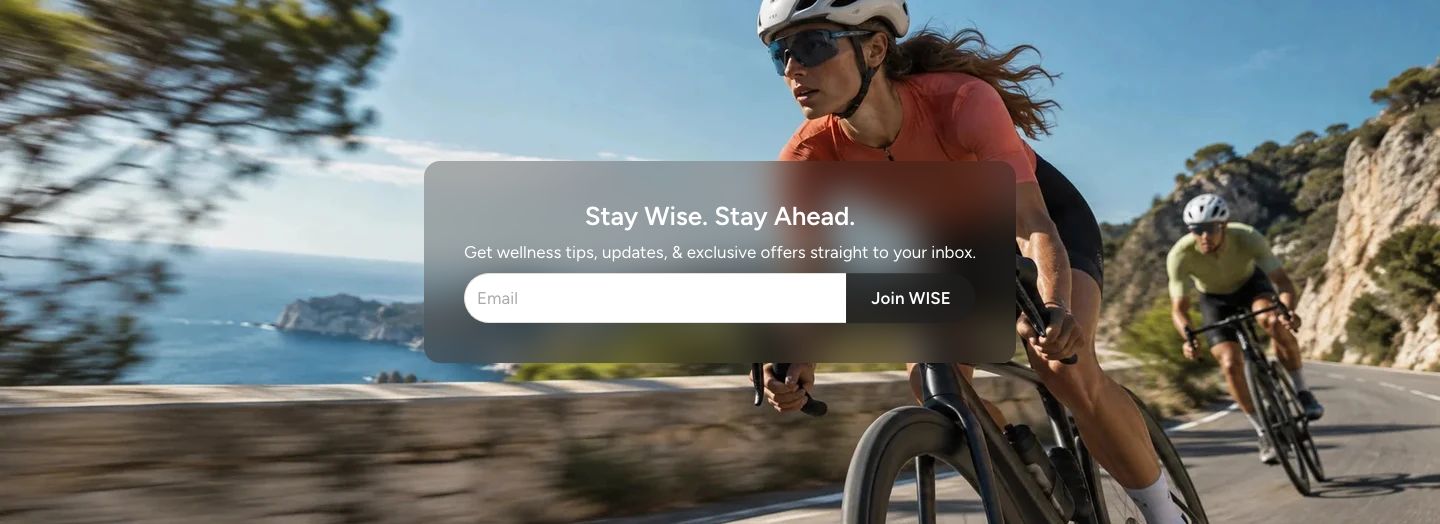
You will find it under Forms in the Add section menu. It starts with a section heading, and a panel on the image with a heading, a text and the email form.
Customers who sign up are added to Customers in your Shopify admin with email marketing consent and the tag newsletter, so you can reach them with Shopify Email or any email app connected to your store.
Section structure
When you expand the section in the theme editor sidebar, you will see two fixed blocks:
- Header: An optional heading area above the image. It contains a Heading block by default. Remove the heading if you only want the text on the image.
- Newsletter image: The background image and the content panel on top of it. The heading, text and Email form are blocks inside it.
See How sections and blocks work for more about fixed blocks and theme blocks.
Section settings
- Make section full width: Enable this setting to make the section span the full width of the screen.
Colors
- Background color: Set the background color of the section.
- Background gradient: Set a background gradient. A gradient overrides the background color.
- Text color: Set the text color for the whole section.
Section spacing
- Distance top (desktop) and Distance bottom (desktop): Space above and below the section on desktop (0 to 100 px).
- Show custom mobile spacing: Enable this setting to use different spacing on mobile. When it is on, Distance top (mobile) and Distance bottom (mobile) appear.
Header block
- Text alignment (desktop) and Text alignment (mobile): Align the heading (options: Left, Center, Right).
- Text container max width: Limit the width of the heading area (0 to 1600 px). Set it to 0 to use the default maximum width.
- Text color: Override the section text color for the heading area.
Newsletter image block
Section height
- Height: Choose Adapt to image to follow the height of your image, or Fixed height to set the height yourself.
- Height (desktop) and Height (mobile): Set the fixed height (200 to 1000 px). Shown only when Fixed height is selected.
Desktop version
- Image: The background image on desktop.
Mobile version
- Image: A different background image for mobile, for example in portrait format. When one of the two images is empty, the other one is used on all devices.
Colors
- Text color: The text color of the content panel.
- Background color: The background color of the content panel.
- Background blur: Blur the image behind the content panel (0 to 35 px). This shows only when the panel background color is partly transparent.
Content blocks
Click Add block under Newsletter image to add content to the panel. You can use any theme block, such as Subheading, Heading, Text or Icon with text, and the Email form block below.
Email form block
The Email form block shows an email field and a sign-up button.
- Button style: The look of the button (options: Primary, Secondary).
- Button label: The text on the button. Leave it empty to use "Subscribe".
Consent checkbox.
- Show consent checkbox: Add a checkbox the customer must tick before they can sign up. Customers who sign up this way also get the tag newsletter_consent, so you have a record of their consent.
- Consent checkbox label: The text next to the checkbox. You can add a link, for example to your privacy policy.
- Consent validation message: The message shown when the customer tries to sign up without ticking the box.
After signing up, the customer sees a thank you message below the form.
Mobile view example