Contact form
What is the Contact form section?
The Contact form section adds a form customers can use to send you a message. You build the form from field blocks, such as name, phone, dropdowns and checkboxes, and you can place an image beside it. Use it on your contact page, or on a landing page for wholesale or event enquiries.
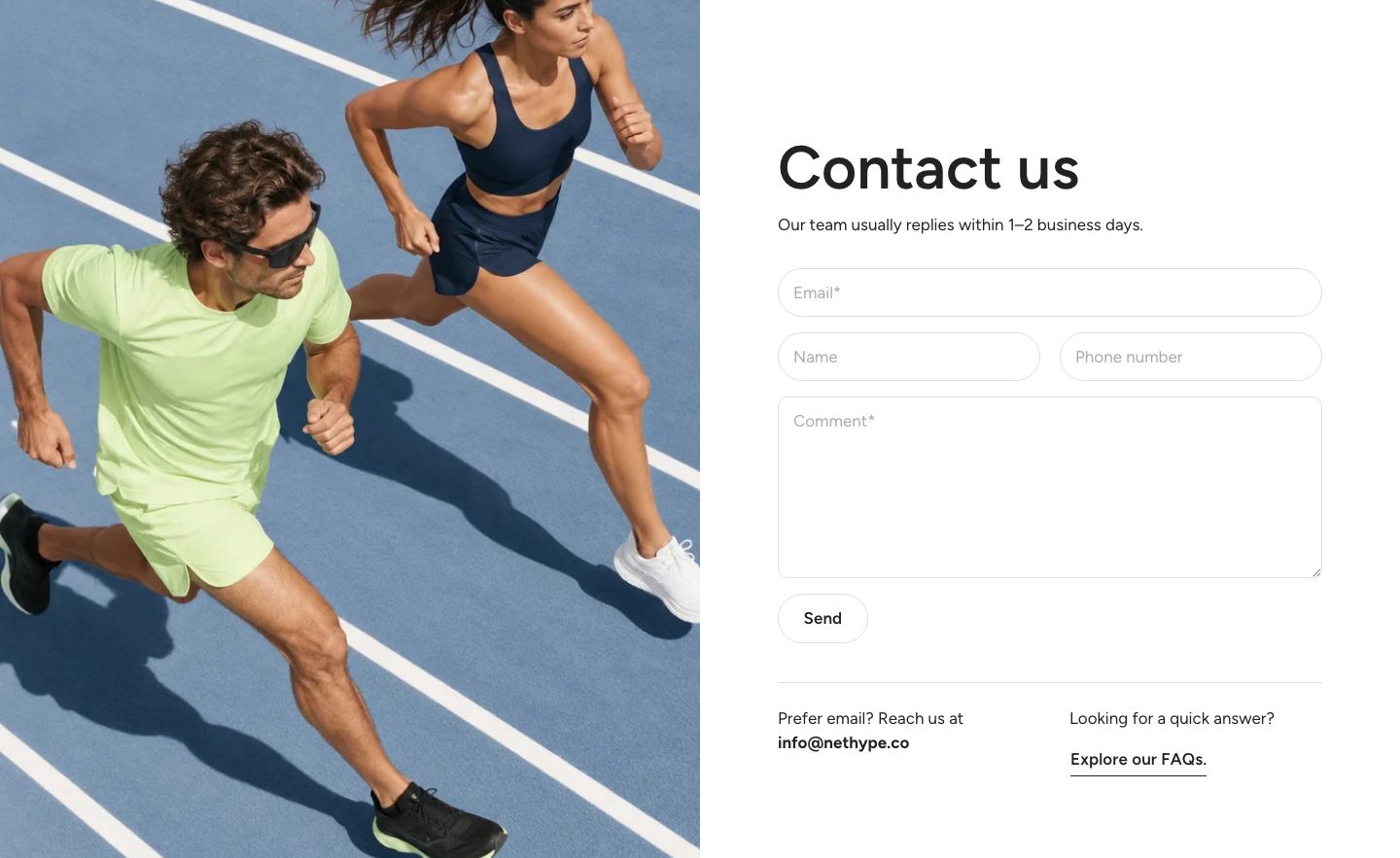
You will find it under Forms in the Add section menu. It starts with a heading, a text and a form with Email, Name, Phone and Text area fields.
Messages are sent to your store's sender email address, set in Settings → Notifications in your Shopify admin, and the customer's email address is used as the reply address.
Section structure
When you expand the section in the theme editor sidebar, you will see two fixed blocks:
- Header: The heading area above the form. It contains a Heading and a Text block by default.
- Contact form: The form itself. Each field is a block inside it.
You can also add Text, Button, Icon with text, Separator and Group blocks to the section. They appear below the form, for example for your opening hours or address.
See How sections and blocks work for more about fixed blocks and theme blocks.
Section settings
- Make section full width: Enable this setting to make the section span the full width of the screen.
- Show section behind header: Show the section behind a transparent header. This works only when the section is the first one on the page, right after the header, on a page type ticked in the header's Transparent header settings. For the best result, turn on full width, leave the section heading and spacing empty and give the header a semi-transparent background.
- Text container max width: Limit the width of the form column (0 to 1600 px). Set it to 0 to use the default maximum width.
Image
- Show image: Place an image beside the form. Without an image, the form stays a single column.
- Image (desktop): The image.
- Image position (desktop): Show the image left or right of the form. Below 900 px screen width, the image sits above the form.
- Image width (desktop): How much of the row the image takes up (30 to 70%).
- Image height (desktop): Adapt to image keeps the image's own shape. Fill section height stretches the image to the height of the form column.
- Show image on mobile: Show the image on mobile too.
- Image (mobile): A different image for mobile. Leave it empty to use the desktop image. Shown only when the image is shown on mobile.
Colors
- Background color: Set the background color of the section.
- Background gradient: Set a background gradient. A gradient overrides the background color.
- Text color: Set the text color for the whole section.
Section spacing
- Distance top (desktop) and Distance bottom (desktop): Space above and below the section on desktop (0 to 100 px).
- Show custom mobile spacing: Enable this setting to use different spacing on mobile. When it is on, Distance top (mobile) and Distance bottom (mobile) appear.
Header block
- Text alignment (desktop) and Text alignment (mobile): Align the heading (options: Left, Center, Right).
- Text container max width: Limit the width of the heading area (0 to 1600 px). Set it to 0 to use the default maximum width.
- Text color: Override the section text color for the heading area.
Contact form block
- Button label: The text on the submit button.
- Button style: The look of the button (options: Primary, Secondary, Link).
After a customer sends the form, a thank you message appears above the fields.
Field blocks
Click Add block under the Contact form to add fields, and drag them to change their order. Every field has these settings:
- Label: The name shown with the field. It is also the name of the field in the email you receive.
- Required: The customer must fill in the field before they can send the form. (Not available on the Email field, which is always required.)
- Width: Full takes the whole row, Half half of it. From 600 px screen width, two half width fields sit side by side.
Most fields also have a Placeholder: a hint shown inside the empty field. The label then stays above the field.
Give every field a different label. If two fields share a label, the email you receive contains only one of their values.
Email field
The customer's email address. Shopify needs it to send the message, so the form always has one: if you remove it, it is added back at the top of the form. Only one Email field is used. Leave Label empty to use the default label.
Name field
The customer's name. Leave Label empty to use the default label.
Phone field
The customer's phone number. Leave Label empty to use the default label.
Text area
A large box for the message. Leave Label empty to use the default Comment field.
Text field
A single-line field for any short answer, for example an order number or a company name.
Dropdown
A list the customer picks one answer from.
- Options: The choices, one per line.
- Placeholder: A first line that cannot be picked, for example "Choose a topic". With Required on, the customer must choose a real option.
Radio buttons
A set of choices shown side by side, where the customer picks one.
- Options: The choices, one per line.
Checkbox
A single tick box, for example to accept your terms. The Label is the text next to the box. Turn on Required if the customer must tick it.
Mobile view example