Product information
What is the Product information section?
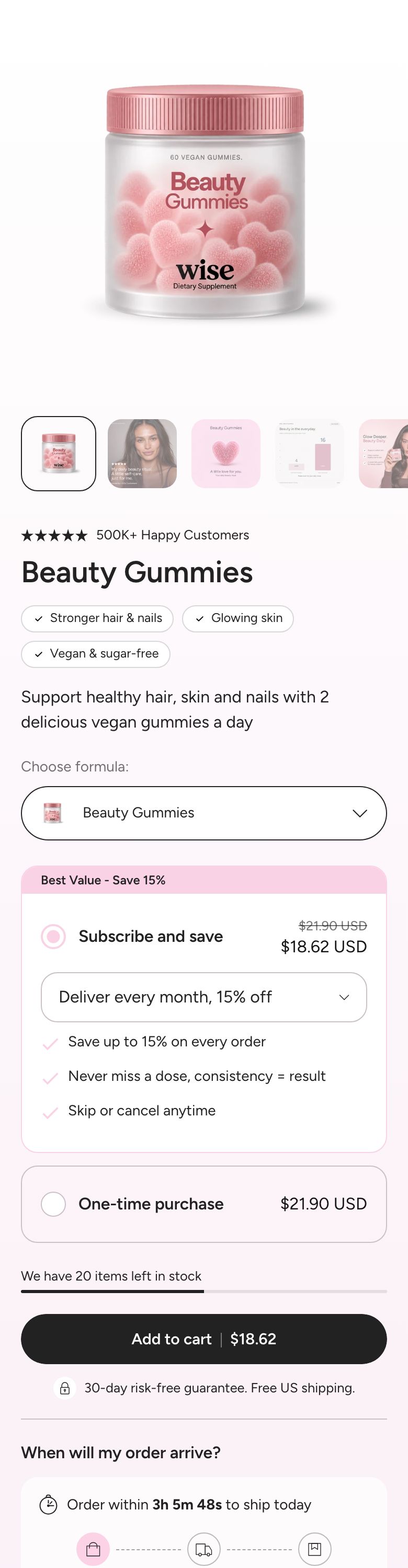
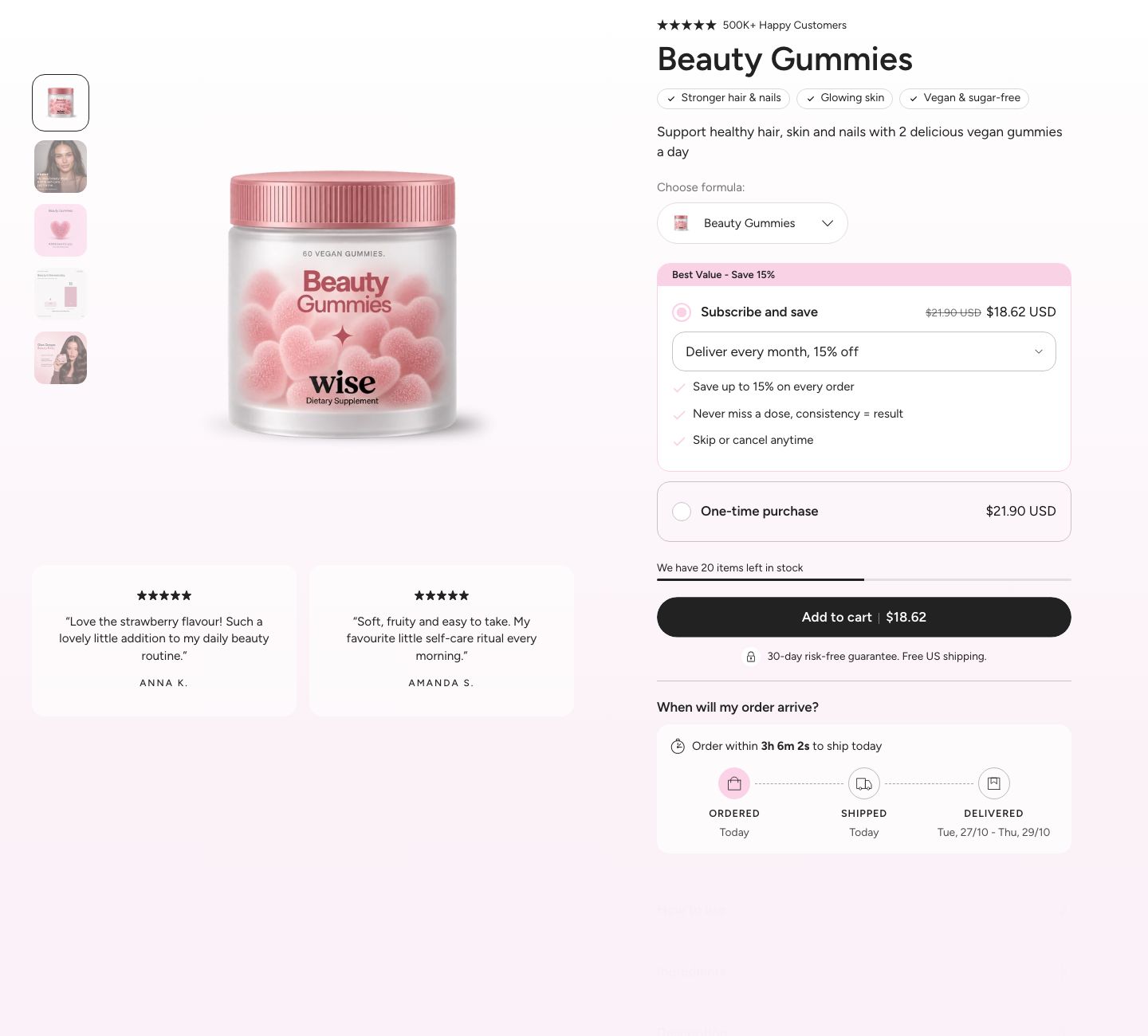
The Product information section is the heart of every product page. It shows the product media on one side and the product details, such as the title, price, variant picker and add to cart button, on the other. Everything in the details column is built from blocks, so you decide what appears and in which order.
Product templates
The section lives on the product templates. In the theme editor, choose Products from the page selector at the top to pick a template. Wise comes with these product templates:
- Default product: The standard product page with breadcrumbs and the Product information section.
- beauty-gummies, daily-greens and omega-3: Demo templates that show the Product information section followed by storytelling sections such as editorial content, banners, metrics and testimonials. Use them as a starting point for long product landing pages.
Each template has its own copy of the Product information section, so changes you make on one template do not affect the others. To use a different template for a product, open the product in your Shopify admin and choose the template under Theme template.
To create a new template, open the template menu in the theme editor and click Create template. Base it on an existing template to start with the same blocks.
Section structure
When you expand the section in the theme editor sidebar, you will see two fixed blocks before the content blocks:
- Product gallery: The product images, videos and 3D models. It always comes first and cannot be removed, but you can hide it.
- Below gallery: An optional area under the gallery where you can add blocks such as reviews, video reels or a description. It shows nothing until you add blocks to it.
Below them come the blocks of the details column. You can add, reorder and remove them freely. See How sections and blocks work for more about fixed blocks and theme blocks.
Section settings
- Make section full width: Enable this setting to make the section span the full width of the screen.
- Gap between media and product info (desktop): The space between the gallery and the details column (0 to 160 px). On smaller desktop screens the gap is 80% of this value.
- Media width (desktop): How much of the row the gallery takes up (40 to 75%). The details column fills the rest.
- Limit product info width: Enable this setting to stop the details column from getting too wide. When it is on, Product info max width appears (400 to 1000 px).
On desktop, both columns are sticky: the shorter column stays in view while the taller one scrolls past it. On mobile, the gallery and the details are stacked.
Colors
- Background color: Set the background color of the section.
- Background gradient: Set a background gradient. A gradient overrides the background color.
- Text color: Set the text color for the whole section.
- Custom arrows: Enable this setting to style the previous and next arrows of the gallery yourself. When it is off, the arrows follow Theme settings > Sliders. When it is on, Gallery arrow background and Gallery arrow color appear.
Section spacing
- Distance top (desktop): Space above the section on desktop (0 to 100 px).
- Distance bottom (desktop): Space below the section on desktop (0 to 100 px).
- Show custom mobile spacing: Enable this setting to use different spacing on mobile. When it is on, Distance top (mobile) and Distance bottom (mobile) appear.
Product gallery block
Click the Product gallery block to set up how the product media is shown.
- Show gallery: Uncheck this to hide the gallery. The gallery is also hidden when the product has no media.
- Layout: How the media is arranged on desktop (options: Carousel with thumbnails on the side, Carousel with thumbnails below, Collage).
- Collage arrangement: Shown only for the Collage layout. Choose how the images are sized in the grid (options: First image large, rest in pairs; All images equal; Every third image large; All images large, one per row). The collage is used from 1200 px screen width up. A single image left at the end always stretches to fill its row.
- Thumbnails gap: The space between the main image and the thumbnails on desktop (4 to 24 px). Not shown for the Collage layout.
- Image ratio: The shape of the gallery images (options: Original, Portrait, Square).
- Loop videos: Play product videos in a loop.
- Enable image zoom: Open an image full screen when a customer clicks it.
- Variant media tags: Choose how the gallery knows which media belongs to which variant. See Showing media per variant below (options: Alt text, File name, Variant image groups).
- Show badges on product images: Show the product badges, such as Sold out or your tag badges, on top of the gallery. When it is on, Badges position appears (options: Top left, Top right, Bottom left, Bottom right). The badges themselves are set up in Theme settings > Product badges.
Video behavior
- Show default video controls: Show the browser's standard video controls.
- Custom play/pause button and Custom mute/unmute button: Show the theme's own buttons on top of the video. Available only when the default controls are off.
The custom play/pause and mute/unmute buttons only work with a video uploaded to Shopify, not with a YouTube or Vimeo video.
Mobile version
- Image size: Show the gallery at normal size or smaller on mobile (options: Normal, Small).
- Show thumbnails on mobile: Show thumbnails under the main image on mobile.
- Pagination: Shown only when thumbnails are off on mobile. Choose how customers see where they are in the gallery (options: Counter and line, Counter, Dots, None). Dots follow Theme settings > Sliders.
Showing media per variant
For a full step-by-step setup with naming rules and examples, see Multi-images variant gallery.
When a customer picks a variant, the gallery jumps to that variant's image. You can also make the gallery show only the media that belongs to the selected variant, for example only the red photos when Red is selected. Pick how media is tagged in Variant media tags:
- Alt text: Add a hashtag with the option value to the media's alt text in your Shopify admin, for example
#red. Use#red|bluefor media that belongs to more than one value, and#allfor media that should always show. - File name: Add the option value after a double underscore in the file name before you upload it, for example
shirt__red.jpg. - Variant image groups: No tagging needed. Assign an image to each variant, then order the media in your Shopify admin so each variant's image is followed by its other photos. Each variant shows its own image and the media after it, up to the next variant's image. Media placed before the first variant image shows for every variant.
Media without a tag shows for every variant. Spaces, hyphens and underscores are ignored when matching, so #dark-sage matches the value "Dark sage". If no media is tagged at all, the gallery shows all media as usual.
Below gallery block
The Below gallery block is an area under the gallery on desktop. It is useful for content that would make the details column too long, such as a description, testimonials or video reels. When it has no blocks, it shows nothing.
- Show on desktop: Show the area always, or only when the gallery uses a carousel layout (options: Always, Only with a carousel gallery). A collage is usually tall already, so you may want to hide the area next to it.
- Position on mobile: Where the area appears on mobile (options: After product info, After gallery, Hidden).
- Gap: The space between the blocks in the area (0 to 80 px).
- Distance top (desktop) and Distance top (mobile): The space between the gallery and the area (0 to 80 px).
You can add these blocks to the Below gallery area: Description, Collapsible row, Feature icons, Feature icons list, Bullet points, Complementary products, Complementary products: compact card, Video reels, Testimonials, the theme blocks Text, Heading, Subheading, Group, Button, Separator, Icon with text and Custom Liquid, and app blocks.
Blocks you can add
Click Add block under the section to add content to the details column. Each block has its own article.
Product details
- Title: The product title, with an optional brand line above it.
- Rating: The star rating and review count from your reviews app.
- Price: The price of the selected variant, with the sale price, tax note and installments.
- Badges: The product badges, such as Sold out and your tag badges.
- SKU: The SKU of the selected variant.
- Inventory status: Whether the selected variant is in stock, with an optional stock progress bar.
- Description: The product description, plain or in a collapsible row.
- Bullet points: A short list of key features, from a metafield or your own text.
Variants and buying
- Variant picker: Lets customers choose a variant with tiles, color swatches, variant photos or a drawer, plus an optional size guide.
- Product siblings: Links to other versions of the product that are set up as separate products.
- Custom option: A checkbox, dropdown or text field whose value is saved with the order.
- Subscription widget: A choice between one-time purchase and subscription plans.
- Buy buttons: The add to cart button, quantity selector and dynamic checkout buttons.
- Sticky buy button: An add to cart bar that appears once the main button scrolls out of view.
- Pickup availability: Whether the selected variant can be picked up in store.
Features and information
- Feature icons: A grid of small icons with labels.
- Feature tags: Product features shown as small tags.
- Feature icons list: A list of icons, each with a title and a description.
- Collapsible row: A title that opens to reveal more content.
- Collapsible drawer: A title that opens a side drawer with more content.
- Popup: A link that opens a popup, for example with shipping details or a size table.
- Estimated delivery: An estimated delivery date range.
- Shipping timeline: A timeline from order to delivery, with an order cutoff time.
- Payment badges: The payment icons of your store or your own image.
- Share buttons: Links to share the product on social media.
Promotions and cross-selling
- Countdown with discount: A countdown timer with a discount code.
- Promo: A highlighted text box for a short message.
- Complementary products: Products set as complementary in the Search & Discovery app, as product cards.
- Complementary products: compact card: The same products as compact cards.
- Upsell: Products you pick, shown as cards.
- Video reels: Short vertical videos linked to products.
- Testimonials: Customer quotes in a grid or a slider.
Theme blocks and apps
- Text, Separator, Button, Custom Liquid and Icon with text: The shared theme blocks, for example a button that links to a size guide page.
- Apps: App blocks from apps you have installed, such as a reviews widget.
The Variant picker, Custom option, Subscription widget and Sticky buy button all send their choices through the Buy buttons block. Keep a Buy buttons block in the section whenever you use them.
Mobile view example