Installing Wise and choosing a preset
Installing Wise and choosing a preset
In this guide you add the Wise theme to your Shopify store and choose one of its two presets. A preset is a ready-made style for the theme: its colors, fonts, corner rounding, icons and badges. Both presets have exactly the same sections, blocks and features, so you can pick the one closest to your brand and change anything later.
The presets
Wise
A soft, friendly look with rounded shapes.
- Shapes: Rounded corners on images, cards and drawers, and pill-shaped buttons.
- Fonts: Figtree for body text, headings, navigation, buttons and prices. Single words in headings can be set in italic with Source Serif 4, an elegant serif.
- Colors: Dark text on white, a light yellow accent for small indicators such as the cart count, a semi-transparent white header with dark text and a dark footer.
- Icons and badges: The Wise icon set, with Bestseller and New product badges set up.


Monsoon
A sharper, editorial look with a technical feel.
- Shapes: Square corners everywhere, including buttons.
- Fonts: IBM Plex Mono, a monospaced font, for body text, subheadings, buttons and prices. Headings and navigation use a clean sans-serif font. Subheadings and buttons are in capital letters.
- Colors: Near-black text on white, a bright green accent, a semi-transparent dark header with white text and a white footer with grey text.
- Icons and badges: The Monsoon icon set, arrow style slider buttons and plus / minus signs on collapsible rows. Badges are in capital letters, with New, Sale, Perfect for travel and Trending set up.
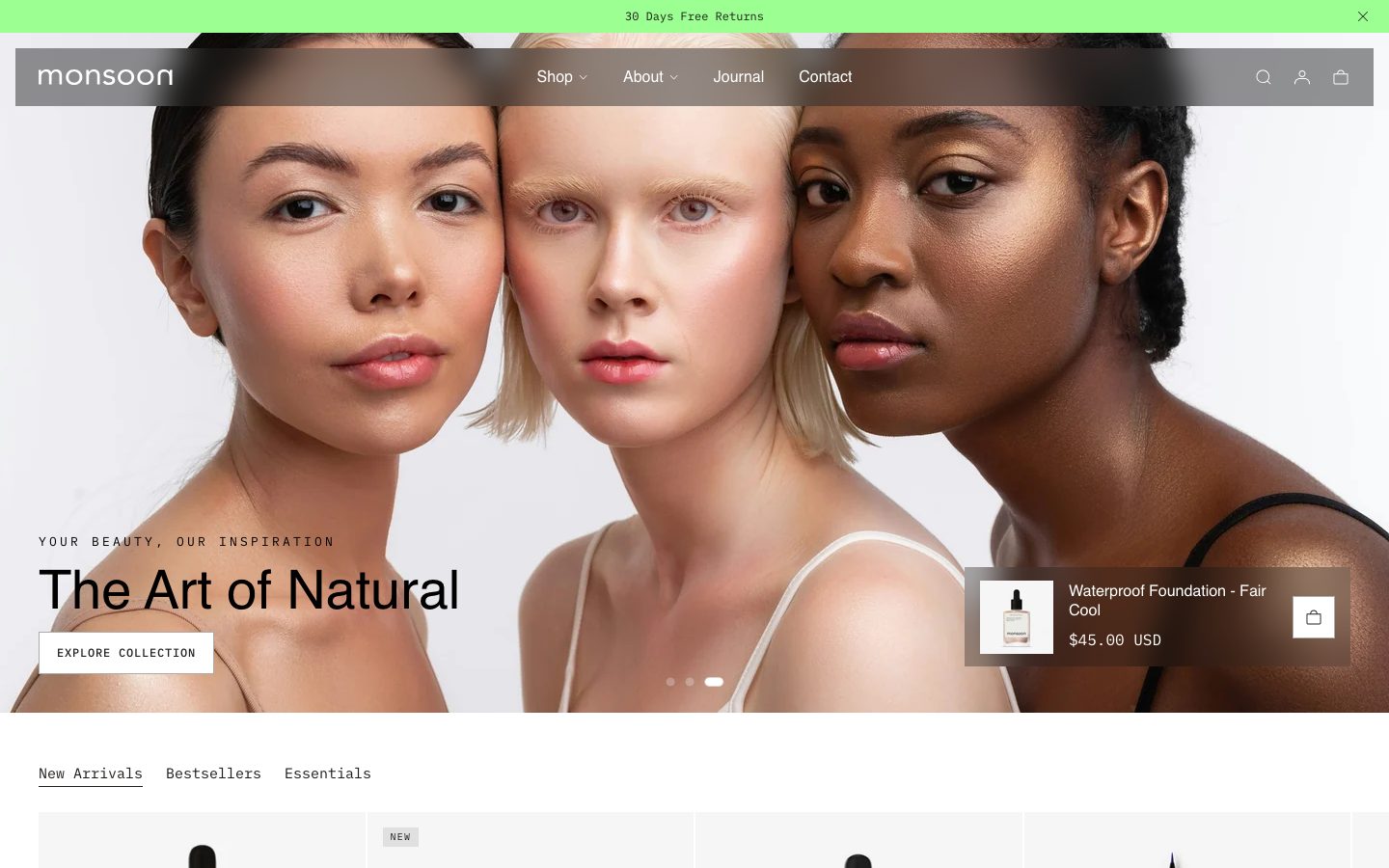

Every difference above is a theme setting. You can change it at any time in Theme settings, for example in Colors, Typography, Layout, Icon set and Product badges.
The presets only change theme settings. The pages and their sections, such as the home page layout, are the same in both presets.
Install the theme
You install Wise by uploading the theme file you received:
- In your Shopify admin, go to Online Store > Themes.
- Click Add theme and choose Upload zip file.
- Select the Wise
.zipfile and click Upload file. - Wait until the upload finishes. Wise appears in your Theme library, not yet published, so your live store does not change.
- Click Customize next to Wise to start setting it up in the theme editor.
Upload the .zip file as it is. Do not unzip it first, or Shopify will not accept it.
Choose or switch the preset
A freshly uploaded theme starts with the Wise preset. To switch to Monsoon:
- Open the theme editor with Customize.
- Click the gear (settings) icon in the left sidebar to open Theme settings.
- Open the theme style options and choose Monsoon.
- Click Save.
Switching the preset replaces your theme settings, such as colors and fonts, with the preset's values. Choose your preset before you start fine-tuning colors and fonts, or note down your changes first.
Publish when you are ready
Once you have set up your content, go back to Online Store > Themes, click the ... button next to Wise and choose Publish. Before that, you can share a preview with your team.