Featured blog post
What is the Featured blog post section?
The Featured blog post section puts one blog post in the spotlight: its featured image on one side and its title, excerpt and a Read more button on the other. Use it to promote your newest post automatically, or a specific post you choose, such as a lookbook or a buying guide.
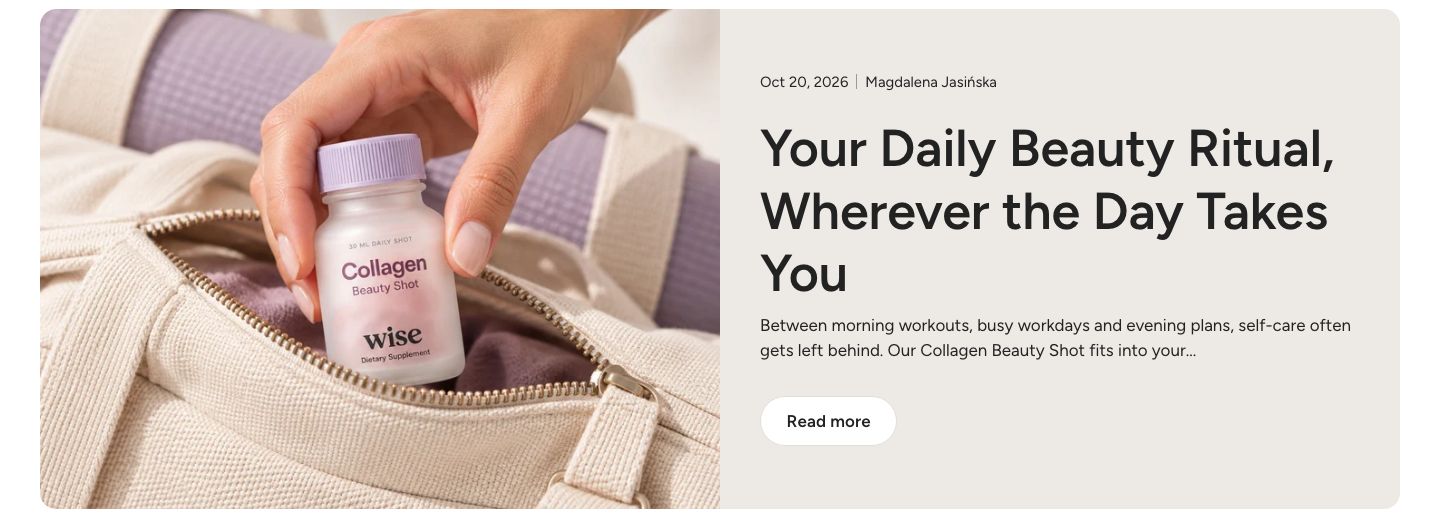
You will find it under Blog in the Add section menu. It starts with a heading and a post showing the title, excerpt and button.
Section structure
When you expand the section in the theme editor sidebar, you will see two fixed blocks:
- Header: An optional heading area above the post. It contains a Heading block by default.
- Featured post container: Chooses the post and holds the image and the text column. The parts of the text column are blocks inside it.
See How sections and blocks work for more about fixed blocks and theme blocks.
Section settings
- Make section full width: Enable this setting to make the section span the full width of the screen.
Colors
- Background color: Set the background color of the section.
- Background gradient: Set a background gradient. A gradient overrides the background color.
- Text color: Set the text color for the whole section.
Section spacing
- Distance top (desktop) and Distance bottom (desktop): Space above and below the section on desktop (0 to 100 px).
- Show custom mobile spacing: Enable this setting to use different spacing on mobile. When it is on, Distance top (mobile) and Distance bottom (mobile) appear.
Header block
- Text alignment (desktop) and Text alignment (mobile): Align the heading (options: Left, Center, Right).
- Text container max width: Limit the width of the heading area (0 to 1600 px). Set it to 0 to use the default maximum width.
- Text color: Override the section text color for the heading area.
Featured post container block
- Blog: The section shows the latest post from this blog.
- Article: Pick a specific post instead. When you pick one, it is shown instead of the latest post of the blog.
- Layout: Where the image goes (options: Image first, Text first, Image above text). On mobile, the image is shown first.
- Image width (desktop): How much of the row the image takes up (30 to 70%). Shown only for the side by side layouts.
The image is the post's featured image. Set it on the post in Online Store → Blog posts in your Shopify admin.
Until you choose a blog or a post, the section shows placeholder content. If you choose a blog that has no posts, the section is hidden.
Section height
- Height: Choose Adapt to media to follow the height of the image, or Fixed height to set the height yourself.
- Height (desktop) and Height (mobile): Set the fixed height (200 to 1000 px). Shown only when Fixed height is selected.
Desktop version
- Text vertical position: Place the text at the top, center or bottom of the column.
- Text alignment: Align the text left, center or right.
Mobile version
- Text vertical position and Text alignment: Position and align the text on mobile.
Optimization
- Optimize loading if this is the first section on the page: Load the image right away instead of when it scrolls into view. Turn it on when the section is near the top of the page.
Colors
- Text color: Override the text color of the post.
- Background color: A background color for the post area.
Content blocks
Click Add block under the Featured post container to add parts to the text column, and drag them to change their order. You can also add a Separator.
- Tags: The post's tags as small pills. Set Tags to show (1 to 3), the Tag text style (Body or Button) and the Tag background color, Tag text color and Tag border color.
- Details: Show date shows the date the post was published, Show author the author's name.
- Title: The post title, linked to the post. Heading scale (desktop) and Heading scale (mobile) make it smaller or larger (50 to 300%).
- Excerpt: A short summary from the post's excerpt, or from the start of its content when no excerpt is set. Excerpt length sets the maximum number of words (10 to 60).
- Button: A Read more button that links to the post. Button style sets its look (options: Primary, Secondary, Link).
These are the same card parts as in the Blog posts section.
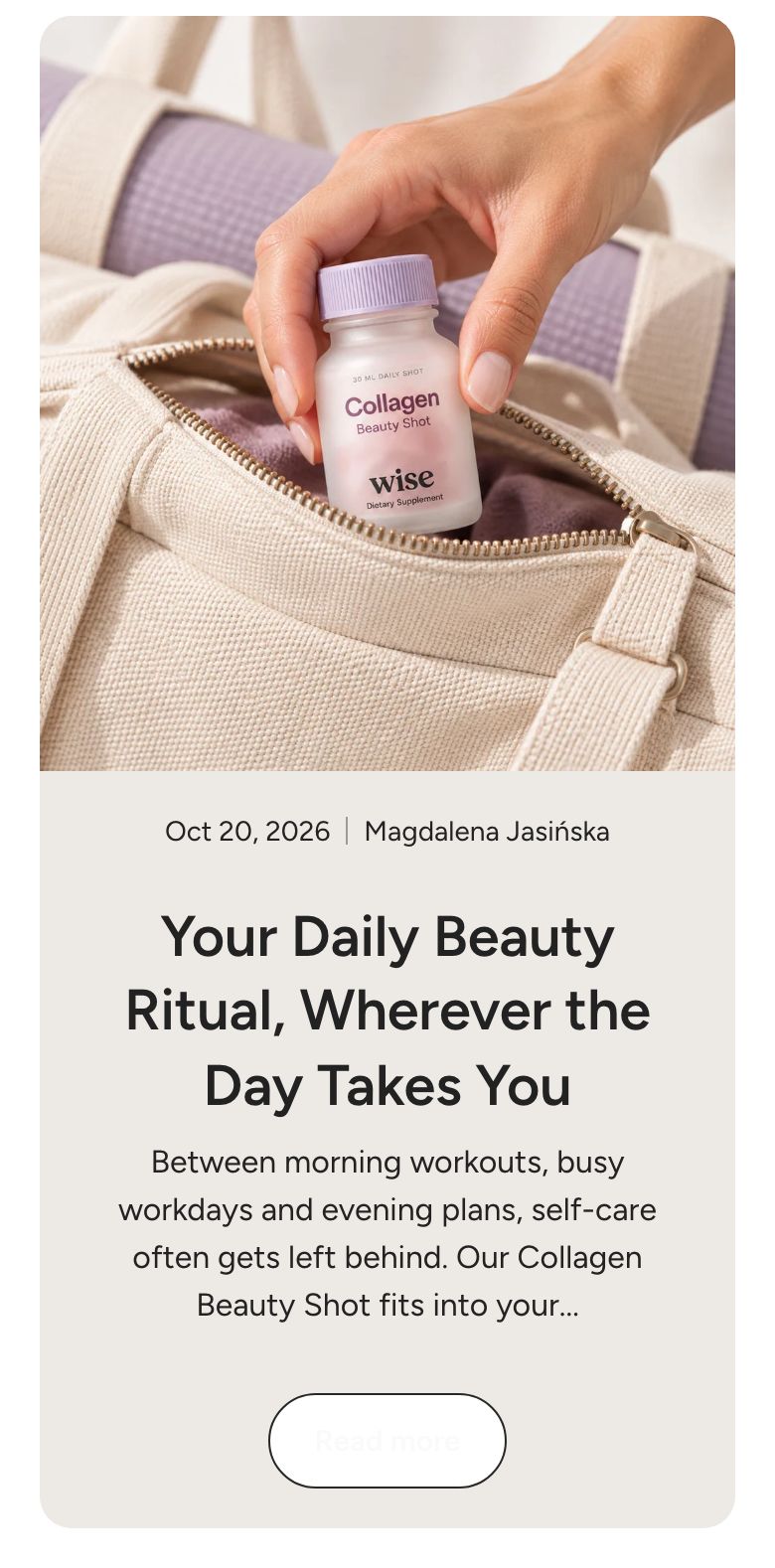
Mobile view example